
How to blur the background of a photo in Photoshop tutorial
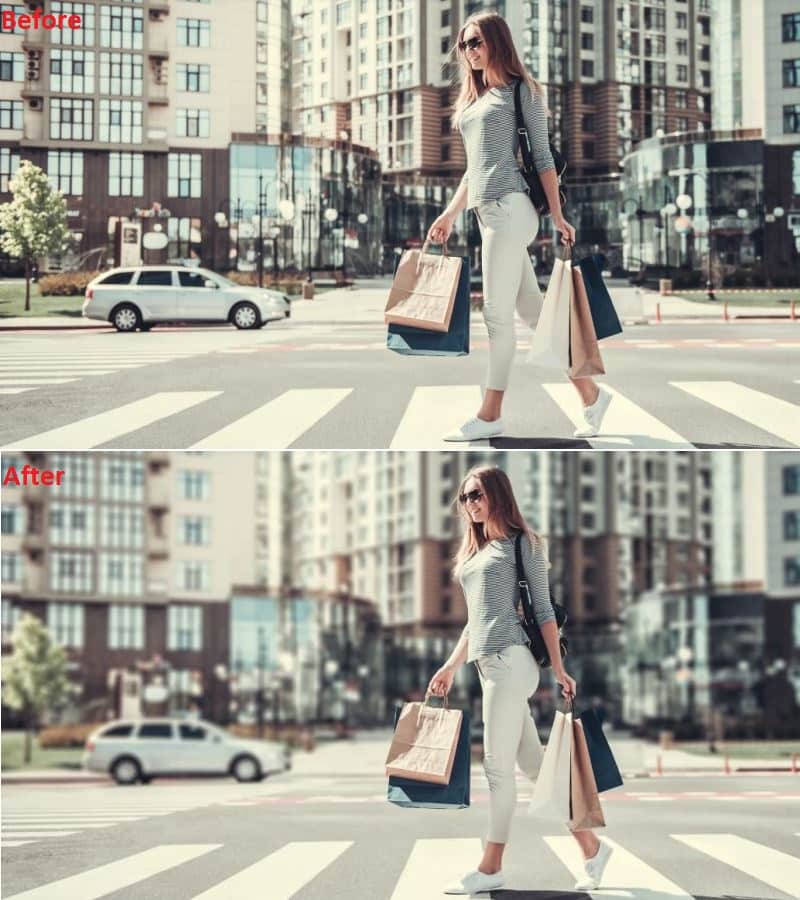
This Photoshop tutorial shows how to make a blended background blur, so you can show the whole body and have the background blurred in a realistic way without halos.
This is a very real and natural looking effect. While there are many tutorials on blurring the background of a photo, most of them either cut off the feet, or have a weird looking halo around the edges.

This Photoshop tutorial requires just a little bit of extra work to get a much better and more realistic looking result. maybe 30% more effort for a 300% better looking result.
I’m going to show you how to create a gradient background blur. It’s going to reduce the amount of visual clutter. It makes the photograph look more high-end and makes your subject stand out.
Step 1
We will begin with this photo that I grabbed from Adobe Stock.

Step 2
- The first thing we need to do is cut out our subject. Grab the Quick Select Tool.
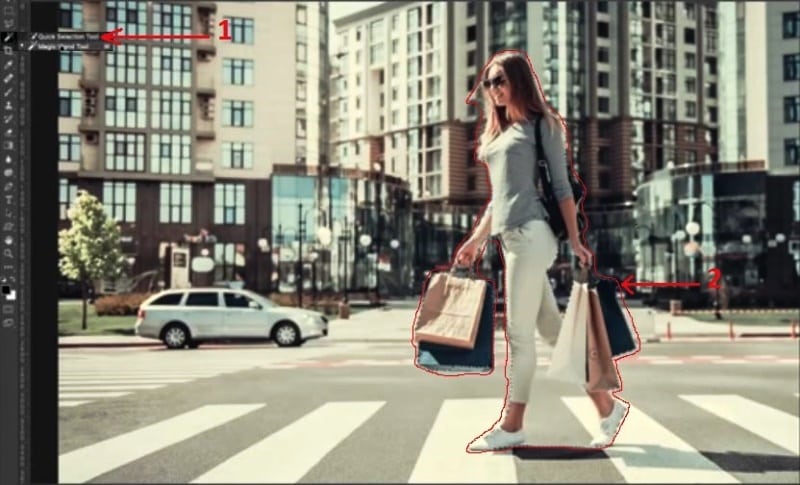
- Make a rough selection around our subject. It’s useful to overselect, then use the Alt or the Option key to go back in and just pick up those areas that we’ve just overselected and which may be somewhat tricky to get.
Step 3
- Choose Select>Mask.
- Grab the little tool that looks like a hairy brush.
- Go around the edge of the hair because you want to kind of select the edge of the hair and make it a little bit better. Pick up some of those flyaway hairs and some of the background there.
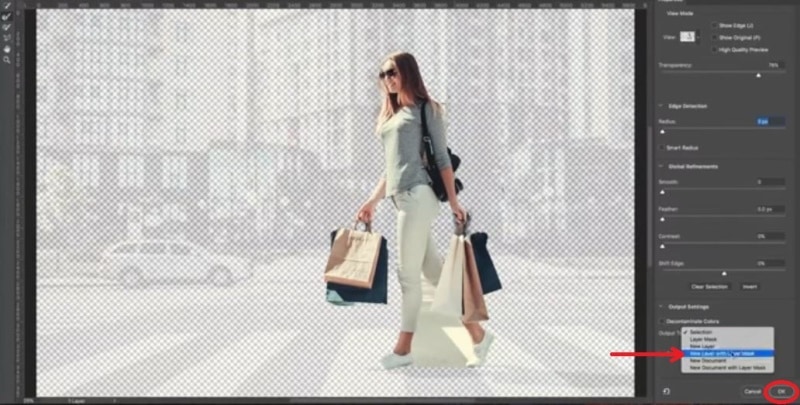
- You can use the transparency slider to check whether there are some areas that you’re perhaps missing and want to cover better.
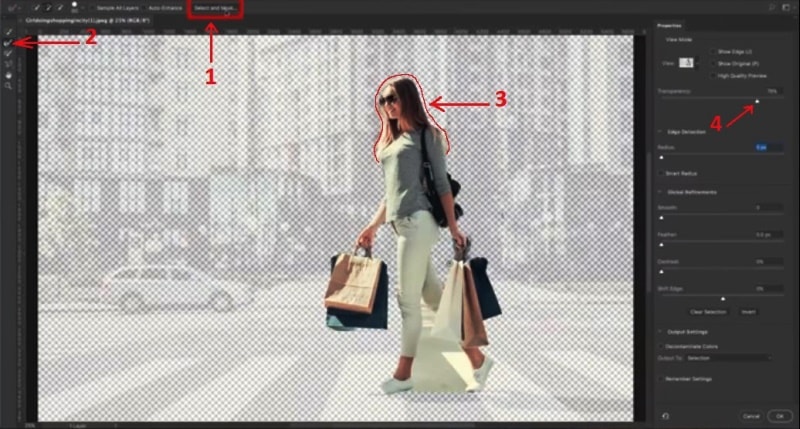
Click on Show Edge tool and Increase the radius until you just start to see the edge.
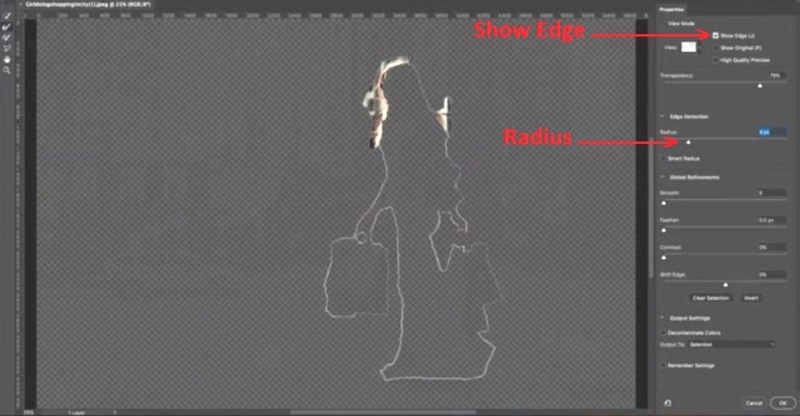
Turn off Show Edge and you can now see that the selection has improved.

Choose “New Layer with Layer Mask” option. Then click OK.
Step 4
- Hide our woman layer for now by clicking the little eye icon on the layers panel.

- Choose the background.
- Ctrl/Cmd Click on the hidden layer mask mask to load its selection even though you’re working on the background right now.
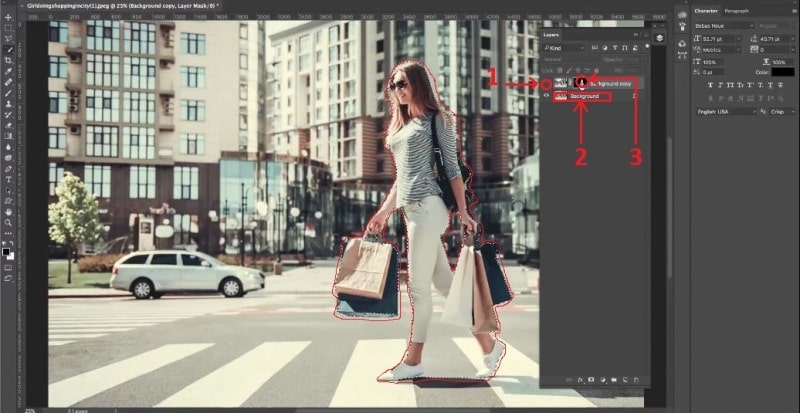
- We are going to expand the selection for a smoother result.
Step 5
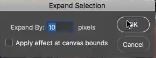
Choose Select>Modify>Expand
10 pixels should be fine.
Step 6
And now,we just want to fill the selection with content aware, so hit the Shift Delete / Shift Backspace (Windows).
Choose Content Aware. Click OK.
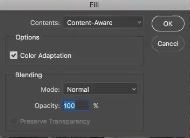
Hit Ctrl D to deselect.
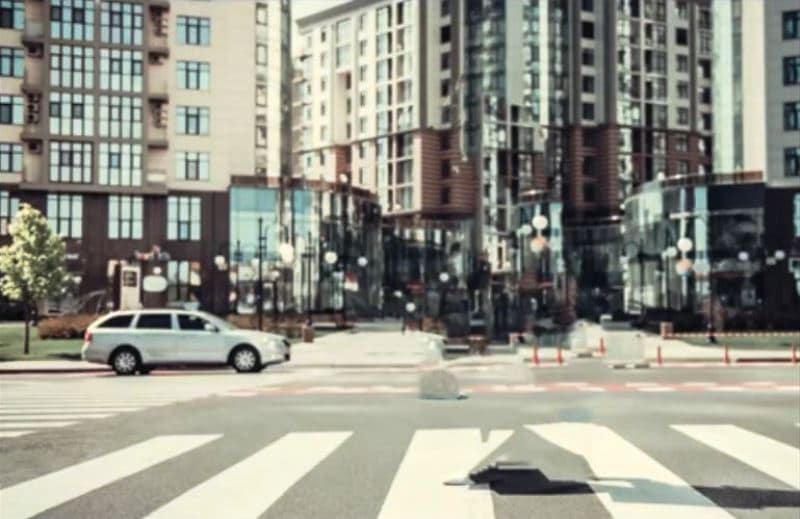
Now you will be able to see the photo without our subject. There may be little bits and remnants left here and there – and that’s perfectly fine. It doesn’t have to be pixel-perfect because you’re going to be blurring that anyway. And that’s exactly what our next step is about…
Step 7
Now we will blur the background and it’s not going to affect our woman because she’s on a separate layer. Also, we’re not going to get “halos” around the edges because we’ve used the Content Aware to heal those edges.

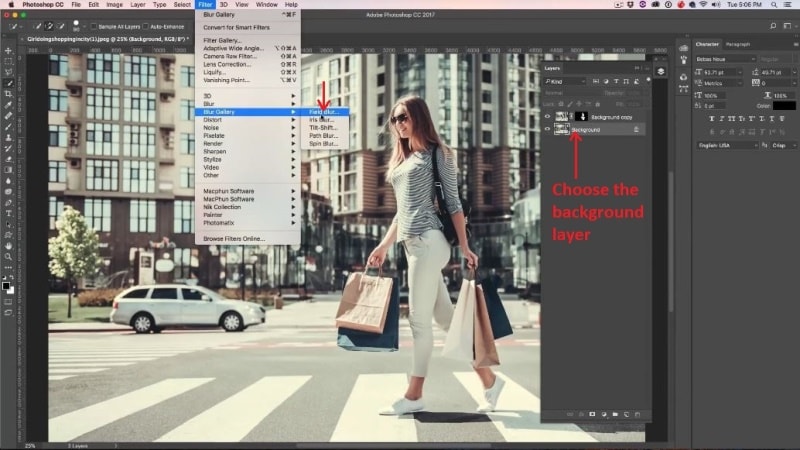
- Make the woman layer visible again so we can see the result as we work
- Make sure the background layer is still the selected layer. Then go to Filter>Filter Gallery>Field Blur. Field is for depth of field.
Step 8
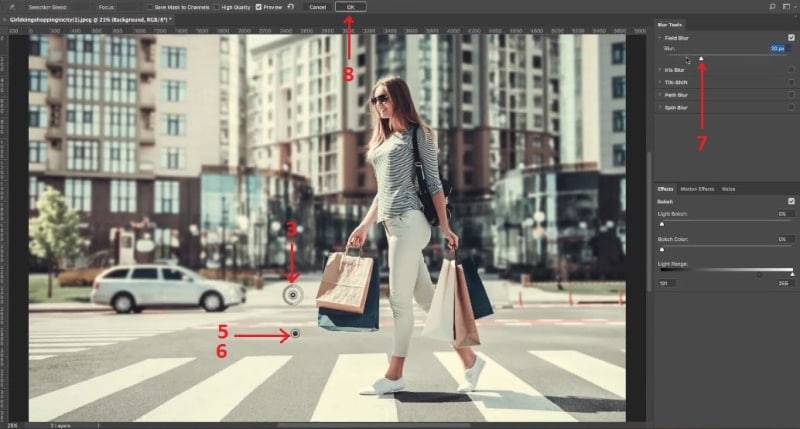
- You’ll see a pin represented by a small circle. By using your mouse pointer on this circle you can decide how much you really want to blur it.

- If we want to blur the entire image 1 pin is fine, however the area at the foreground around her feet would look weird. It just wouldn’t blend nicely into the rest of the photo. For this reason you need to create a second point.
- Create a second point by clicking. Set the blur. In this case you want to set that to zero. Hit the Ctrl key or Command key
- Hold Cmd/Ctrl+ double-click, and that takes that to zero.

Photoshop blurs between those two points.
- And then, you can adjust the amount of blur, select the first pin and drag on the circle or use the slider. If you want nothing, take it all the way down. If you want completely foggy background, put it to maximum.

8. When you find that perfect blur just click OK to apply
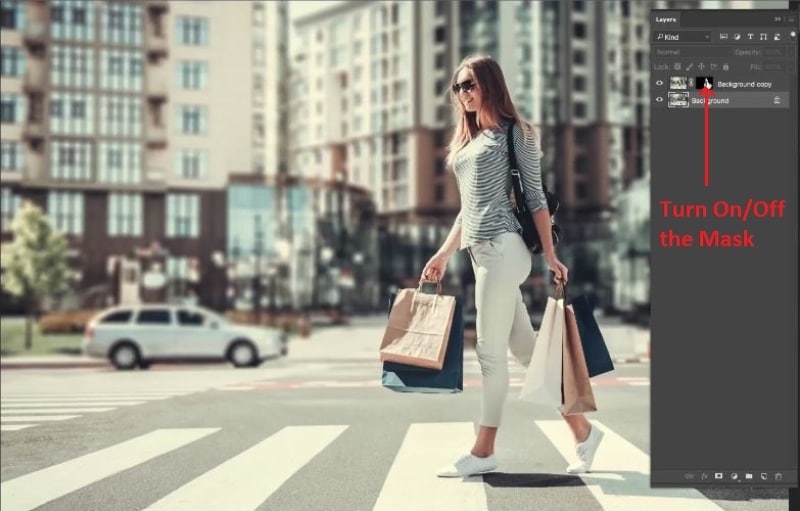
And here’s our nice work completely done:
Shift+click the layer mask to see the before/after of the effect you have just created.
I hope you enjoyed this tutorial.
Subscribe to our newsletter and you won’t miss a single tutorial.
Add a comment. What’s your favorite techniques that you love to do? Also, what would you like to learn? Let me know in the comments below.
Thanks for checking this out!
Colin

Keep growing with Premium Courses
Photoshop 2026 for Digital Photographers
Learn Photoshop properly, from the basics to pro retouching, step by step.
$129.00 · one-time purchase · instant download

Free for you
The Photoshop Vault
Get my free Layer Blending Modes ebook along with dozens of exclusive Photoshop goodies: actions, brushes, presets and cheat sheets.
You're on the list, so your free goodies are waiting for you in the Vault.
Get Free Photoshop Goodies Open the Vault
How to create Bokeh background blur to a photo in photoshop
Learn how to make a photo realistic Bokeh lens effect with photoshop. Create depth of field with a blurred background which adds... Read tutorial
How to make water reflections with realistic ripples in Photoshop
How to create realistic looking water reflections in Photoshop. This free Photoshop tutorial shows a quick way to add a water reflection... Read tutorial
How to make a vintage Toy camera effect in Photoshop Tutorial
In this Photoshop Tutorial, I'm going to show you how to make a lomography toy camera effect in Photoshop. We are going... Read tutorial
Dreamy, magical glow to add romance to your photo in Photoshop tutorial
How to add a dreamy magical glow effect to add romance and glamor to any photograph. This Photoshop tutorial shows how to... Read tutorial
Creating dynamic motion blurs on backgrounds in Photoshop tutorial
How to create a motion blur on a background to make a photo look like its moving. We will learn how to... Read tutorial











Good tutorial.
Possible future subject: What’s the difference between the Opacity and the Fill sliders on the layers panel and how does each work.
PhotoshopCafe is the best thing that I have discovered while learning Photoshop in school!
What I “don’t get” in my classroom no longer frustrates me because I simply go to “the Cafe”
and follow along in your tutorials. By the way, I find your tutorials so very easy to understand
and follow. Thank you, a million times over Colin, for coming up with this brilliant idea. You have
a wonderful way of teaching and I so appreciate your “amazing gift” to those of us learning how
to be super Photoshop artists.
That’s great Colin. Thank you.
I am using CS6 PS and do not get the center rotating pin to appear. I only see a tack pin and a “+”??? How can I view the center pin, and also the parallel lines on the Field Blur, etc…
Please advise.
Thannk you
As always, Colin, a smashing job! Thank you for this innovative technique!!
Best tutorials on the planet!
Great stuff Colin! This is a really good tutorial – never seen it done like this before!
This is my first time in photoshop, and I got my perfect photo.
Thankyou!
BRILLIANT
Great technique Colin. loving some of the new tool in PS CC
Excellent tutorial! Thank you for taking the time to do it. Just what I needed.
Thank you a lot and GOD bless you I have finally got what I have been needed most recently through this tutorial, which which was seem to be complicated been understood by me from others who also had the tutorial base on the same issue .
Your work good ,I appreciate it.
Hello, for some reason, on my screen I don’t see any of those brush tools at all (the hairy brush etc) on Step 3.2 after clicking “Select and Mask”. What is the name of that tools menu so I can manually add it to my view ?