
Photoshop on iPhone
Using Photoshop on iPhone Tutorial
Photoshop has been released on the iPhone. Its not the full featured Photoshop, but it is a great tool for making composites and combining different photos together.
Watch the video to see the full tutorial as we build a composite that exposes many of the features.
Download for free from the App Store. Some of the features are only available to paid subscribers, but many are also free.
You will see the Home Screen. You start with your photos on your phone or from Lightroom, An empty document, generate an image with Firefly ai or Use images from the free collection on Adobe Stock.
In shows you CC synced images as well as files.

In this case, we started from a blank canvas.
Hit the + button
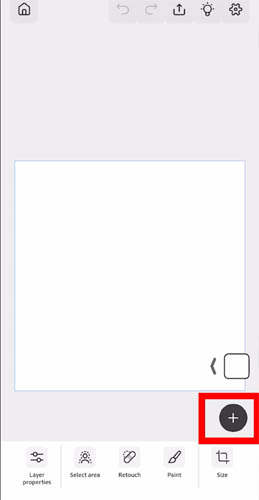
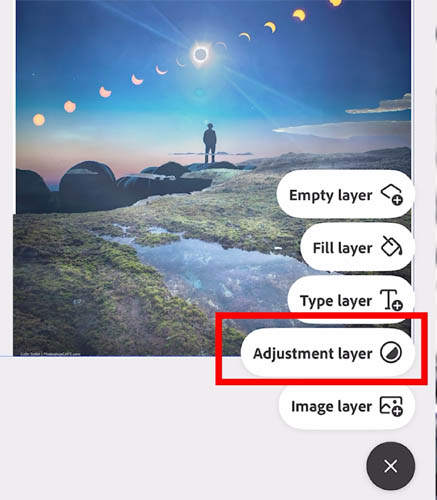
You can add layers hereof different types.
Lets choose an image layer
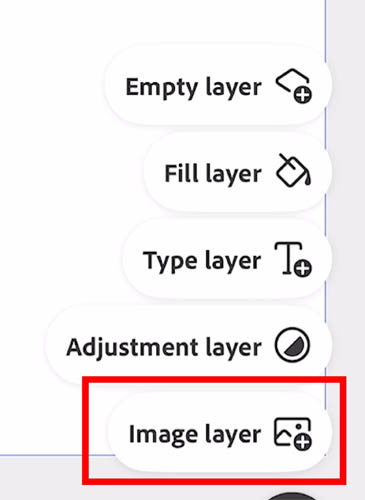
You will see all the different sources to grab images from.
Lets do Lightroom
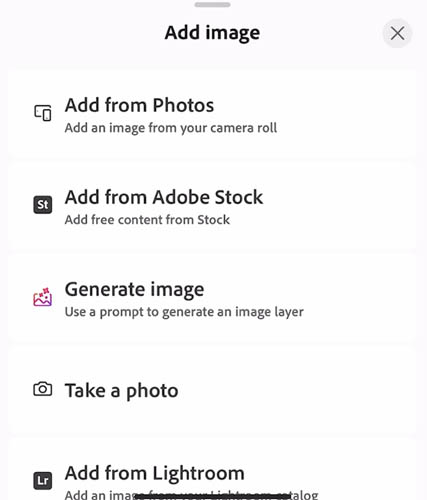
You don’t have to even have Lightroom installed on your phone. As long as you are sharing mages in the cloud from Lightroom you can access them within Photoshop phone.
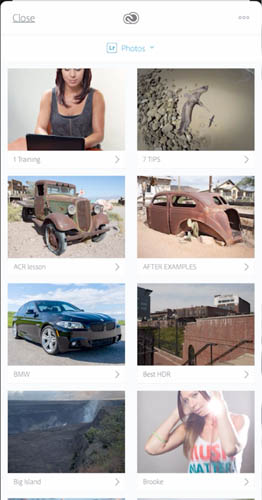
Choose an image and click open. Here is one I shot in Laguna Beach.
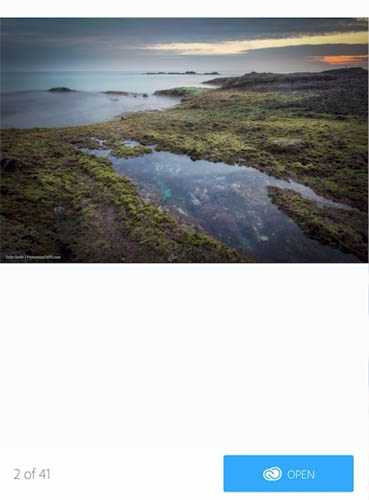
You can transform or move the image with your finger.
Let’s cut to out, choose mask.

There are a bunch of different selection tools. Tap to select uses ai to cut out the image from its background.
Here we are using the ai to select the ground
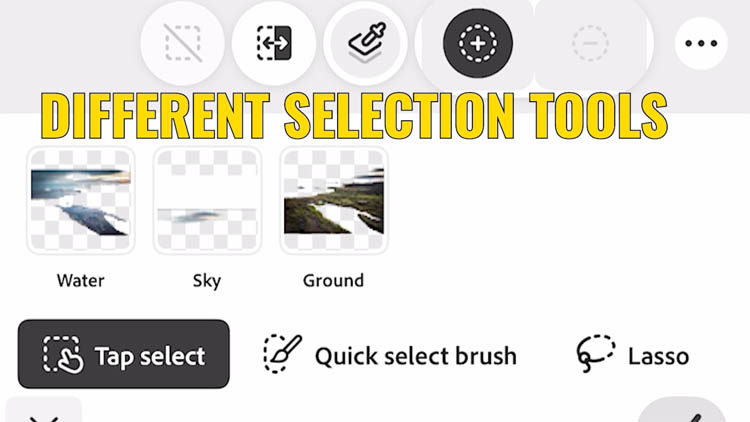
You can see the cutout here.

Lets add another image
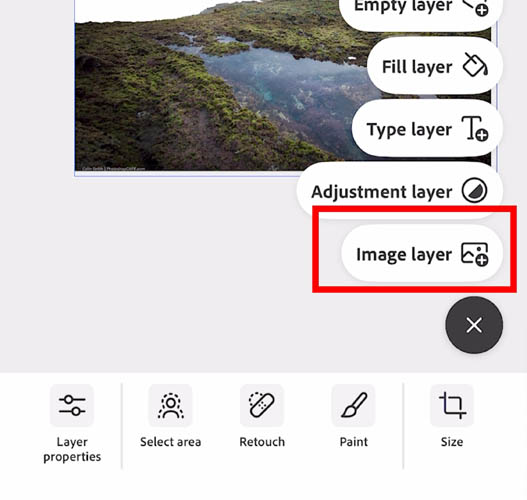
Here is an image I made at Casper WY.
It comes in as a new layer
Go into layers
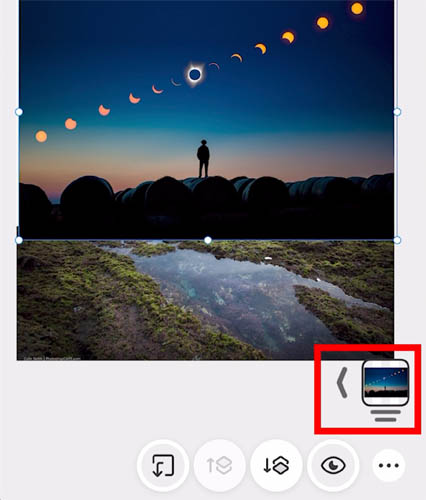
Here you can arrange the layers

The new image is now behind the ground image.

Here is another image on top. Notice you can change the blending mode as well as the opacity.

You can also use adjustment layers.
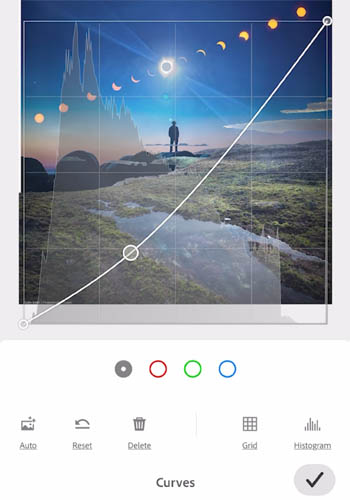
Here we are applying a curves adjustment. You can see it all in action on the video at the top.
And the final image on the phone.

Here is the final image output as a jpg

I hope you found this useful
Great to see you here at the CAFE
Colin

Keep growing with Premium Courses
Photoshop 2026 for Digital Photographers
Learn Photoshop properly, from the basics to pro retouching, step by step.
$129.00 · one-time purchase · instant download

Free for you
The Photoshop Vault
Get my free Layer Blending Modes ebook along with dozens of exclusive Photoshop goodies: actions, brushes, presets and cheat sheets.
You're on the list, so your free goodies are waiting for you in the Vault.
Get Free Photoshop Goodies Open the Vault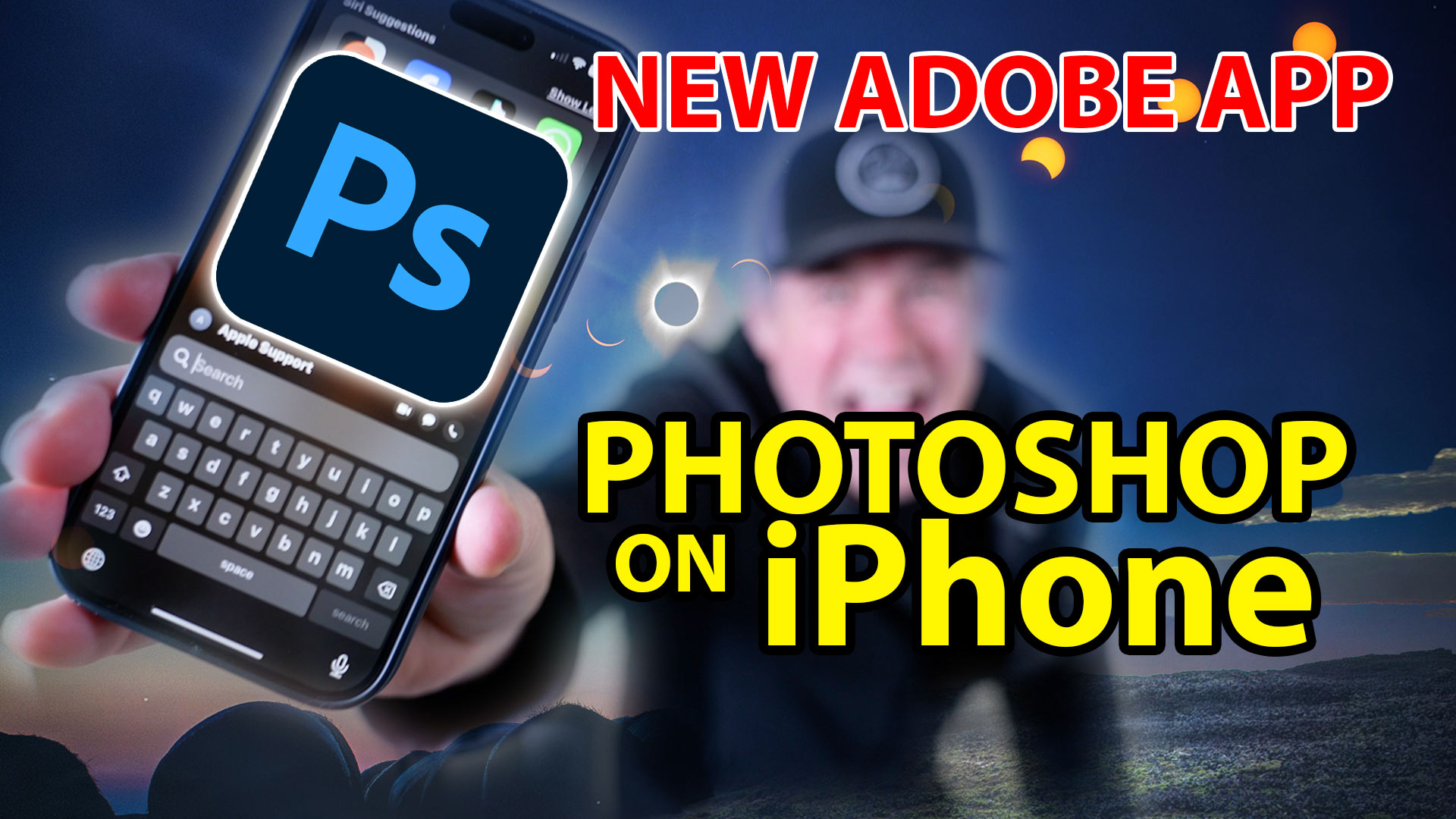

Photoshop and Lightroom integration
Watch this video to discover how to best work between Photoshop and Lightroom. Find out how to keep your Lightroom adjustments fully... Read tutorial
An Intro to Actions and Photoshop Automation Photoshop Tutorial
A couple of years ago, some Action enthusiast friends of mine expressed their concern that I was pursuing a vapor, a ghost,... Read tutorial
Generating Actions of your own Photoshop Tutorial
How to make your own Photoshop actions. Generating Actions of your Own, Photoshop Tutorial. I'm going to walk through the process I... Read tutorial
Getting started with Layer styles, Photoshop Tutorial
Maybe you are unfamiliar with Layer Styles as yet, and so I'll cover them briefly. Layer Styles are simply groups of commands... Read tutorial
Metal and Glass Layer style basics in Photoshop
Nearly anyone can create a bevel on type, but not many realize that from this foundation we can create glass, plastic, metal,... Read tutorial











Colin, this is SO excellent!! I’ve been hoping for this app for the iPhone and your tutorial, like all your others, is easy to understand and complete. Thank you so much. I look forward to all of your tutorials when there are new features.
You are appreciated!