
How to Place text behind an object in Photoshop
In this Photoshop tutorial, I show you how to run text behind a portion of a photo. This is what you often see in magazine covers where the title or masthead goes behind a person’s head. It’s a neat effect and may look difficult to a beginner. This Photoshop effect is really easy to do, and I’ll show you how right now!
Thanks for watching! Don’t forget to check out our other videos and hit the subscribe button, we are adding new tutorials every week!
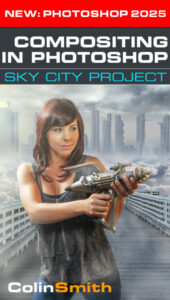
Recommended for this tutorial
Photoshop Compositing: Sky City Project. Photoshop 2026
Build a complete composite from start to finish and learn the techniques behind it.
$39.99 · one-time purchase · instant download

Free for you
The Photoshop Vault
Get my free Layer Blending Modes ebook along with dozens of exclusive Photoshop goodies: actions, brushes, presets and cheat sheets.
You're on the list, so your free goodies are waiting for you in the Vault.
Get Free Photoshop Goodies Open the Vault

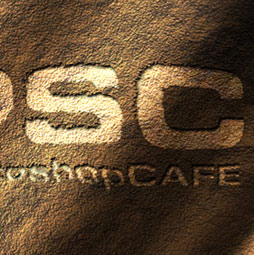
Plastic Engraved type in Photoshop Photoshop Tutorial
How to embed type in photoshop. Heres a tutorial that will how you how to carve your mark. This is so simple... Read tutorial
Chrome text in Photoshop Tutorial
The essential chrome effect, don't leave home without it. This works on any object, not just text. Learn how to create chrome... Read tutorial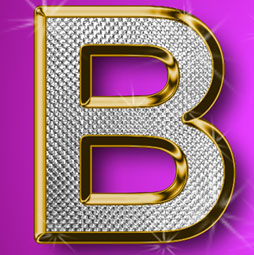
Original Gangsta bling diamonds Photoshop Tutorial
This is the original Tutorial on this rap diamond effect, there have been many rips of it in other places. (imitation is... Read tutorial
Transparent Glass Text Photoshop Tutorial
Learn how to create a transparent glass effect to text in Photoshop tutorial. Read tutorial
Reflections in Photoshop Tutorial, graphics and text
Here we will learn how to get realistic mirror reflections in photoshop. This will work for any object, not just for text.... Read tutorial









Very cool, thanks!
This is one of those, “Aha!” tutorials! LOL I never thought of clipping a shadow, but, why not?
Thank you!
Su
Yeah, sometimes its the small things
Amazing resource for anyone who wants to get better at designing. I agree about following tutorials as you learn the techniques and can apply to other projects.
Awesome and creative tutorial . The tutorial is also helpful for all . Love this tutorial . I’m also finding such tutorial about how to place text behind an object in Photoshop . So many man y thanks for sharing this post with us .
Hey, Colin,
I am going in for a competition. It requires the use of everyday objects, shapes etc to make an Avant garde outifit on a model. I’d love to see a tutorial to see how to do this seamlessly.
Really creative Text effect designing in Photoshop. Thanks for your tutorial.
I remember when you first showed us this tutorial a couple years back. We were all amazed on how much of the smallest details we missed out on while making this effect happen. 👍
Very clever! Thanks, as always