New Remove tool option and Use Auto Selection with remove tool
New Remove Tool options in Photoshop
Adobe has added an important new setting to the Remove tool. This allows use to choose if we want to use Ai. This is important for a couple of reason we will get into. Also, autos elections, usually don’t wreck well with generative ai and the remove tool, but I have a trick for you. Lets go!
Generative ai mode
If you have used Photoshop beta, you might have noticed this new mode option for the Remove tool.
You will see a mode and the option to use Generative ai, or never, or Auto. The remove tool works better with Generative ai, as you will see in this tut. But I can think of 3 reasons why you might prefer not to use it.
1/ You are running low on Generative Credits. You are allocated a number of credits each month and ranges from 200 to 1000 depending on your subscription package. See info on these at the Adobe Website, This doesn’t mean you will be charged automatically if you run out. You may experience a slowdown. If you want to bypass the slowdown, you can purchase more credits. I’ll do a whole piece on Gen credits, if people want me to.
2/ Second reason to turn off Generative ai, maybe you don’t want your work to be flagged as ai when you upload it to Social Media.
3/ Third reason is resolution, if you are working on a large area, it may appear soft because of the limited resolution of Generative Fill.
So, you can use the drop down to change these options. Personally, I leave it at auto. This way I get the best possible result from the remove tool.

Ok, let’s jump into the tutorial.
Let’s remove these boats just as a working example.

With the remove tool, paint a selection over the boats

Use, always, just so we know it’s using Fen ai on this step.
As you would expect, pretty close to perfect.

If we change it to Never, you can see the result without Generative ai is unusable. (Yes, we know you can use other tools such as content aware fill, clone stamp., patch tool, even an ant with the erase tool attached to its foot. OK, maybe not an ant, the point being, this is a tut about the remove tool, not how best to remove the boats.). If you cane the option to never, make sure you are using the remove tool on easier subjects, or in smaller increments, and don’t use a selection in those cases.

How to use auto selections with Generative ai
By default there are some excellent selection tools in Photoshop, but they don’t work well off the bat. Usually because the selection it too tight.
We can just paint over the boats, like we didi earlier in this tutorial, but there are times when you need to be really careful.
Here we are using the Object finder with the Object selection tool to make a selection.

Paint over the selection with the remove tool

When we apply the Remove, it looks weird because the selection was too tight around the boats.

We have 2 options.
This first, is what we usually do. Before using the Remove tool, choose Select>MOdify>Expand and expand the selection by 25 pixels.

This gives us this result, which will work much better.

Option #2, the easy way
Lets look at another alternative option.
We made a new layer to apply the remove tool on (you can see it in the video). If I hide the layer underneath, you can see that the remove tool (generative ai actually) creates a border around the generated pixel and also applies a feature to blend it in.
If you Ctrl/Cmd+Click on that layer you can load the selection

Make a new layer and then apply the Remove tool to this new selection and you will great results. Not only do you have an edge expansion, but it’s also featured, so it will work better than the Select>Modify>Expand option.
And you can see we get a great result.

I hope you found this tutorial useful
Thanks
Colin

Recommended for this tutorial
Complete Guide to ai in Photoshop 2026
Generative Fill, Firefly, Harmonize and every AI tool in Photoshop, step by step.
$79.00 · one-time purchase · instant download

Free for you
The Photoshop Vault
Get my free Layer Blending Modes ebook along with dozens of exclusive Photoshop goodies: actions, brushes, presets and cheat sheets.
You're on the list, so your free goodies are waiting for you in the Vault.
Get Free Photoshop Goodies Open the Vault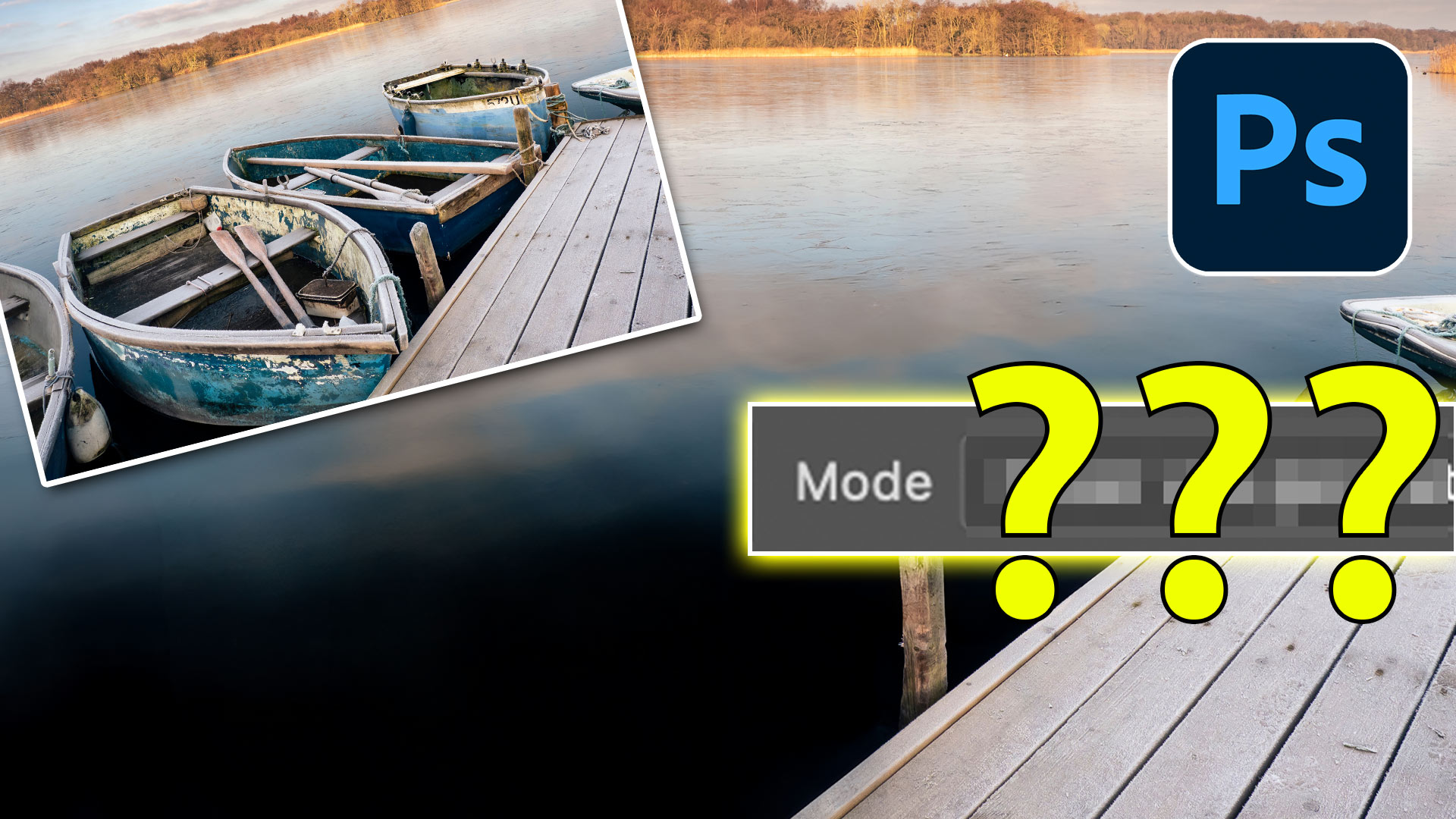
Photoshop Remove Tool, Remove Related Elements like Shadows and Reflections
Learn how to remove objects, shadows and reflections in Photoshop using Related Elements, improve results with Enhance and avoid wasting generative credits. Read tutorial
New AI Remove tool in Photoshop, How to remove anything from a picture really easy
How to install and use the new Remove Tool in Photoshop to remove anything from an image using ai technology Read tutorial
Generative Fill vs Remove tool ai in Photoshop, when to use each tool
New ai Remove tool vs Generative Fill in Photoshop, which should you use? Read tutorial
How to get much better results from Generative Fill and remove tool in Photoshop
Why Photoshop Generative Fill doesn't always remove objects and how to fix it. BIG Photoshop generative fill + Remove Tool tips Read tutorial
Generative remove ai in Photoshop, remove anything from a photograph
New tool in Photoshop removes anything in a photo instantly, new remove option in Generative Fill. Generative remove Read tutorial