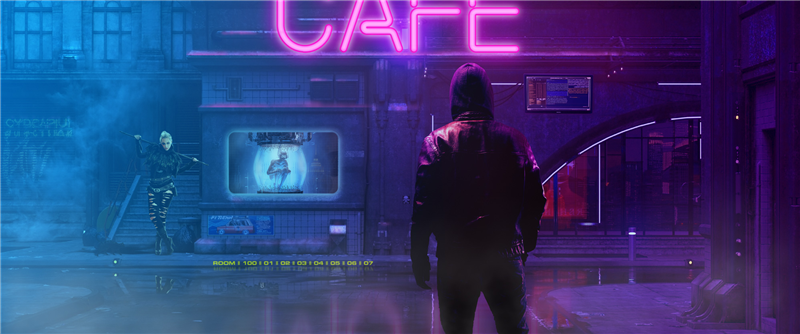
Generative ai now Matches your photo or sketch, Structure Reference in Adobe Firefly
How to use Structure Reference in Adobe Firefly
A new Edition has been added to Adobe Firefly. This is called Structure Reference. It allows you to upload a photo or a sketch to help guide the image generation. It works very well and helps us greatly in getting the ai to generate what we actually want.
Start by going to the Adobe Firefly website. You have to have a valid Creative Cloud or Adobe Stock account to use firefly.
Chose generate under Text to image

This will take you to the gallery page. You will see a box at the bottom that says prompt.
I’ll type in something very generic. “Woman taking selfies with phone”
You can see 4 images are generated.You will notice with Firefly Model 2, the people look a lot more realistic than before. (Click on the top right to download any of them).

Suppose we have a specific pose in mind?
On the left you will see Structure. A new option is the ability to upload a reference image. Click upload image.

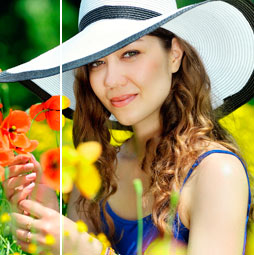
Lets choose this image from Adobe stock.

You will see the reference image in the prompt box.
Choose Generate

Notice now it generates images closer to the reference image.
There is a strength slider which is at the middle.

If we increate the strength, the reference image has more weight.
Noice the clothing and pose are the same, they are even holding a flower. There are different people and the colors are different. The structure copies the layout and composition.

First add “isolated background” to the prompt (to generate with a simple colored background).
Then reduce the strength to the minimum and choose generate
Notice the images are still similar to the reference, but not as close. The clothing and hair is different, the poses are slightly different and they aren’t holding flowers.
We also get the isolated background.

Concept are using a sketch
Here I typed in a prompt for a spaceship concept

Under structure, there is an option to browse gallery

There is a small gallery of reference images supplied by Adobe that you can use. (Hopefully they will add more)
Choose the Line Drawing of the Cardinal

Generate and now the spaceships look like birds. Very cool

Using a sketch as a reference for a photo real render
Now we know we ca use a drawing, let’s build on this.
I generated some castles with a prompt

Load in a Structure reference
Here is sketch I made of a fictitious castle.

And look at that the generated images a photo realistic versions of my sketch.

See how the parts match

Even the same number and shape of walls and battlements.

Creating a fantasy robot.
Let’s try another one. Here is a pen and ink Robot I sketched. I’ve been learning to sketch robots from a book called How to Draw Robots or something like that, I forget the exact name right now.

When generating the robots in the art setting, it makes drawings of my robot.

Change to Photo under Content type and modify the prompt a little and we get a very cool looking robot.

That’s basically the new feature in Firefly. I think this is going to be very useful to make backgrounds and props for composites as well as helping with concept art.
I hope you found this tutorial useful.
Check out the 700 other free tutorials here at the CAFE
Colin

Recommended for this tutorial
Complete Guide to ai in Photoshop 2026
Generative Fill, Firefly, Harmonize and every AI tool in Photoshop, step by step.
$79.00 · one-time purchase · instant download
Free for you
The Photoshop Vault
Get my free Layer Blending Modes ebook along with dozens of exclusive Photoshop goodies: actions, brushes, presets and cheat sheets.
You're on the list, so your free goodies are waiting for you in the Vault.
Get Free Photoshop Goodies Open the Vault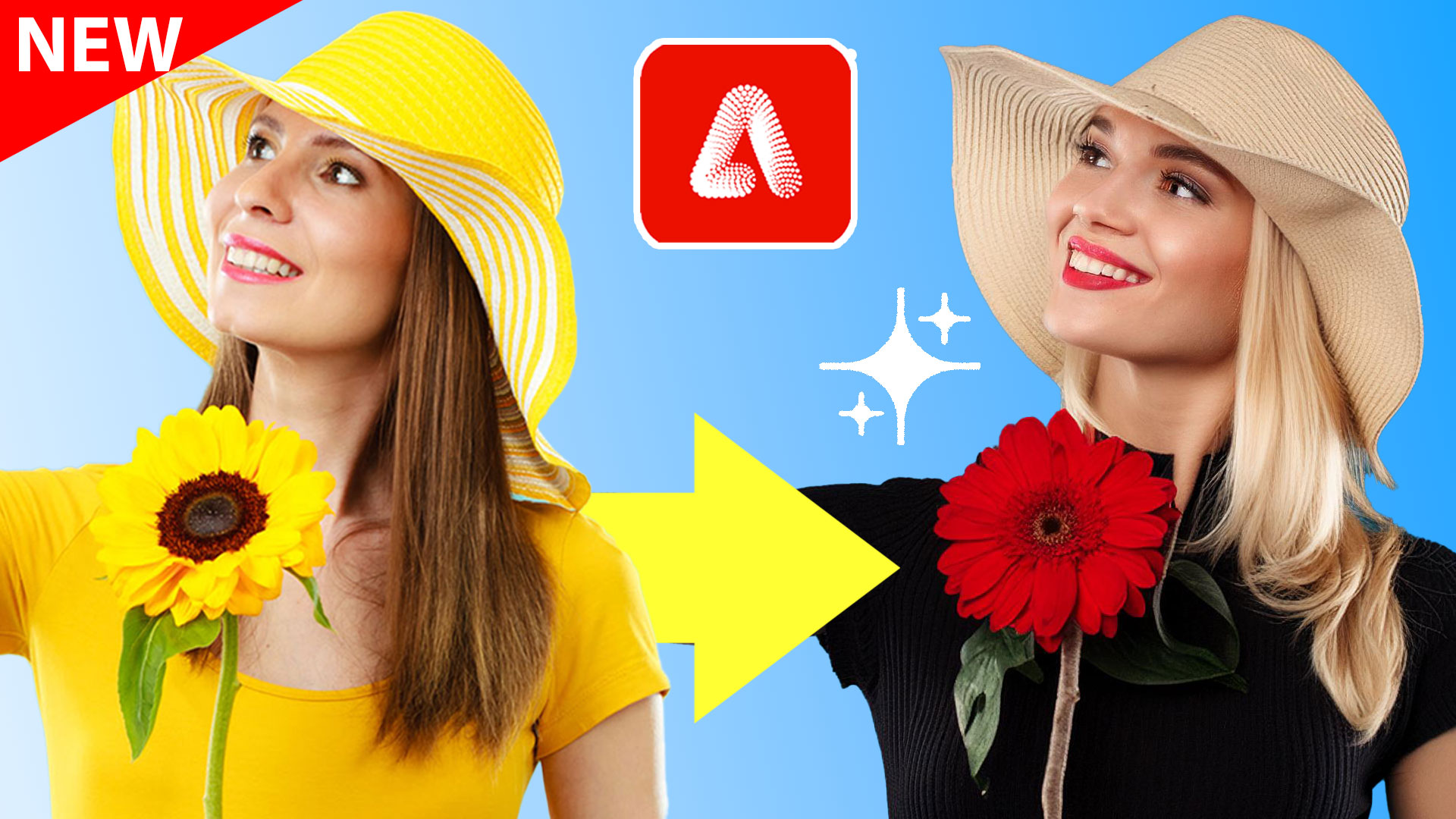
Revealing hidden features in Photoshop Generative Fill to convert photos to art and more
Hidden way to convert your photos into different art styles using Generative ai inside Photoshop. Access Firefly settings inside Photoshop Read tutorial
Nano Banana in Adobe Firefly, Google new ai, Gemini 2.5 Flash
nano banana, Gemini 2.5 Flash image vs Adobe Photoshop Read tutorial
Big ambitious NEW features in Photoshop 2025 July 29 update
How to use the NEW features in Photoshop 2025 July 29 update, free written tutorial and short video tutorial by Colin Read tutorial
How to choose the best Generative ai Model in Photoshop
How to choose the best Generative ai model in Photoshop. Firefly, Flux and Nano banana, which is best? The answer is simple,... Read tutorial
Adobe made an ai art Generator, Adobe Firefly ai
Generate art using only text. Firefly is Adobe's art generator. How to use it, how to get it and is it any... Read tutorial








Never used Fire Fly. You jumped into the middle of that app. Could not follow you. Start from installing Fire Fly. Does it cost anything?
Its web based, nothing to install, so that is the beginning 🙂
Thank You Colin! Wishing you a blessed Easter
very useful – thanks