
How to stack & Layer Lightroom Presets & Camera Raw Presets
How to stack presets in Lightroom and Camera RAW
There is something really important to understand about creating presets that changes their behavior. If you watch the short video, I demonstrate exactly how this works. Some presets cause everything to reset, other presets only change some sliders and can be stacked on top of each other. Sometimes when you apply a preset it seems to replace everything, and other times it seems that parts of a previous preset seem to “stick”. Why is this?
This tutorial will work for Lightroom as well as Adobe Camera RAW. They both use the same preset system, when you install presets in Lightroom or Camera Raw, they will appear in both applications. A restart is required.
For example, here is an image, where I have turned up the color temperature to demonstrate how this works. I want to add a light leak, I roll over the first preset, the colors haven’t changed.
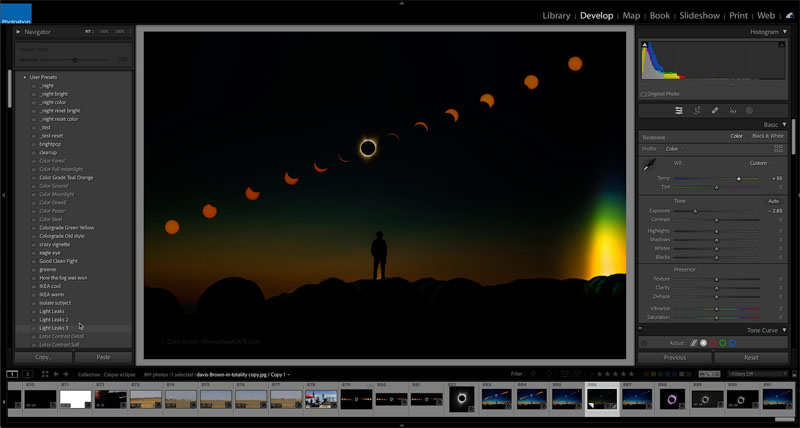
I roll over a second light leak preset and the colors still haven’t shifted.
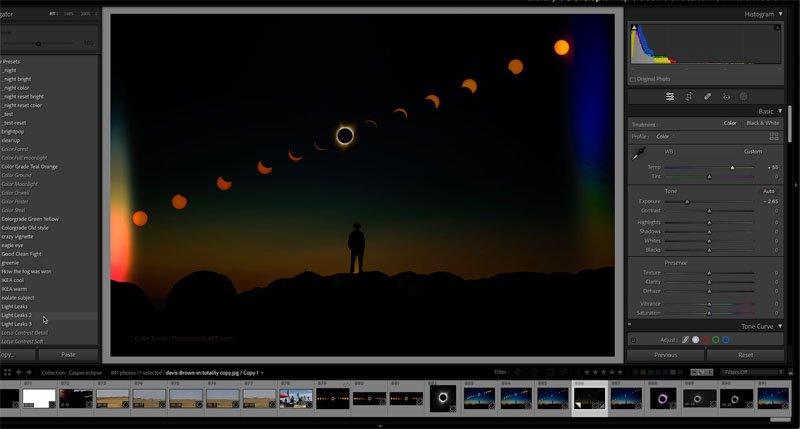
I roll over a third light leak preset and now the colors are shifting. Why is this? What’s different about this preset?
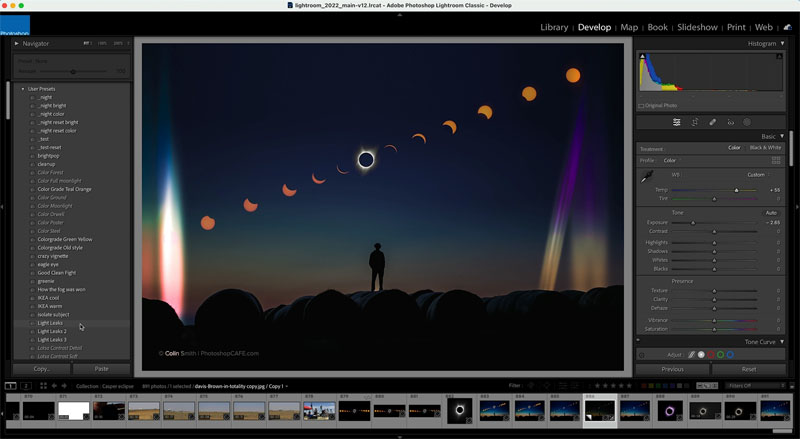
When you create a preset, do you ever wonder if you should check the boxes of the adjustments you aren’t using? (In the develop module, click the + button at the top of presets and choose New Develop Preset.)
When you check all the boxes it makes what I call a “reset preset”. What this means is when you apply this preset, everything that is checked will be changed to the settings on the preset. What if you haven’t moved a slider? Zero is a setting too! So if you haven’t moved the slider and you apply this preset it will move all the sliders to zero that haven’t been changed.
Use this option if you want to apply an absolute preset and have the entire image reset. This means any previous adjustments will be lost.
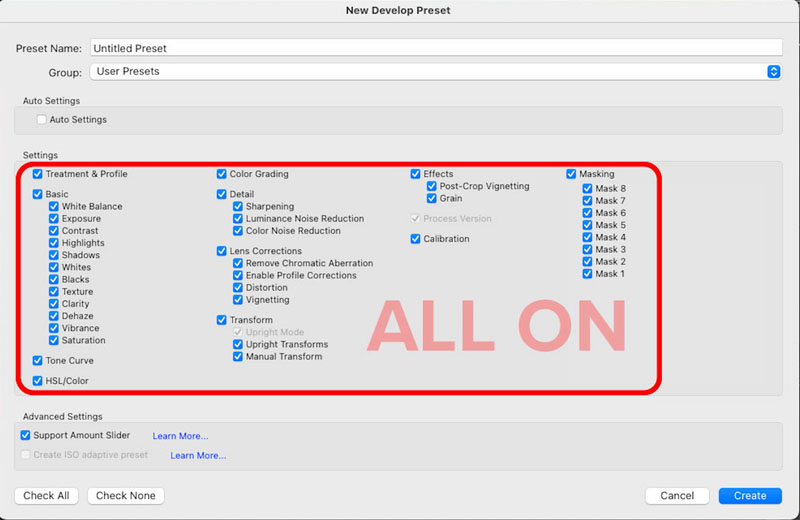
What if you want to retain any previous adjustments and only change something like a crop, a mask, noise reduction etc?
Then leave the fields unchecked. Any unchecked field will be ignored when you apply the preset and its won’t change.
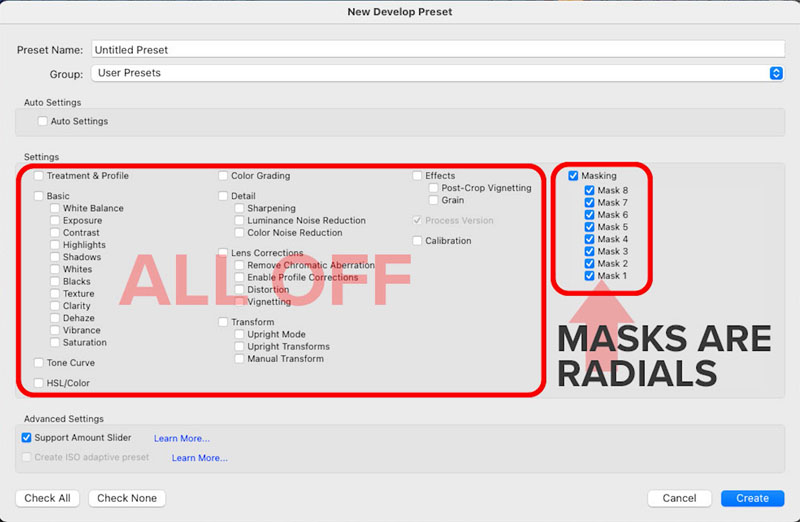
What is the point of all this?
It allows you to be strategic with your presets and stack the. For example if you have presets that only change the color, you can do all your brightness and definition adjustment and try on different colors without losing all your work. Another use case if Light leaks or smart presets where you are apply a sky adjustment or something.
Or maybe you only want to change the white balance and exposure settings, then do something like you see here. All other values will remain unchanged from before you applied the preset.
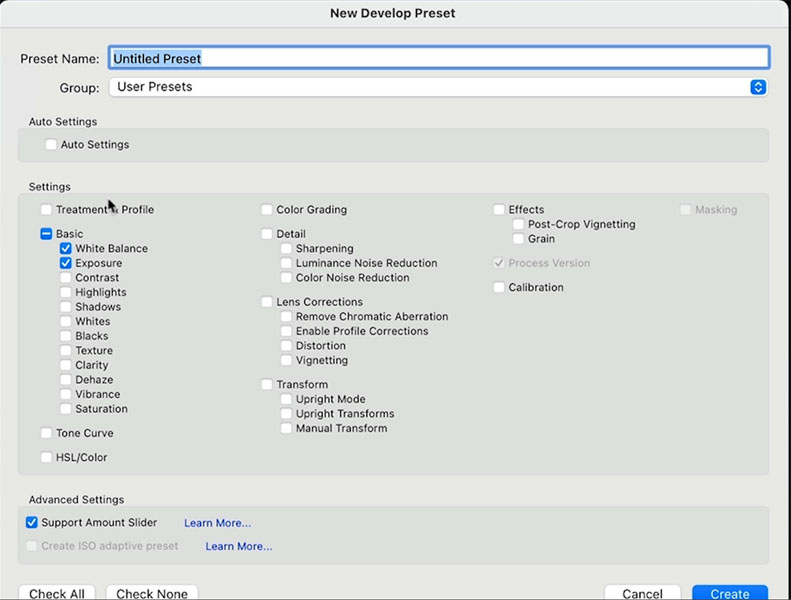
You can see the White balance and Exposure settings change
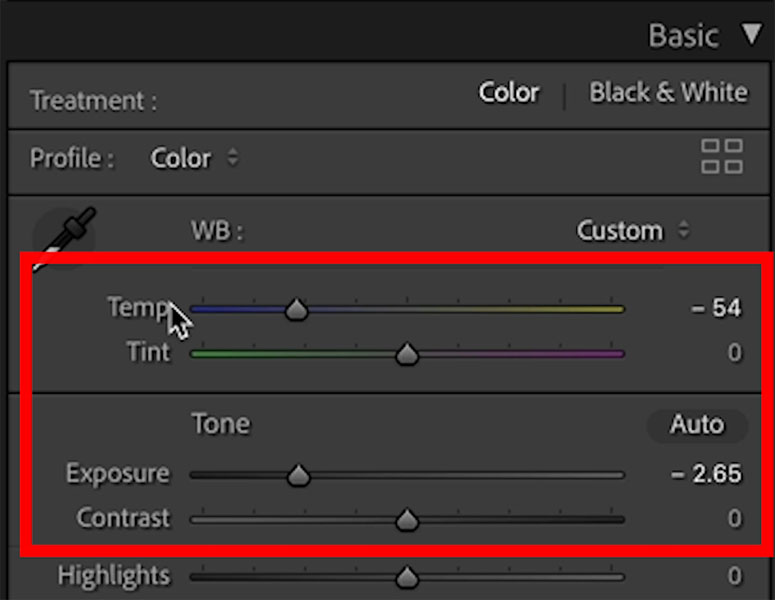
You would get this result on a neutral image
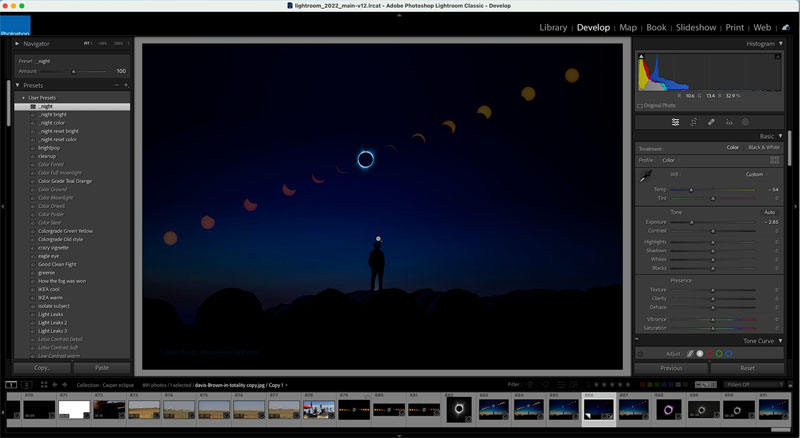
Other types of special effects, such as a black and white look, you way want a complete takeover, so check all the boxes for a reset preset.
Make sure you watch the video to see a demonstration and get a better understanding of how this works.
BTW, if you want my Lightroom Presets, you can download them for free here. If you already receive our newsletter, you will see a link to the vault near the bottom where you can download directly..
Thanks for checking out this week’s tutorial
Colin

Recommended for this tutorial
Learn Masks in Lightroom and Camera RAW
Make precise local adjustments in Lightroom and Camera Raw with every type of mask.
$59.99 · one-time purchase · instant download

Free for you
The Photoshop Vault
Get my free Layer Blending Modes ebook along with dozens of exclusive Photoshop goodies: actions, brushes, presets and cheat sheets.
You're on the list, so your free goodies are waiting for you in the Vault.
Get Free Photoshop Goodies Open the Vault
How to Make a Panoramic photo – shoot and edit a Pano in Lightroom or Photoshop
Why Panoramas? Panoramas, or panos are a great way to do a couple of things. First of all, they make it possible... Read tutorial
The 10 Best Photoshop Tutorials of 2020
The top free Photoshop and Lightroom tutorials. 12 best free Photoshop and Lightroom tutorials are right here. Read tutorial
Why are there tools missing in Camera RAW sometimes?
Finding the missing tools in Camera Raw. Why do tools sometimes vanish in ACR? Colin Smith explains ACR as a filter vs... Read tutorial
Powerful Landscape Masks, make easy, precise photo editing in Lightroom and ACR in Photoshop
Powerful Landscape Masks, make easy, precise photo editing in Lightroom and ACR in Photoshop Read tutorial
Dodging and Burning Natural HDR in Camera Raw and Photoshop
We look at two methods of dodging and burning. One is with Camera Raw (exactly the same in Lightroom) and the second... Read tutorial











Colin, I enjoy your videos and think you’re an excellent teacher. However… PLEASE stop adding the cheesy gifs for “listen to this” etc. They REALLY detract from your presentation. You are great on your own. Let’s keep it that way. Thanks. – Judy
Always enjoy your mini tutorials.So incredibly useful! Many thanks.
This is very useful as I was not entirely sure how to use the on/off panel. Thanks again and a Merry Christmas.
Thanks and Merry Christmas to you too!
If you are using a preset that someone else has created, is there a way to know if it will reset everything? You could test it out, I know, but it seems like it might be easy to miss something that way.
You can easily change it by applying to an unedited image and then save and choose what to save