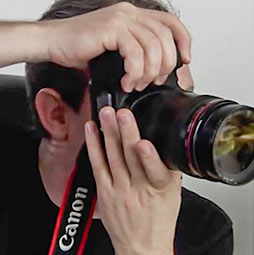
Photo distortion correction in Lightroom, upright
Automatic Image distortion correction in Lightroom
The new upright correction allows photographers to automatically adjust keystoning and distortions. Its a very easy to use and powerful tool. Colin shows how it’s also useful for people wanting to create 3D textures and custom brushes.
There are some major issues that can happen to Photographs because the use a rounded lens. As you tilt the lens, these distortions can be exaggerated, commonly called lans distortion, the main ones are:
- Barreling: Rounding or swelling of Photographs, to resemble a barrel shape
- Keystone AKA Tomb stoning: Exaggerated Perspective: like a projector that is on an angle, where the top is smaller than the bottom of the image.
- Tilting: Where the horizon isn’t level
These common afflictions can be caused by carelessness, wide angle lenses, or just the inability to position the camera in the idea location. Lightroom can fix these common issues with a single click using the amazing Upright feature. Watch this video and see how easy it is to use.
See the full, free Lightroom 5 launch site at https://photoshopcafe.com/lightroom

Recommended for this tutorial
Learn Masks in Lightroom and Camera RAW
Make precise local adjustments in Lightroom and Camera Raw with every type of mask.
$59.99 · one-time purchase · instant download

Free for you
The Photoshop Vault
Get my free Layer Blending Modes ebook along with dozens of exclusive Photoshop goodies: actions, brushes, presets and cheat sheets.
You're on the list, so your free goodies are waiting for you in the Vault.
Get Free Photoshop Goodies Open the Vault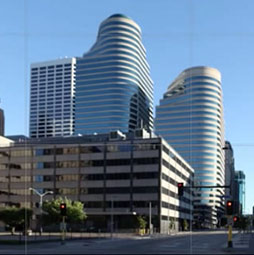

Photoshop tutorial -Creating a Custom Brush from a photo
This tutorial is a 2 in one. Learn how to make a custom brush from a photo. Also learn how to fix... Read tutorial
GoPro Lens Correction on Video in Photoshop tutorial
How to fix GoPro lens distortion in Photoshop. Even though are using video in this tutorial, this works on any camera and... Read tutorial
Photoshop and Lightroom integration
Watch this video to discover how to best work between Photoshop and Lightroom. Find out how to keep your Lightroom adjustments fully... Read tutorial
Processing HDR Landscape Photography in Adobe Camera Raw and Lightroom
You are able to work with merged HDR images in ACR and Lightroom , meaning that you have a lot more tonal... Read tutorial
Lightroom for Photoshop Users
If you are a Photoshop User and have been considering using Lightroom, this tutorial will teach you the basics to get you... Read tutorial