
Rusted Type Photoshop Tutorial
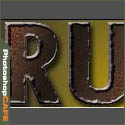
How to make rusted text effect in Photoshop
Step 1
Start with some test on a new layer.
 Rasterize the type, by right clicking on the name on the layer thumbnail and selecting “rasterize text” (Render type in PS 5.0 and 5.5)
Step 2
Select the text (Ctrl/Cmd+Click on layer thumbnail)
Select the linear gradient tool and choose the “copper gradient” fill the text with the gradient.

Step 3
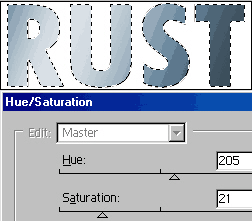
Change the color of the text by using the Hue/Saturation option. Press Crtl/Cmd+U to open the command and set it for a gray/blue color.
Duplicate the layer.
Step 4
To add the texture:
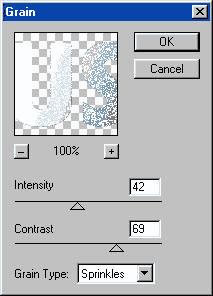
Filters>Texture>Grain
Shoose the settings as shown to the right.
Step 5
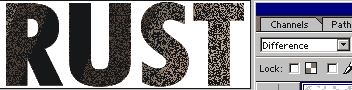
Switch to Difference mode and notice how the color begins to come out.
Step 6
Now load the layer as a selection by Cmd/Ctrl+Clicking on the layer thumbnail.
Select>Modify Contract Choose 4 pixels.
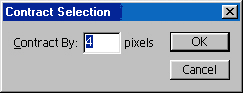
 In the bottom of the toolbox click on the quickmask button, or press the “Q” key
Step 7
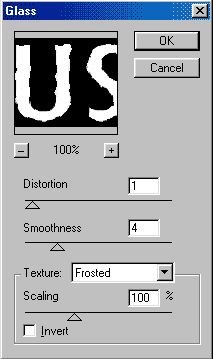
Filter>Distort>Glass
Choose the settings shown.

Step 8
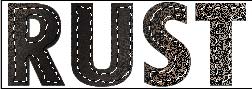

Click off the quickmask tool or press “Q” again.
Duplicate the layer
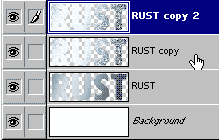
Step 9
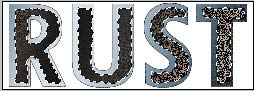
Press the Delete/backspace key to delete the selection.
Step 10
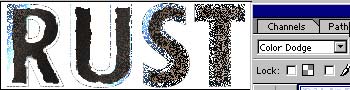
Switch to color dodge mode.
Step 11
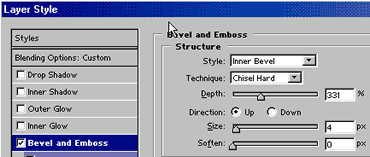
Add an inner bevel to the layer.
Also add a drop shadow to the original text layer for effect.
Here is the effect with a shiny border, for a variation please continue.

Step 12
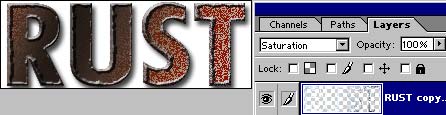
Change the mode to Saturation
Ctrl/Cmd+U for the Hue/Saturation
Change the color to suit
Step 13
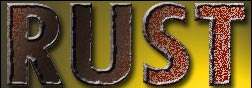
Drop onto a colored background for effect.
There you have it… Rusted Text. Rust never sleeps! (And neither does Colin these days 🙂
I hope you enjoyed this
Colin
Recommended for this tutorial
Photoshop Compositing: Sky City Project. Photoshop 2026
Build a complete composite from start to finish and learn the techniques behind it.
$39.99 · one-time purchase · instant download

Free for you
The Photoshop Vault
Get my free Layer Blending Modes ebook along with dozens of exclusive Photoshop goodies: actions, brushes, presets and cheat sheets.
You're on the list, so your free goodies are waiting for you in the Vault.
Get Free Photoshop Goodies Open the Vault
Chrome text in Photoshop Tutorial
The essential chrome effect, don't leave home without it. This works on any object, not just text. Learn how to create chrome... Read tutorial
How to Make a Silky Type Effect with metal edges in Photoshop Tutorial
How to make Silky metal edges and a bubbly shiny glassy text in the free Photoshop Tutorial. Read tutorial
Make photo edges in Photoshop tutorial
Here is a photoshop tutorial that will show you how to roll your own dynamic photo edges in Photoshop Read tutorial
Brushed Metal Texture Photoshop Tutorial
How to create a texture that simulates brushed metal in only a few steps. This is the same metal used on Apples... Read tutorial
Wrapping objects with Displacement Maps Photoshop Tutorial
Displacement maps see like such strange and difficult animals until you learn to tame them. In this long overdue tutorial, I will... Read tutorial











i am not able to download free cs6 guide