ANIME BEADS Photoshop Tutorial
How to make Anime beads in Photoshop
Step 1
Create a new document
Create some text. (I used Planet Kosmos at 50 points)
Ctrl/Cmd+Click on the texts’ layer thumbnail to load the selection
Select>Modify>Expand
Enter 5 pixels and click ok
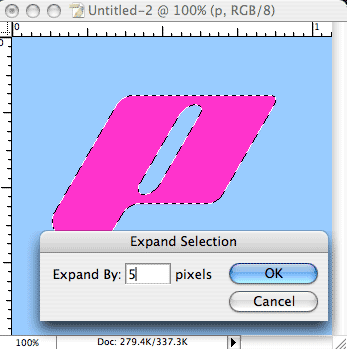
Step 2
The selection should now look like this

Step 3
With the selection still active create a new layer and name it beads
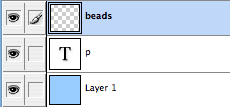
Step 4
Go to the Paths Palette
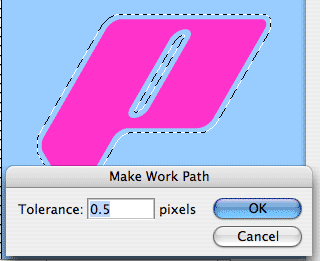
Click the top right arrow and choose “Make Work Path” from the fly out menu
Enter a setting of 0.5 (The minimum allowed)
Click ok
We have now made a path out of the selection
Step 5
Prepare the brush…
Choose White as your foreground color
Select the Brush tool from the Toolbox
Open the brushes panel
Turn off all the boxes on the left
Choose a 10 Pixel hard brush
Set the spacing to 105% (This will make a dotted line)
Step 6
Click on the Stroke path button as shown
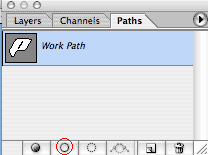
The path will now be stroked with white dots.
Click in the blank area of the paths palette (Below the work path) to turn off the path
Step 7
Go back to the layers palette

You should now have something like this
Step 8
Click the little “f” at the bottom of the layers panel to add a layer style
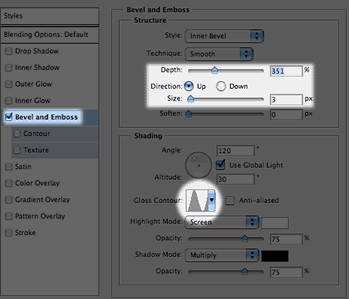
Choose bevel and emboss and use the settings shown
Step 9
Choose inner shadow and use the shown settings
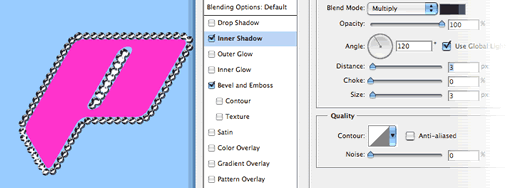
Click Ok to apply the style.
Step 10
At this point we have a problem. The text is a bit small for the beads (There is a gap showing)
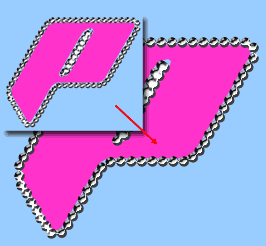
Increase the size of the text to compensate, the edge of the text should line up with the beads
Step 11
Add a layer style to the text. Apply a default drop shadow and a Bevel as shown
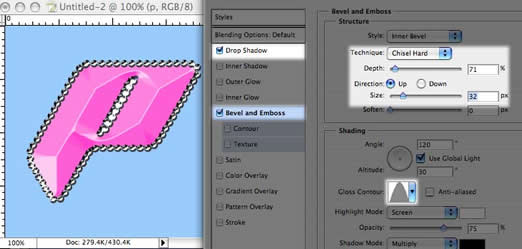
Step 12
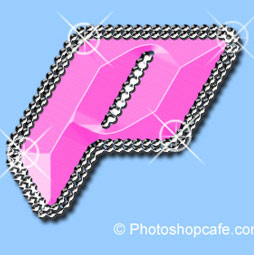
In this variation, I repeated the step and expanded by 10 pixels to create a second ring of beads. I also enhanced it a bit with some sparkles.

I hope you like this effect
Recommended for this tutorial
Photoshop Compositing: Sky City Project. Photoshop 2026
Build a complete composite from start to finish and learn the techniques behind it.
$39.99 · one-time purchase · instant download

Free for you
The Photoshop Vault
Get my free Layer Blending Modes ebook along with dozens of exclusive Photoshop goodies: actions, brushes, presets and cheat sheets.
You're on the list, so your free goodies are waiting for you in the Vault.
Get Free Photoshop Goodies Open the Vault
Outline text in Photoshop Photoshop Tutorial
Here is a fun little tutorial that will show you how to make chrome outlines around your text. Have fun and experiment! Read tutorial
Stamped metal text
In this Photoshop tutorial Im going to show you how to make a stamped metal effect. This is similar to what you... Read tutorial
How to Make a Silky Type Effect with metal edges in Photoshop Tutorial
How to make Silky metal edges and a bubbly shiny glassy text in the free Photoshop Tutorial. Read tutorial
Texturing your way to 3D Photoshop Tutorial
Let's talk some more about texturing, this time working with an interface style image over several layers. Photoshop 6 layer styles allow... Read tutorial
Plastic Engraved type in Photoshop Photoshop Tutorial
How to embed type in photoshop. Heres a tutorial that will how you how to carve your mark. This is so simple... Read tutorial