
How to change the color of anything in Photoshop including white or black
How to change the color of anything in Photoshop including white.
I’m going to show you how to easily change the color of anything in Photoshop, including black and white, There is a more recent Adjust Colors option in the Contextual Task bar, but that’s just a shortcut to everything here that extends the basic tool.
Let’s begin with a simple example. We will change the color of the dress without making any selections.

1. Create a new adjustment layer and choose Hue/Saturation.

2. The box is split into three parts, Hue, saturation and lightness, hue is the color. Saturation is how much of the color. And lightness is how light or dark we make it.
To change this dress to a different color, move the hue, notice now it changes the color. Now, of course, it changes the color, of everything on the image.

3. We want to just isolate the areas of red.
You’ll see the master in different colors. You could choose reds, but an easier way is just to grab the little finger icon. Click on an area of red to sample that color.


4. Slide the hue slider to make the changes. Notice it’s going a little bit over because there is red in the skin tones. We can refine this.

5. Move the triangles in the color scale at the bottom of the Hue/Saturation dialog box. Just drag the slider at the yellows to the left, notice it rolls off those other colors, such as the skin tone, and now they’re not being affected.


6. It also changed the color of the lipstick because the lipstick was red as well.

7. Choose the layer mask. Set black to the foreground and paint over the lipstick. And now the lips go back to red.

Let’s look at something bit more difficult when we’re working with whites and blacks.
Add color to white
1. Do the same thing , apply this Hue/Saturation adjustment. Now, if we slide Hue, notice, we can change the colors. But it’s not changing the whites. In fact, even if we hit colorize, the white is not being affected.


2. This is what the lightness slider exists for. This is not for lightning or darkening images because it actually does a very poor job of that.
Slide Lightness towards the left and it darkens the whites. Now white has color, which means that we can now change the hue

Add color to Black
3. So what about black? Grab the Hue/Saturation adjustment layer. We move the hue. The colors are changing, right? But the black is not changing, even if we hit colorize.

4. it’s pure black, there’s no color, Hue/Saturation can’t change it. But if we lighten it up a little bit, slide Lighteness to the right. Now, look at that. It can put color in there and now we can change the color. So once again, if it’s black, just lighten it up a little bit or if its white, darken it a little bit.

Colorize a white shirt in photoshop
Say, for example, we’re working on something like a white shirt here.

1. Let’s make a selection, using the object selection tool.


2. Choose a hue Saturation adjustment layer and change the hue.
Not much is happening, but darken a little bit and now we can put the color in.

3. And now if we want to change the pinstripe on the skirt, remember, the little trick. Create a new hue saturation adjustment.

4. Grab this little finger, click on the purple’s, and now we can change the hue to match.

Great to see you here at the CAFE,
Colin

Keep growing with Premium Courses
Photoshop 2026 for Digital Photographers
Learn Photoshop properly, from the basics to pro retouching, step by step.
$129.00 · one-time purchase · instant download

Free for you
The Photoshop Vault
Get my free Layer Blending Modes ebook along with dozens of exclusive Photoshop goodies: actions, brushes, presets and cheat sheets.
You're on the list, so your free goodies are waiting for you in the Vault.
Get Free Photoshop Goodies Open the Vault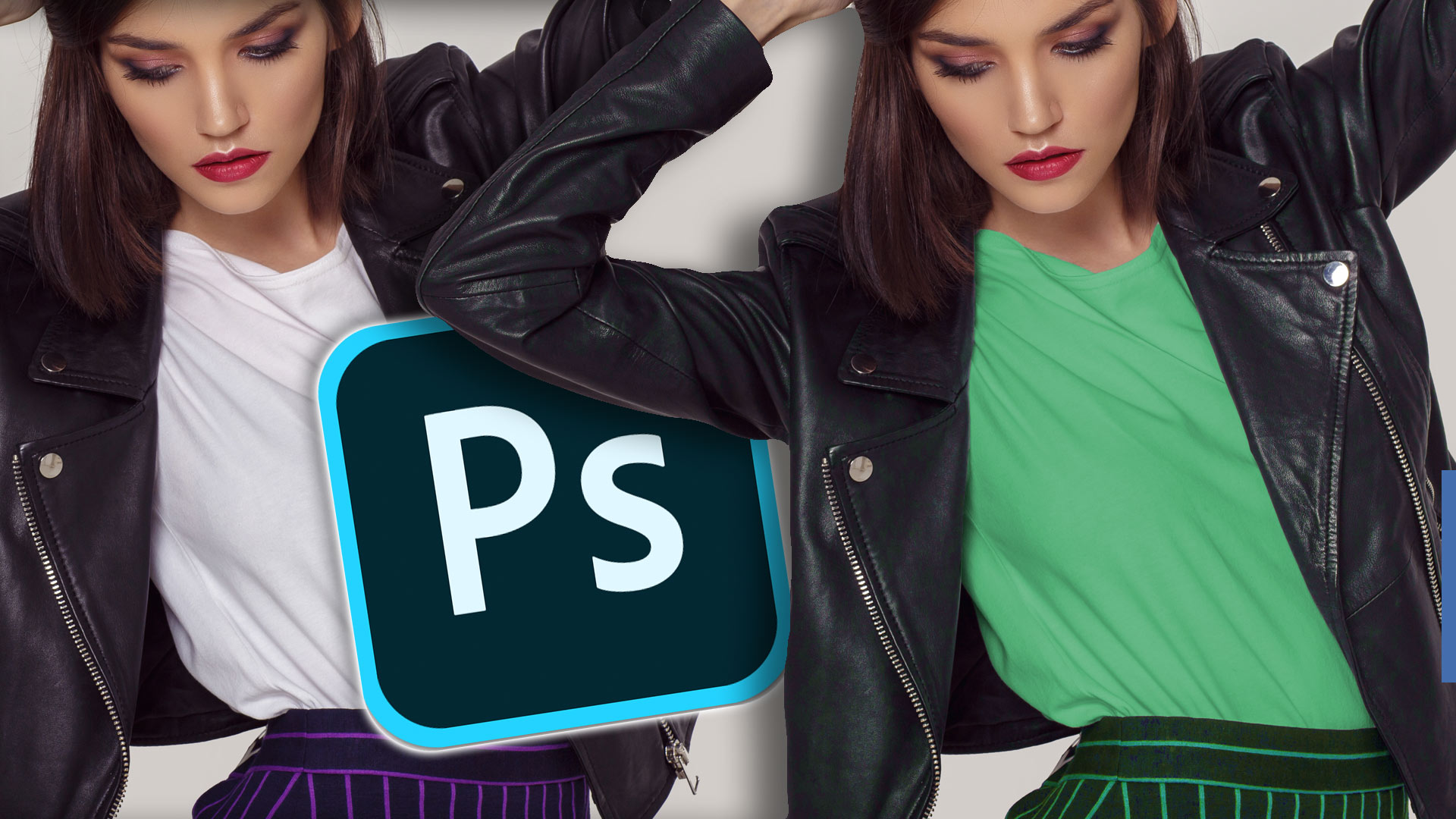
6 ways to change Colors in Photoshop. Photoshop color replacement tutorial.
The ultimate Color replacement in Photoshop tutorial. 6 Ways to change colors in Photoshop. Read tutorial
How to Change the Color in complex objects in Photoshop without selections
In this Photoshop tutorial, Colin Smith shows how to instantly and easily change the color of something in a photo using Photoshop.... Read tutorial
How to add strong color to white in Photoshop
How to change the color of an object in Photoshop and get good strong colors, change white to any color and change... Read tutorial
How to Turn White into deep Color and colorize Black in Photoshop
How to colorize white or black. Quick steps to change white or black areas into color with ease. Read tutorial
Hidden button to instantly fix color of photo in photoshop
Hidden button to instantly fix color of photo in photoshop I’m going to show you a button that most people don’t even... Read tutorial










You are amazing! I have wanted to do this for years. I really appreciate your expertise—I learn so much from you.
Colin – you are always an inspiration and the best teacher around! Thank you! Anyone and everyone who uses Photoshop should subscribe to the cafe! What a resource – plus your “handbooks” and educational material we can purchase are absolutely so worth it!
Hi, I don’t always have the toime to look for thse tutorials, but I am always happy when I wach yours. Informative, simple to understand and just at the right rythm for me who is not fluent in english. Thamks !
It’s easy when you know/learn how. Excellent tutorial.
Hi Colin, Love your stuff btw 🙂 When I tried the COLORIZE A WHITE SHIRT IN PHOTOSHOP tutorial, I watched the video and read the steps but when I change the Hue /sat and the lightness options the shirt just stay’s a grey color. I am using Photoshop 21.2.0 release
With the colorize option on and the shirt selected?
Thanks very much. Very concise and helpful info.
Am a beginner. These are very clear and easy to understand would highly recommend them.