
How to color grade a photo using gradient maps in Photoshop
High end color grading made easy!
Now you can apply a pro looking color tone to a photograph in seconds by using Gradient Maps in Photoshop. This tutorial shows you how.
In this Photoshop tutorial, Colin Smith shows you how to use gradient maps for color grading photos. You can use it on fashion, portrait, landscape, product, commercial, really all photography and even illustrations!
In this Photoshop tutorial you will learn
How to use Gradient Maps
How to Create gradients
How to find more gradient maps
how to apply gradient maps to color tone images instantly
Thanks to Adobe Stock for the 3 images used in this example
You can find them here
Person #1 | Person #2 | Person #3 (Black and White)
Thanks for hanging out here at the CAFE!
Colin

Keep growing with Premium Courses
Photoshop 2026 for Digital Photographers
Learn Photoshop properly, from the basics to pro retouching, step by step.
$129.00 · one-time purchase · instant download

Free for you
The Photoshop Vault
Get my free Layer Blending Modes ebook along with dozens of exclusive Photoshop goodies: actions, brushes, presets and cheat sheets.
You're on the list, so your free goodies are waiting for you in the Vault.
Get Free Photoshop Goodies Open the Vault
Getting started with Layer styles, Photoshop Tutorial
Maybe you are unfamiliar with Layer Styles as yet, and so I'll cover them briefly. Layer Styles are simply groups of commands... Read tutorial
Metal and Glass Layer style basics in Photoshop
Nearly anyone can create a bevel on type, but not many realize that from this foundation we can create glass, plastic, metal,... Read tutorial
How to make a sticker in Photoshop
How to make a sticker in Photoshop. Add a posterized look to a photo and export picture from Photoshop with transparency. Read tutorial
Hidden Photographic toning presets in Photoshop, Color grade Photoshop with Gradient Maps
Use the hidden photographic toning presets in Photoshop, for pro color grading with gradient maps. Read tutorial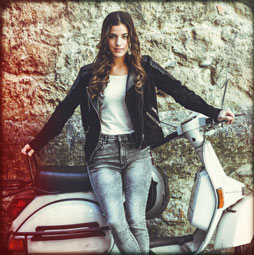
How to make a vintage Toy camera effect in Photoshop Tutorial
In this Photoshop Tutorial, I'm going to show you how to make a lomography toy camera effect in Photoshop. We are going... Read tutorial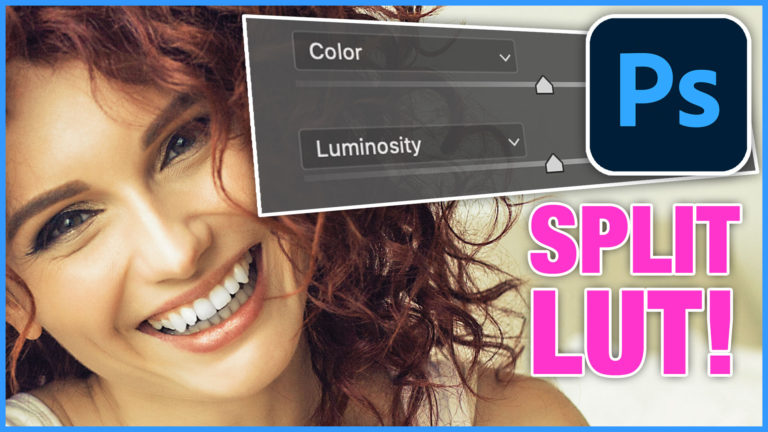












Another Wonderful winning tutorial!!!!! Thanks!!!
Simple just one word EXCELLENT as ussual my friend thank you very much
Great tutorial, awesome teacher.
I am all about black & white, would love you to do one
of a city at night b/w. Thank you
This was so useful, Colin. I have a question. When you are doing a tutorial, you are able to label the layers whatever you want, I don’t seem to have that option. Is there a setting I have to turn on to allow the labelling to occur?
Amazing as usual, thank you!
Wonderful tutorial
Thanks
THANKS COLIN!!!!! Really beautiful effect. It really saves a lot of time with the gradient effect. Once again, you did it big guy!!!!!
Excellent tutorial. It will take me awhile to memorize the order of things, but I sure am looking forward to seeing the results. Thank you.
Thanks Colin for another great video. What training Video of yours best provides an in depth treatment of the various Photoshop Adjustments? Every time I watch one of your 15 minute free videos I learn about new, to me, functions. I would like to purchase an in depth Video of yours that encompasses all or most of the Adjustments.
Colin, thank you so much for sharing your knowledge. I learn a little something every time I watch one of your tutorials. A lot of emails I receive, I end up removing, but, yours always gives something new to learn. Thank you!
Great PS Hack for a quick color adjustment. Thank you.
Thanks so muh for this info. Really helpful and time saving
Wow, this is a much needed tutorial! I’ve been weak on gradients – of the power of knowing cool things! Thanks Colin. You’re the best!
Hi,
Quick question, if all those extra gradients dont appear when you click the gear on the side, is there another way to find them?
Kind Regards
Cassie
Make sure you do it in the gradients panel. You can choose load and load them in if you know where they are