
Lightroom Classic Duplicate Finder: Remove Duplicates Without Losing Photos




12 thoughts on “Lightroom Classic Duplicate Finder: Remove Duplicates Without Losing Photos”
Leave a Reply

7 tips in Lightroom. Tips to help you work faster and better in Adobe Lightroom. How many of these do...

How to combine images and auto composite in Photoshop with Generative Fill ai. Colin Smith shares his Photoshop Gen Fill...

New Features in Adobe Camera Raw 16.3 2024 release. ACR 16.3 features.










Thanks Colin, quite helpful. Some time ago I switched from LRc to LR. I was fed up with the catalogue issues. The ability to manage files locally as well as in the cloud made the switch a no-brainer. It seems that many folks still use LRc but I really wish Adobe would put the same effort in adding these new features into the LR “desktop/mobile” program.
Great comment. Thanks for sharing your thoughts and your experience on LR.
Would you please explain a little more what Adobe considers a duplicate (the exact criteria if you know)? If I add both jpeg and raw images shot at the same time, is this a duplicate. Same if I’m doing burst photographs at a sporting or car racing event. Does it just use name or does it use date (MM/DD/YYYY HR:MIN:SEC) as part of the criteria and file size? Any help and explanation would be most helpful. Thanks.
It looks for a duplicate file, (not a duplicate moment) it uses the file name as well as analyzing the images appearance.
Great tutorial! Thank you. I’m still uncertain and somewhat afraid of the feature; are virtual copies duplicates in Lightroom (not hard drive, of course)? More generally, are two pics duplicates, if the original is common, but they have been subjected to different edits? Does duplicate detection take into account any edits that may be different, thus rendering the the photographs essentially two different products?
It doesn’t affect virtual copies. If you have duplicate edits you are either using a virtual copy, or a different file name if edited in Photoshop. These aren’t affected. I recommend checking each one manually before removing from disk, don’t just trust it to get it right automatically.
I’m struggling a bit with this. I want to keep the edited version and remove the one downloaded from camera.
Your tutorials are always so clear and helpful. Thank you for including written directions as an option.
If you just have a variation, that isn’t a duplicate and should stay on your computer.
A duplicate is when we have 2 or more physical instances of exactly the same image file.
A great tutorial that I will need to review several times to get the full understanding. Rather than keeping my photos on the computers hard drive I decided to transfer and store the images separately onto a 2 TB external SSD drive. I then back this up onto another identical SSD with the catalogue backed up onto yet another external drive.
But I would assume that with everything done this way, the duplicate system must operate exactly as you describe as in effect nothing has fundamentally changed. You would work it exactly as you describe here in your tutorial.
Make sure you plug that drive in for a few minutes each year as a SSD can leak if its not powered up occasionally 🙂
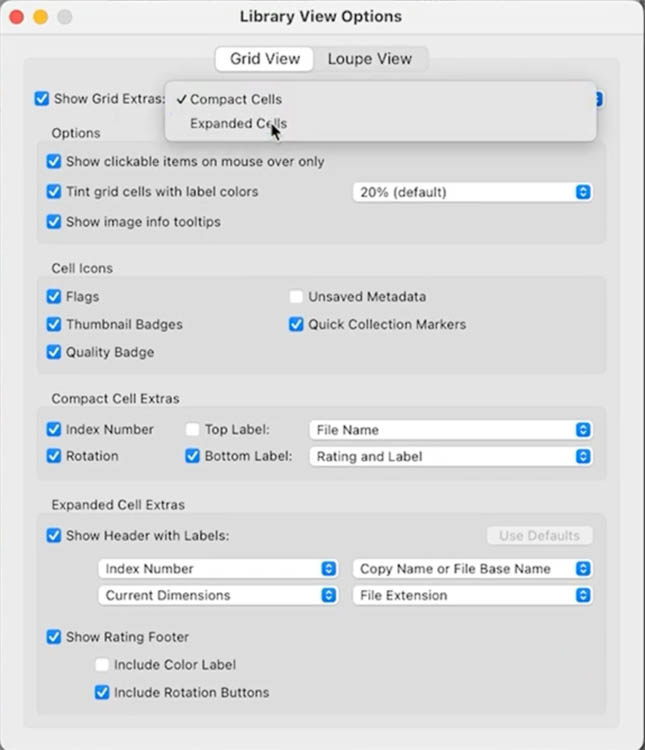
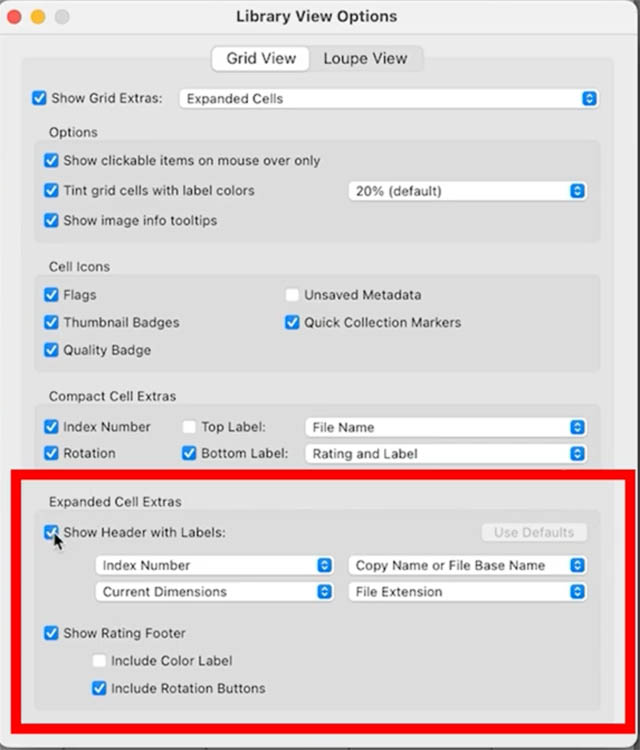
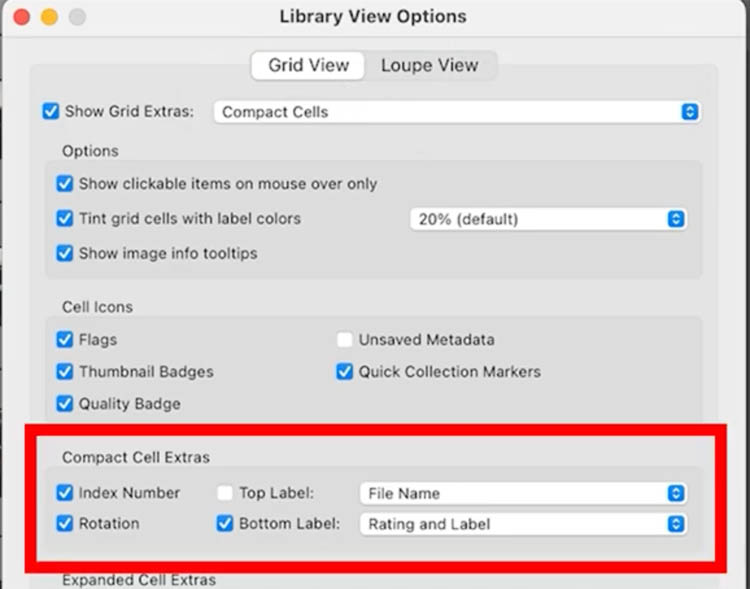
I have watched many videos and tutorials in the last 13 years. This is the first explanation ever of compact and expanded cells. Love how customizable both are.
Thanks for the nice comment. Its something I have included in my LR course for years, but glad you found it useful here!