
How to convert a photo to a comic book, cartoon in Photoshop
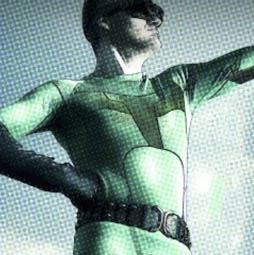
I just got back from Comic Con last week, and it kind of inspired me for this week’s tutorial. I’m going to show you how to create a comic book look out of a photograph. Learn how to convert a photo to a cartoon, This Photoshop tutorial has three steps to create a retro comic book effect.
- Halftone dots
- Inked outlines
- And flat colors to replicate a comic book effect
This step by step tutorial makes it nice and easy.
-
Reducing colors
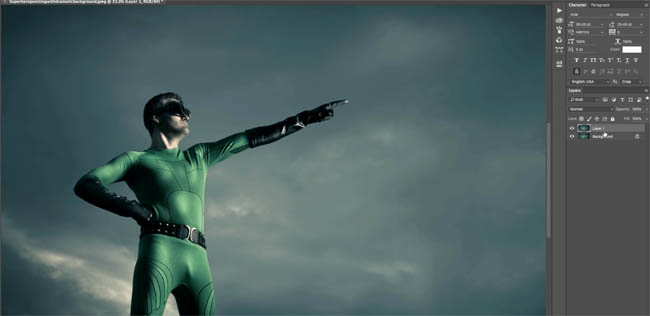
Start with a photograph and duplicate the background layer 2x , just hitting Ctrl J or that would be Command J to make a copy. And, of course, you could also drag it to the New Layer icon, so we’ve got two new layers.
2.
We want to group these 2 layers together. Select them both, right click, and then choose Group from Layers, or you can hit Ctrl/Command G for Group. Now the reason I want to do that is because I want to apply a Blend Mode between the two, but I don’t want to affect all the layers–just these two.
Grab the top one and change the Layer Blending Mode to Hard Mix.


3.
Reduce the Opacity to about 40%. this will give us a nice mix. Notice as we change opacity it starts to reduce the amount of colors very quickly, and that gives us a comic book look.

4. Pop Dots
Now, the next thing that we want to do is we want to apply these little dots on there so that it looks like it’s been printed at a low line screen. Take the group, right click, and choose convert to a Smart Object.

5.
Now we can apply filters to it. So let’s add those little dots that make it look like it’s been printed on a page. So we’re going to go into Filter>Pixelize>Color Halftone. Now, there’s no interactive display on this. You can’t actually see what’s happening as we do it, but right now, the maximum radius is set to 8 pixels. That means that the largest pixel can be 8, but let’s go up to 12.


6.
The only thing is we’re losing a lot of detail because this halftone is just a little too strong. We can blend it with the original image under the Smart Filter that we’ve created.
See that little smart filter in the Layers panel? We can just double click on that, it brings up our blending options. Bring the Opacity down a little bit to about 42%, and then, click OK.

7. Inked Outlines
All right, we’re almost there. The only thing that’s really missing right now are those outlines that define the detail of our super hero.
Go back to our background layer. Just hit Ctrl /Cmd+ J for jump one more time, and drag it to the top.

8.
We’re going to create a line art from this particular layer.Go under Stylize>Find Edges.
Now, this is going to look a little weird at first because there’s a lot of color and stuff, so we need to tweak it a little bit so it’s going to work better, it’s not bad though.

9. Clean up the line art
We want to go in and use levels. Hit Ctrl/Command+L, and we want to do it right on the layer. We could do it as adjustment layer, but in this case, I’m going to do it on the layer. Pull the black triangle to the right, notice how that really thickens the outline, or just makes it much more pronounced.

Of course, you got all these stuff here we need to clean up. We can clean up all these by moving the white slider over.

Notice now that we’ve cleaned up the whites. Grab the midtones, that little gray slider, and as we pull that over to the left, notice it’s going to start to reduce the detail significantly. We’ve got a nice outline so let’s just click OK to apply that.

10.
Convert to Black and White, Cmd+Shift+U – Ctrl+Shift+U on Windows. We’ve got our outline and we want to mix it with our pop dots underneath.

11.
Layer Blend Modes to the rescue. The best blend mode is Overlay.
Notice that black and white lines there with our little dots, and there we go, we’ve got a comic book effect.

I hope you enjoyed this. If you want to become part of the Cafe crew, Subscribe right now, and you’ll get a new tutorial every week, add a comment, share it with your friends, and until next time, I’ll see you at the CAFE.
Layer Blending Modes. Free eBook by Colin Smith
Don’t forget to check out the website as we add new content every week. You can also find us on social media: Youtube, Facebook, Twitter, Pintrest and Instagram @PhotoshopCAFE.
See you at the CAFE!
Colin
If you want to make real comic books, check out this training from Marvel and DC artist, Jeromy Cox. Comic Book Coloring in Photoshop

Keep growing with Premium Courses
Photoshop 2026 for Digital Photographers
Learn Photoshop properly, from the basics to pro retouching, step by step.
$129.00 · one-time purchase · instant download

Free for you
The Photoshop Vault
Get my free Layer Blending Modes ebook along with dozens of exclusive Photoshop goodies: actions, brushes, presets and cheat sheets.
You're on the list, so your free goodies are waiting for you in the Vault.
Get Free Photoshop Goodies Open the Vault
Make an animated cartoon from video in Photoshop tutorial
How to convert a video to an animated cartoon and composite into a photograph to make a living book style cinemagraph in... Read tutorial
Turn photo into Comic Book Effect in Photoshop Tutorial Cartoon in Photoshop
How to turn a photo into a comic book effect. Learn how to make a Cartoon from a photo in Photoshop tutorial. Read tutorial
Create Realistic Lightning in Photoshop Tutorial
Here is a nice little tutorial to show you how to electrify your images with lightning in Photoshop. This spooky graveyard will... Read tutorial
Turn a photo into a pencil sketch in Photoshop tutorial
In this photoshop tutorial you will learn how to turn a photo into a sketch. Its easy to get a pencil sketch... Read tutorial
how to create a texture overlay of a photo in Photoshop
This tutorial shows you the fastest way to create digital art with textures in Photoshop. You have seen stylized photos everywhere and... Read tutorial











ROFL not even remotely in the same universe as the results i got. for this to work you’d need a photograph pretty much exactly the same as the one you used in the demo.