
Dreamy, magical glow to add romance to your photo in Photoshop tutorial
You know when you watch old movies and there is this romantic glow around the actress, the Hollywood glamor effect? I was wondering how it would look on other photos; wedding, couples, fantasy, heck, anything. Here is an original technique I have been using for a while on some of my photos and I wanted to share it with you. This tutorial will walk you through several images, starting very basic and advancing a little with each example.
I hope you enjoy this tutorial. The written steps are coming soon. Here are links to the photos used from Adobe Stock
Your Photos Need a Hollywood Magical Romantic Glow in Photoshop
Today’s Photoshop tutorial, I’m going to show you how to create a dreamy romantic glow that adds romance and fairy tale kind of magic to every photograph, (whatever fairy tale magic is.)
I’m going to show you three different techniques of working on this. I’m going to show you a real basic one, then I will show you one where we can enhance a little bit, and then we’re going to do an advanced one, the third one, where we can actually protect our highlight areas while still giving that glow.
Example 1, (The basic effect)
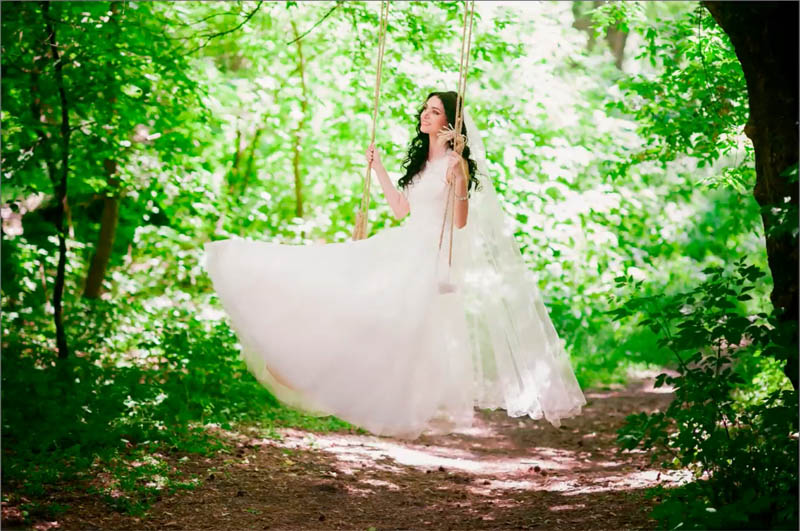
Step 1
The goal is to pick up the highlight areas and make those glow.
Select> Color Range.
We’re going to choose highlights.
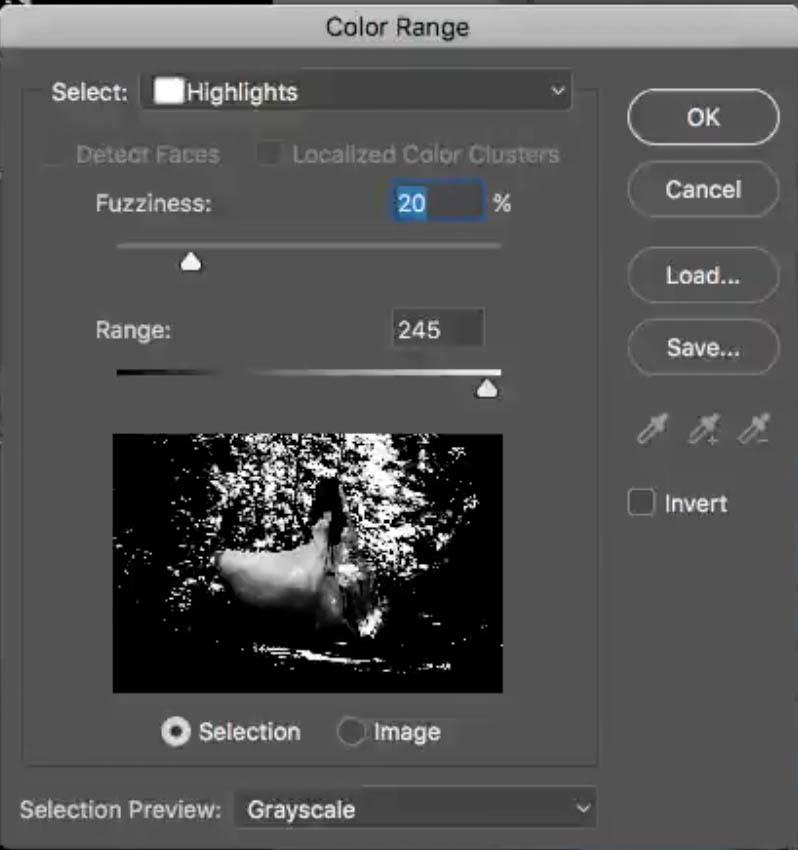
Slide the Range slider all the way down to just grab the real bright white areas.
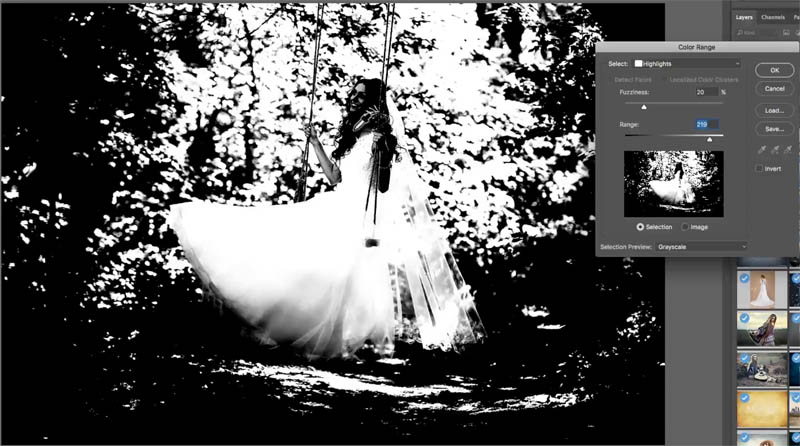
Click OK and that selects those areas.
Step 2
Now I want to copy just the selected areas, to a new layer.
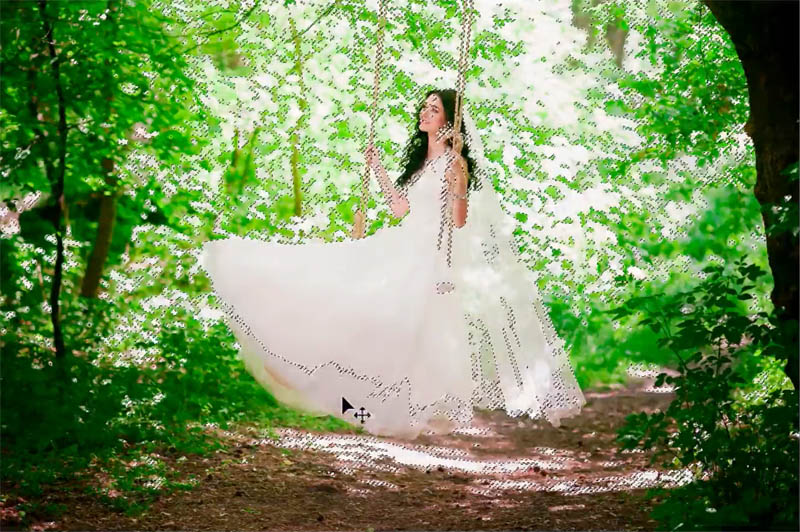
Hit Ctrl J to copy the selection to a new layer.
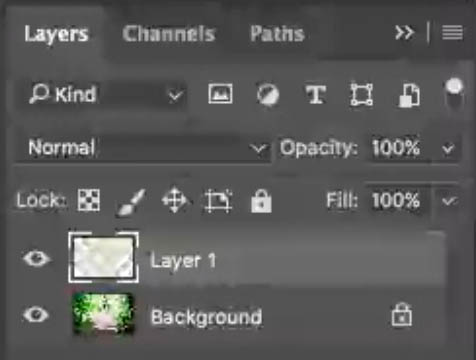
(Examining Just the selected layer if you turn off the background layer for a second)
Step 3
We now need to change the Blend Mode. There’s two Blend Modes that work really well on this and that’s the Screen Mode, and Overlay. Overlay will do kind of the same thing, but a little bit more subdued. Choose the one that looks best for your image.
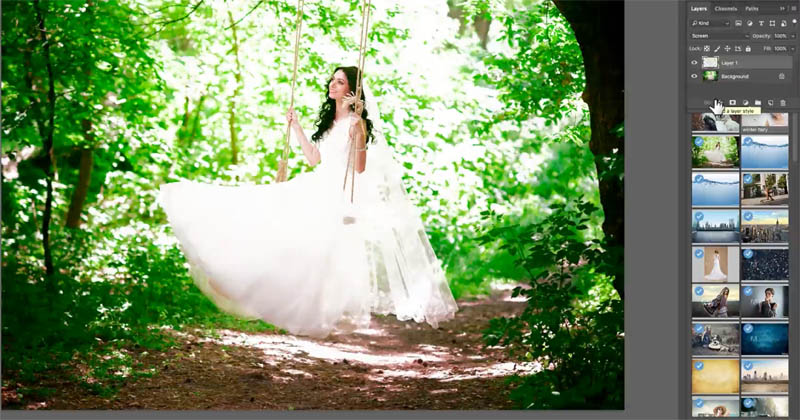

Step 4
Finally, we will give it a blur so we’re going to choose Filter> Blur>Gaussian Blur.

Choose the right amount of Radius which it gives us that glow part or that dreamy part of the glow. You can also adjust the opacity if you want to just kind of bring it down a little bit if you feel it’s just too overdone.

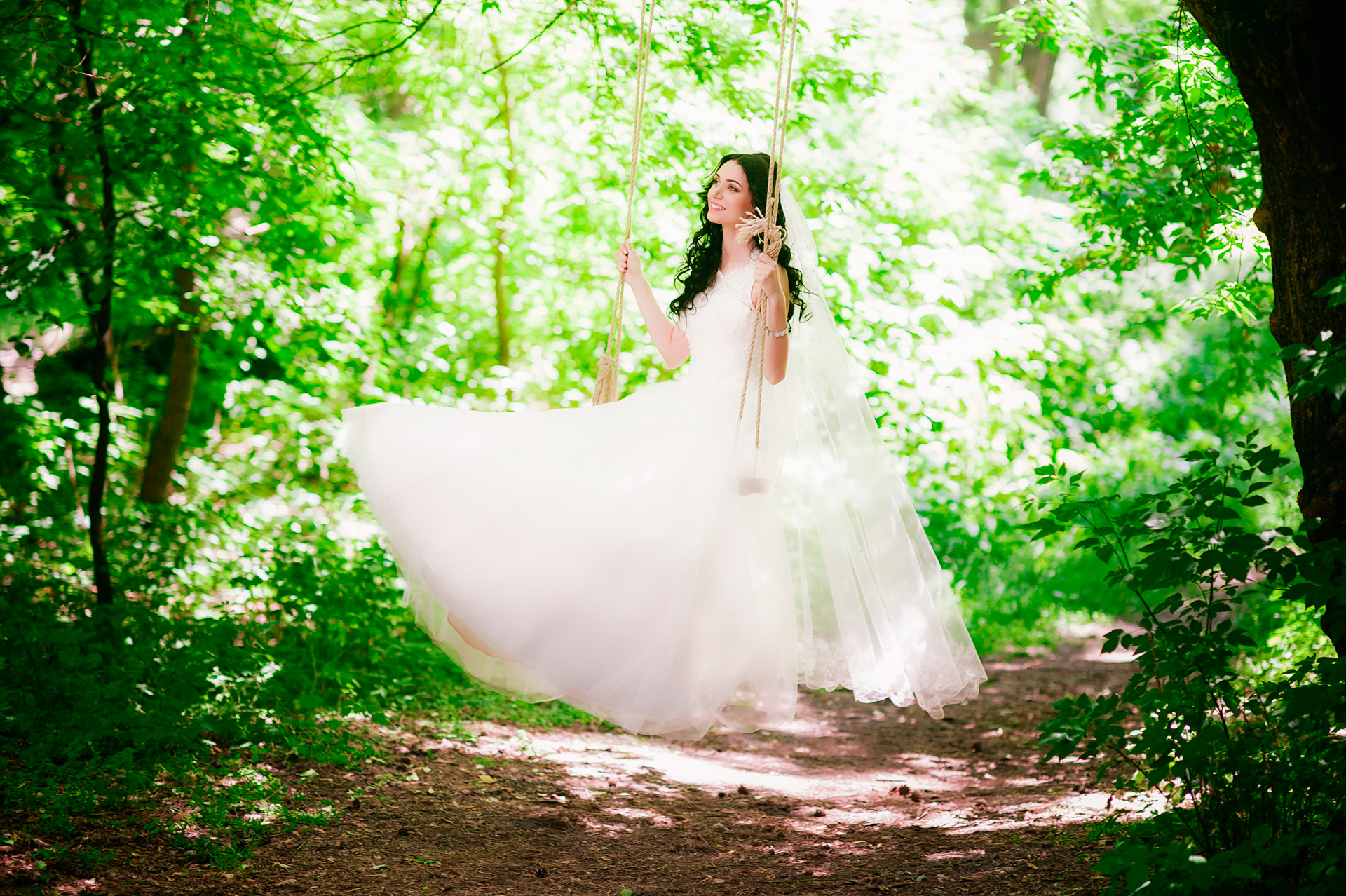
Example 2 (Fairy tale look)
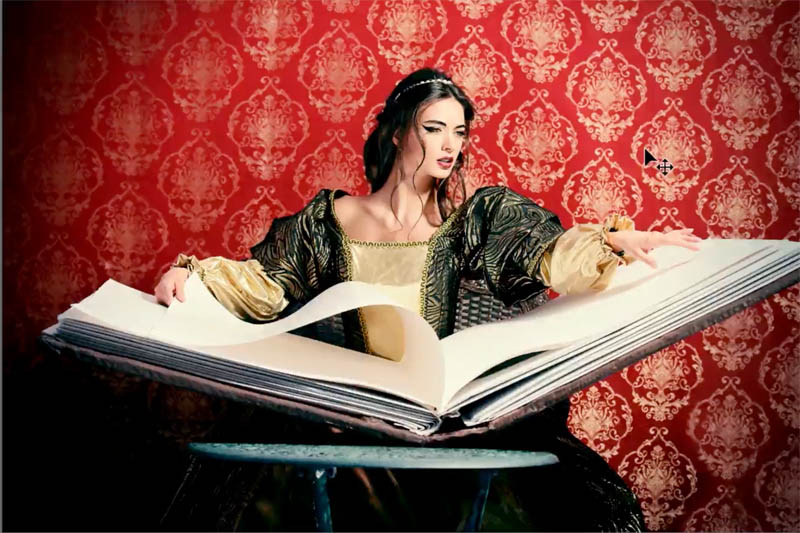
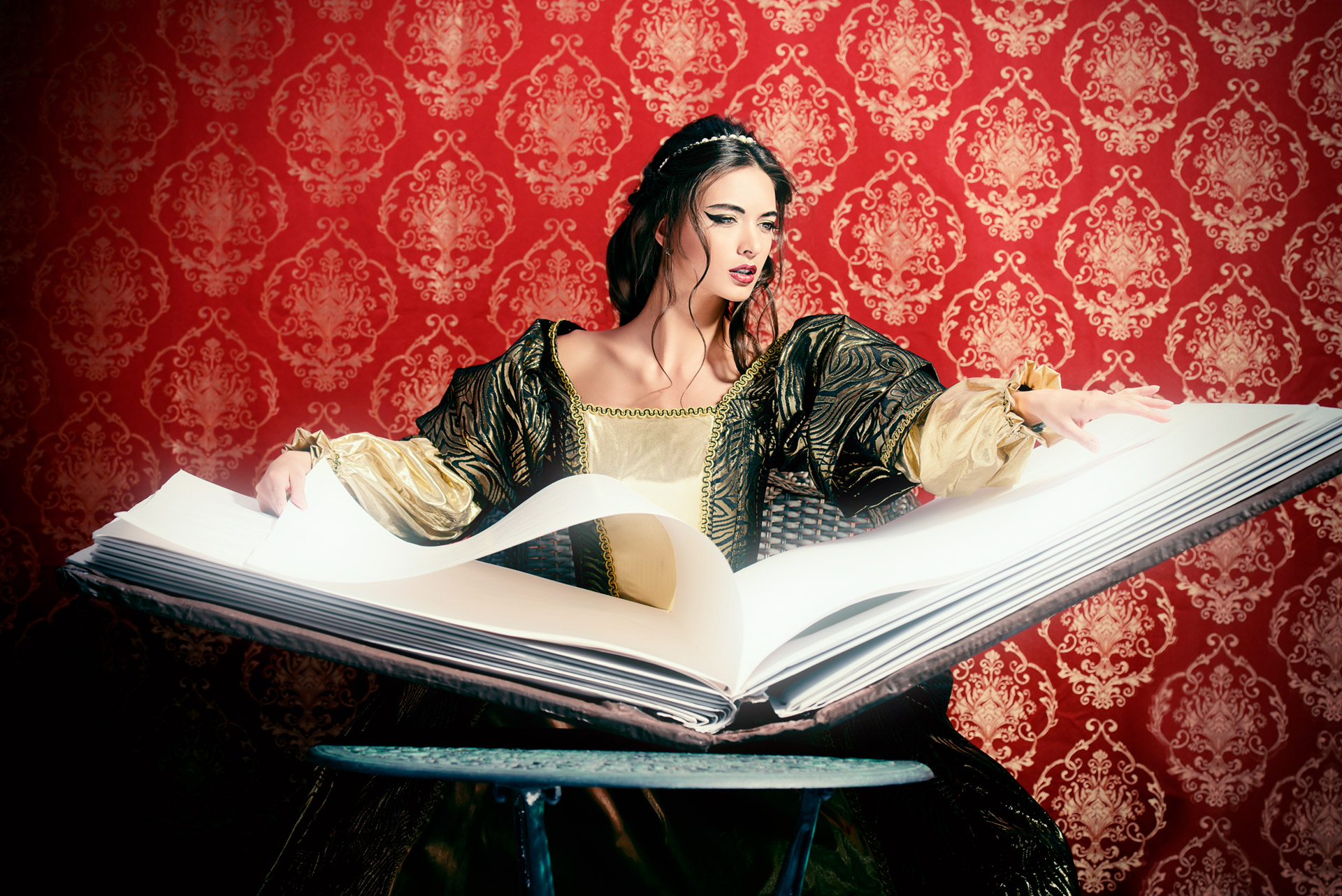
Now let’s move on to a fairy tale kind of a look on this. We want this book to glow a little bit, like you know, Disney kind of style.
Step 1
Select the whites as before. Select>Color Range

Step 2
Ctrl/CMD + J to copy the selection to a new layer
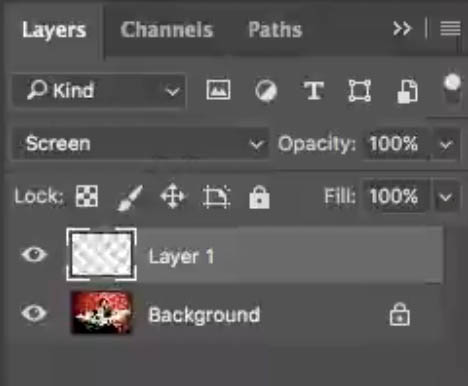
Step 3
Use Screen blending Mode (in the layers panel) because I want this to be a really strong effect. Notice immediately, how those yellow pages become a bright white.
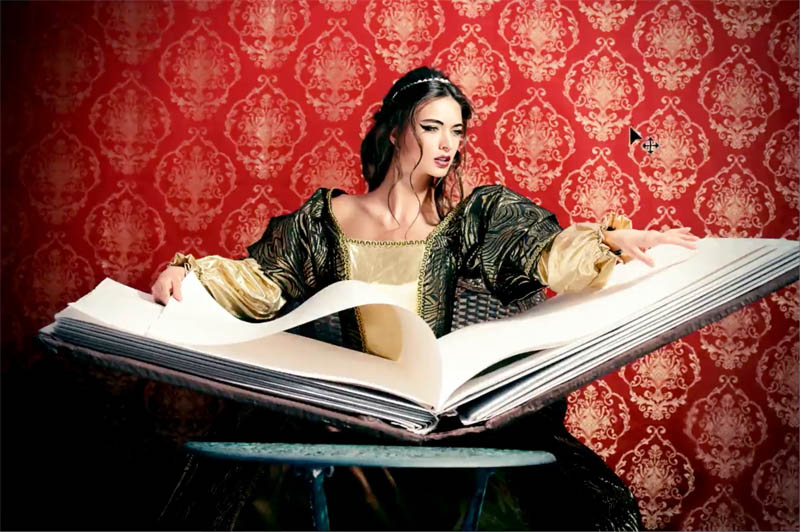
Step 4
Choose Filter> Blur>Gaussian Blur.
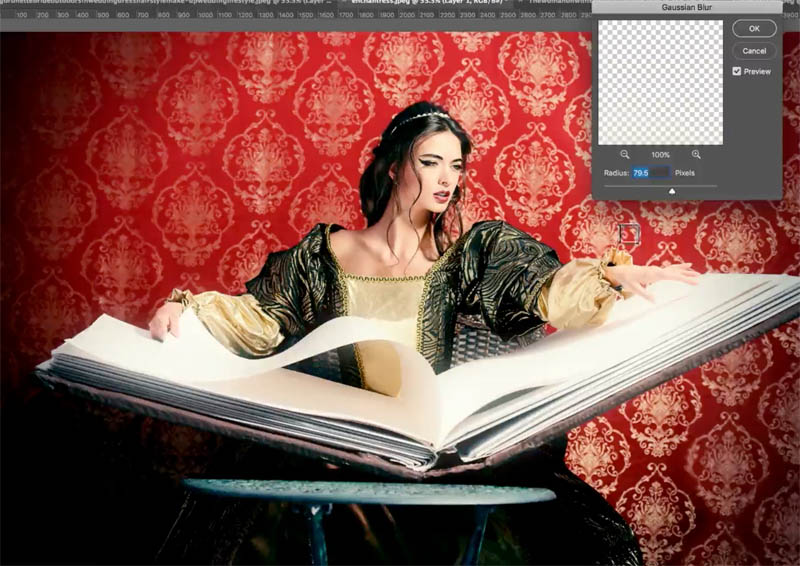
Step 5
Let’s make it glow more. In the Layer effects at the bottom of the layers panel, (the little fx) choose the Effects>Outer Glow
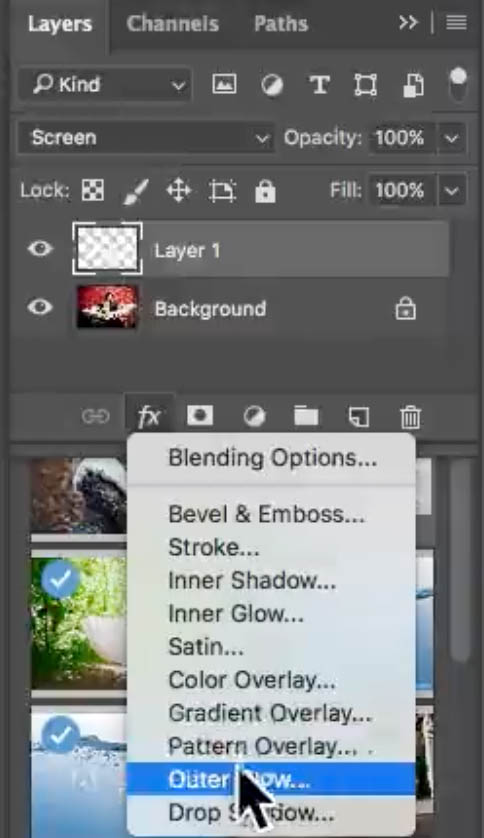
You can add some color in there, maybe give it a little bit of a fairy tale magic blue.
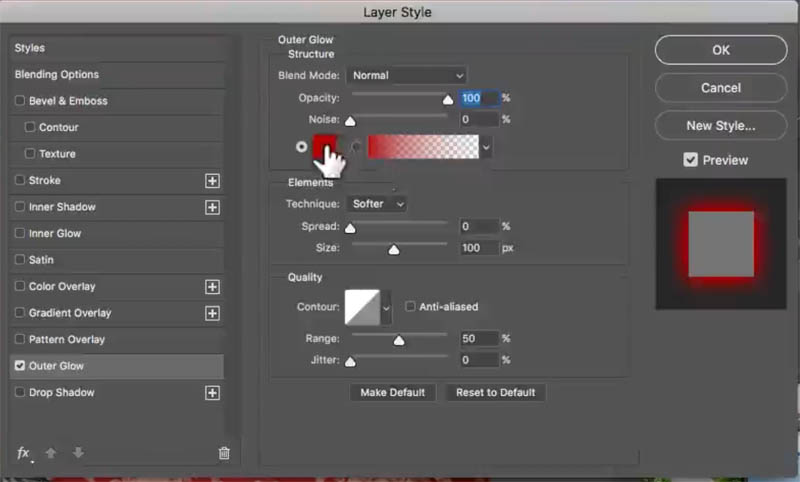
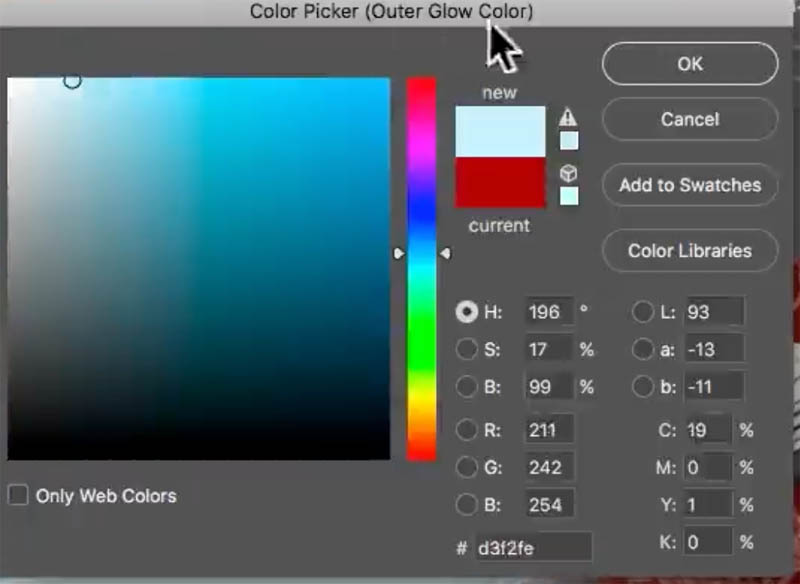
You can play around with the size of this glow and the Opacity
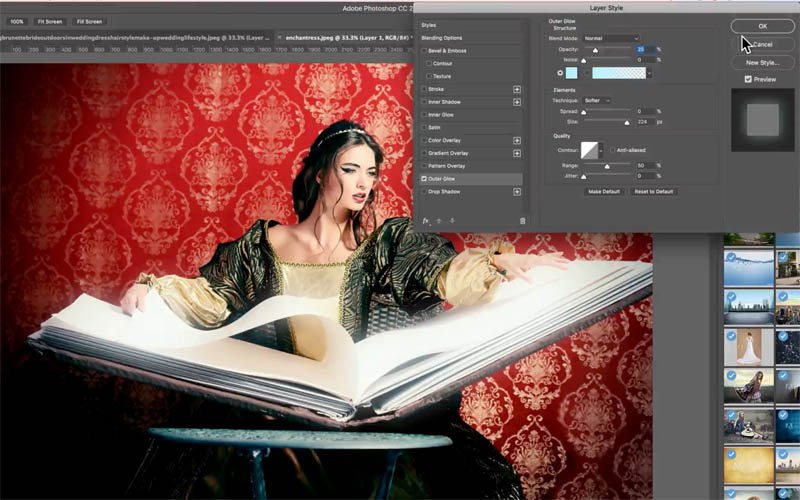
See how we’ve really just kind of made that pop and come to life.
Example 3 the advanced highlight glow
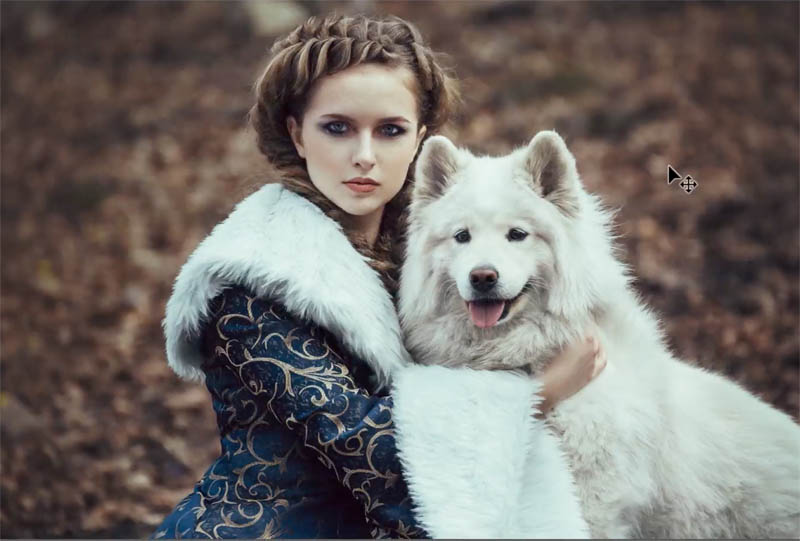
All right, so here’s our third one where we’re going to do a more advanced glow here. We’re going to start with the same steps that we did before.
Step 1
Select the whites as before. Select>Color Range
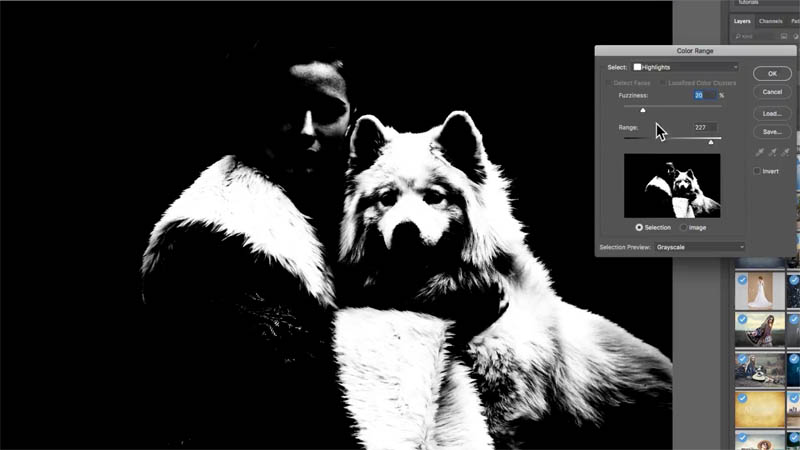
Step 2
Ctrl/CMD + J to copy the selection to a new layer
Step 3
Okay, let’s put this one into a nice Screen Mode. Notice it’s blowing out here. Don’t worry about it for now.

Step 4
Choose Filter> Blur>Gaussian Blur and we’re going to give it a nice big blur.
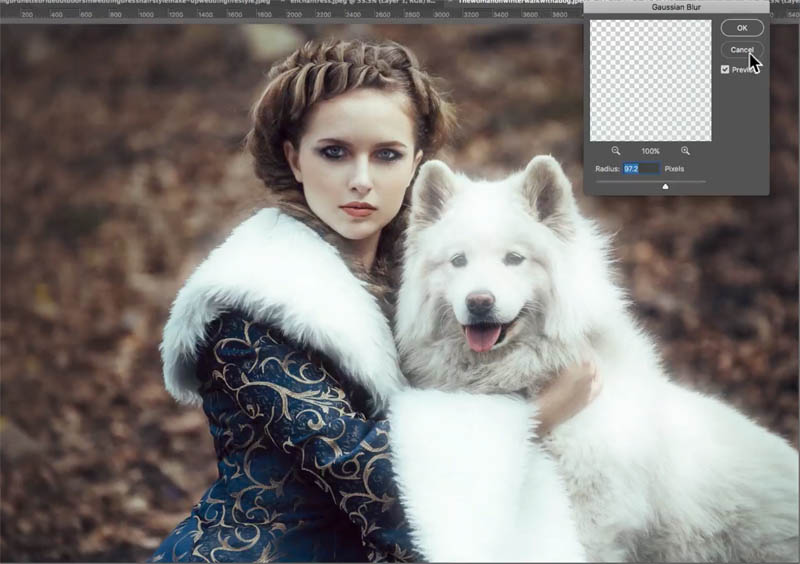
Step 5
All right, now what we want to do is bring back some of the details here in these highlight areas, where it’s just completely blown out and just ruining the image. And how do we do that?
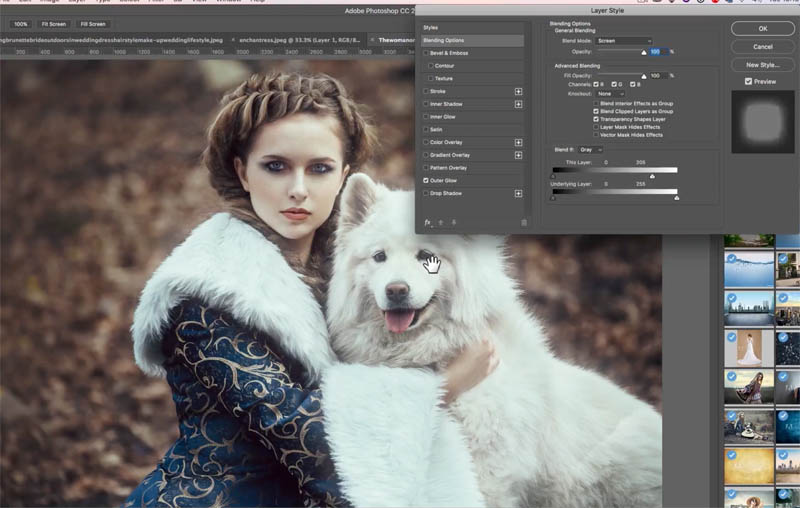
Go under the Effects and click on Blending Options. This brings up our Advanced Blending Modes; or the “Blend If” sliders, if you like.

Take the highlights on the top layer and pull that over a little bit. See how that brings it back? (but we’re losing our glow.)
Step 6
Here is the “magic tip:” Hold down the Alt/Option key, and then pull back. Notice how it splits that triangle.
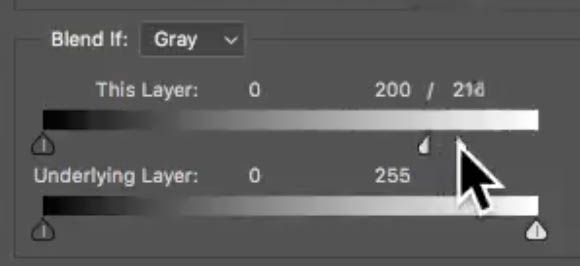
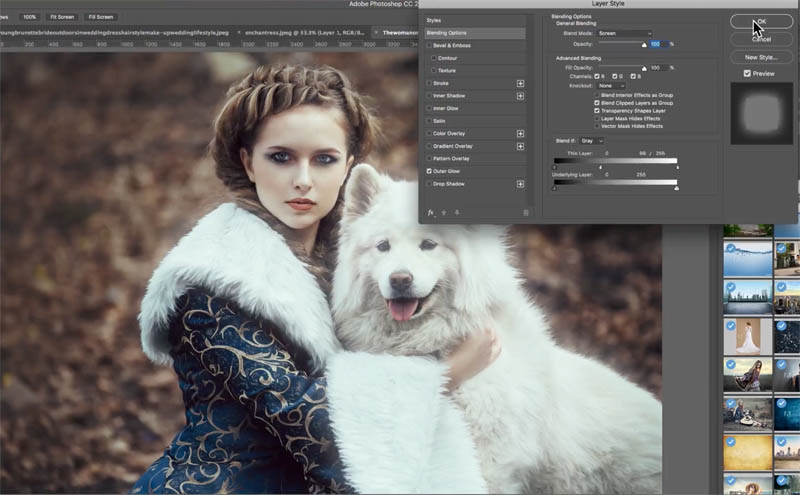
Now, we can play around a little bit, we’re protecting our inside, but that outer glow is still working. So let’s click OK.
Step 7
You may want to bring the Opacity down just a little bit, just to kind of tweak it and look at that nice glow around the outside.
Step 8
If you want to bring back a little bit more detail in the face or the dog, just click on the add layer mask icon in the layers panel.
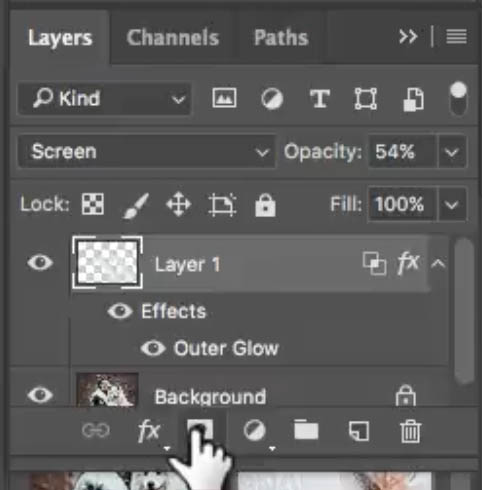
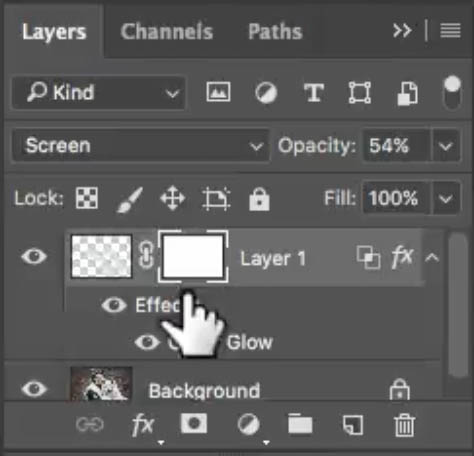
Grab a soft edged, black brush. Make sure Opacity is 100.
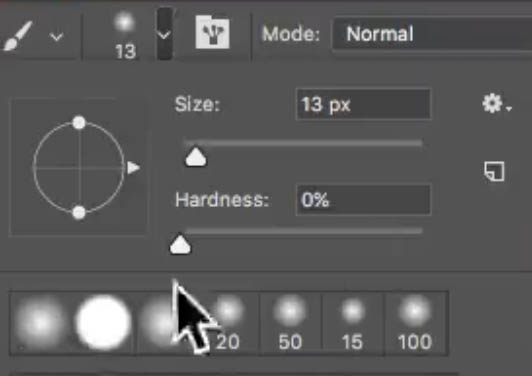
Paint around the face of the dog and the detail that you want to protect right there in the middle, and maybe just hit the lady’s eyes, just in case.
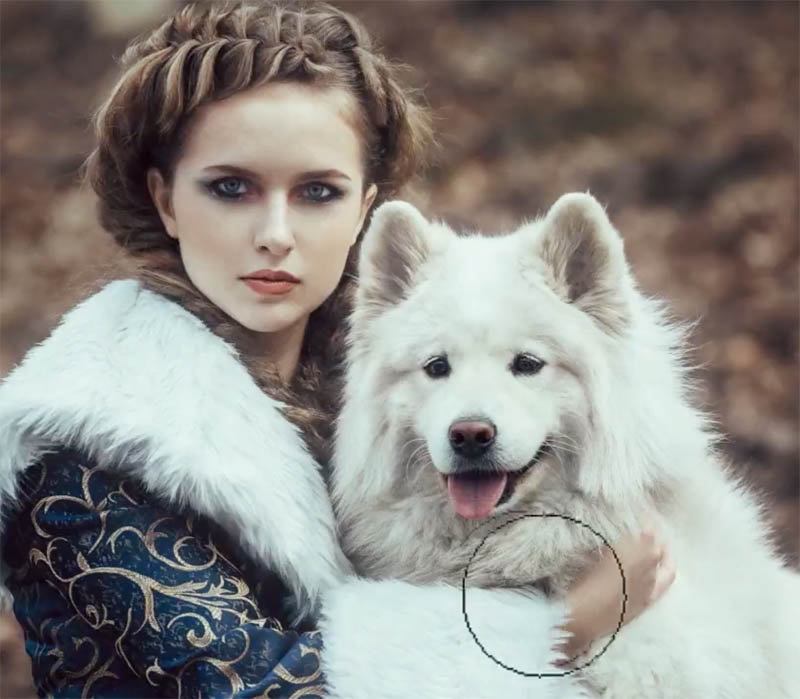

Now we can even bring that Opacity up even more. It’s just a subtle effect now and it just adds that little bit of magic to the photograph.
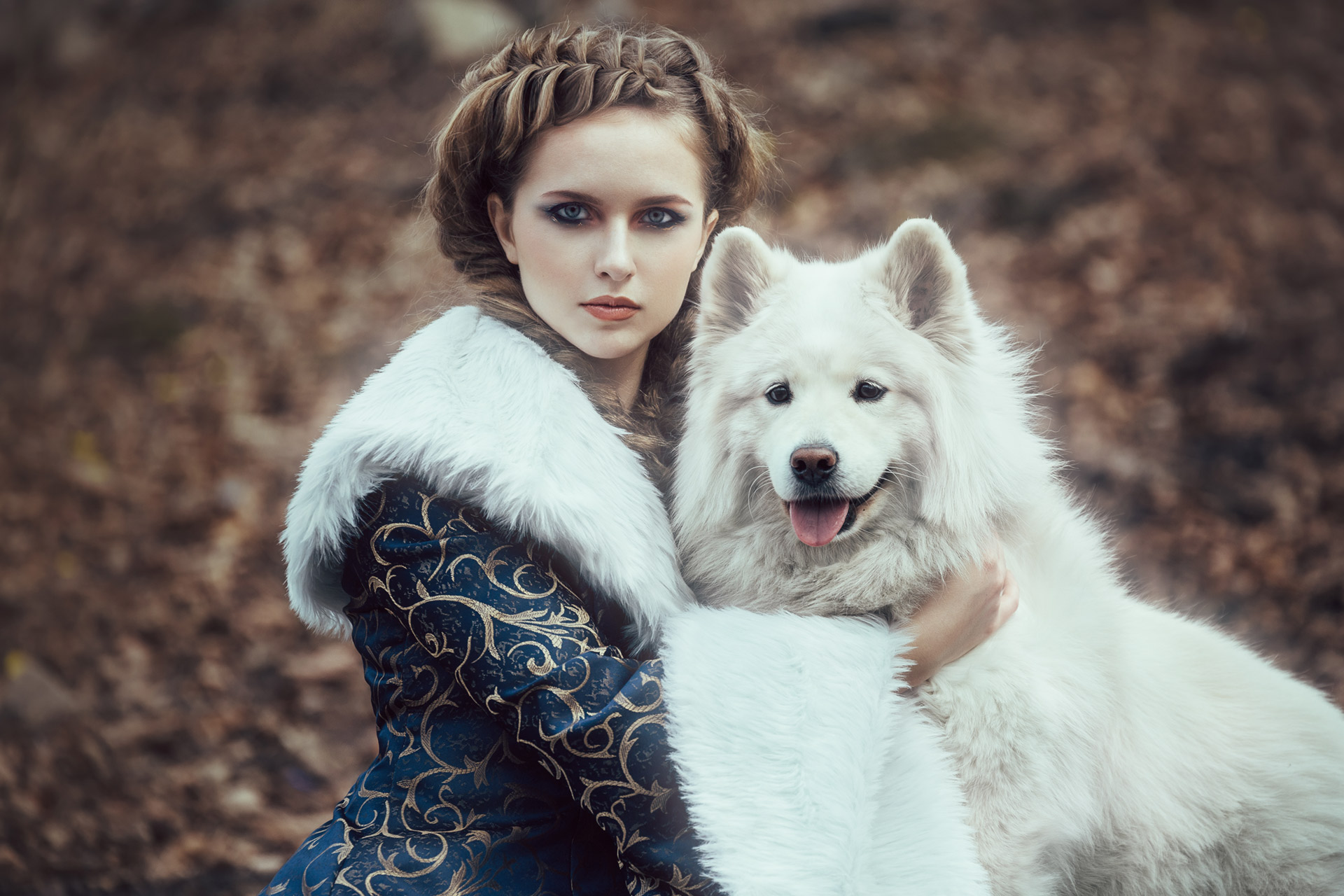
Thanks for checking it out!
Colin
See all the free tutorials here

Keep growing with Premium Courses
Photoshop 2026 for Digital Photographers
Learn Photoshop properly, from the basics to pro retouching, step by step.
$129.00 · one-time purchase · instant download

Free for you
The Photoshop Vault
Get my free Layer Blending Modes ebook along with dozens of exclusive Photoshop goodies: actions, brushes, presets and cheat sheets.
You're on the list, so your free goodies are waiting for you in the Vault.
Get Free Photoshop Goodies Open the Vault
How to make water reflections with realistic ripples in Photoshop
How to create realistic looking water reflections in Photoshop. This free Photoshop tutorial shows a quick way to add a water reflection... Read tutorial
How to blur the background of a photo in Photoshop tutorial
This Photoshop tutorial shows how to make a blended background blur, the blurry background looks like the depth of field from an... Read tutorial
How to combine images and blend them together in Photoshop
In this Photoshop tutorial, I’ll show you 2 ways to combine images and 4 ways to seamlessly blend them together. This is... Read tutorial
Adjustment Layers in Photoshop, the ultimate guide
Learn exactly how Adjustment Layers work in Photoshop in 4 steps that are packed with little-known tips and tricks. Your photos are... Read tutorial
Make photo edges in Photoshop tutorial
Here is a photoshop tutorial that will show you how to roll your own dynamic photo edges in Photoshop Read tutorial









Really Colin !! a great tutorial to help me with all for dreamy, magical glow to add romance to our photo in Photoshop tutorial !!! Thanks for your post !
You are welcome!
Very nice! The glow is remarkable! Thank you so much!
Su
Thank you Collin for already this great tip. Keep on doing like this!!!!!
Well done. Thank you so much for putting the steps in writing down below.
Colin,
You are a very very good guy sharing all that knowledge. I learn a lot from you.
Keep it up.
Z.A.Mehar
Kenya
from the land of 8th Wonder