
How to turn day to night in Lightroom
Day to night in Lightroom
Turning a day photo into a night photo, is fun and can be challenging. When I was in visual effects school, this was a fundamental skill everyone needed to learn and the official name is Day for Night. I have made a tutorial on day for night in Photoshop. Why not do a tutorial in Lightroom. Although, I am using Lightroom Classic, this also works the same in Lightroom. This also works the same in Adobe Camera RAW. The written steps are below, watch the video to see everything in action.
Here is the starting image, It’s a photo I captured in Kauai, Hawaii.
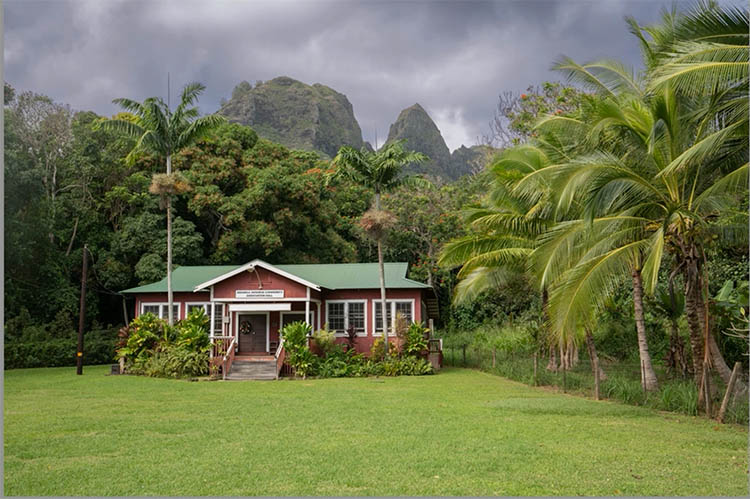
Changing Day to Night
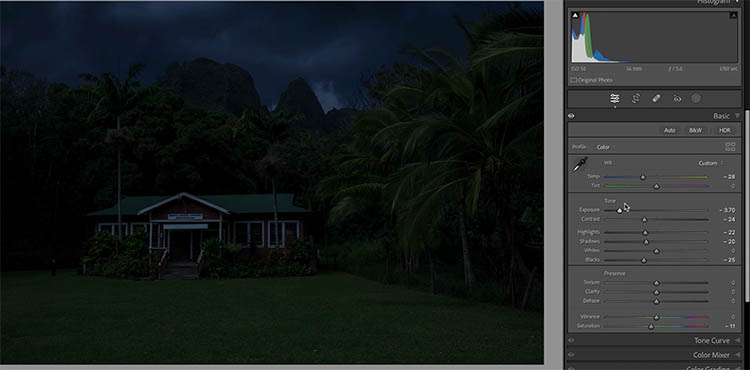
The first step is to make the entire scene look like night. This is accomplished by darkening the tones and choosing a bluish hue to simulate moon lighting. You can see the settings in the develop module.
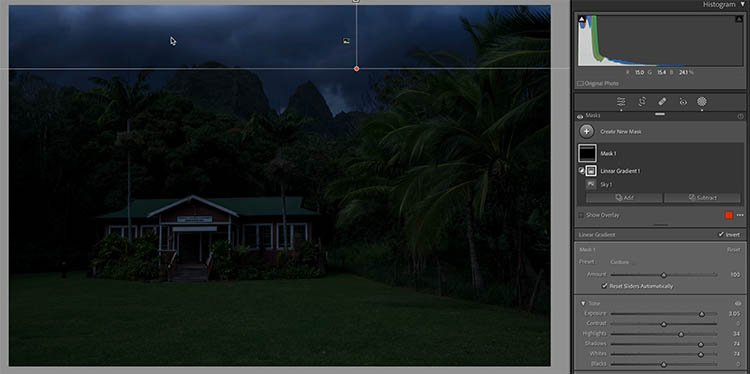
You might have a little moonlight in the scene. Using a linear gradient, add a little bit of light to the sky.
Adding artificial illumination
I see there is a light fixture in the shot. Let’s turn on this light and use it for our illumination to sell the effect of night.
The light fixture will cast light around it.
To add that light, choose a radial gradient.
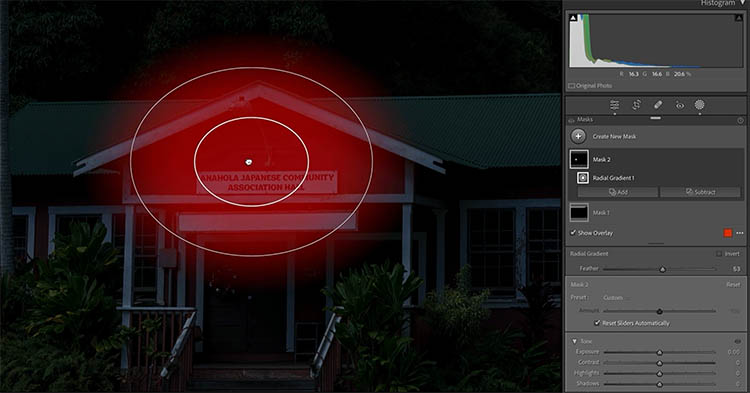
Brighten up the area under the light bulb.
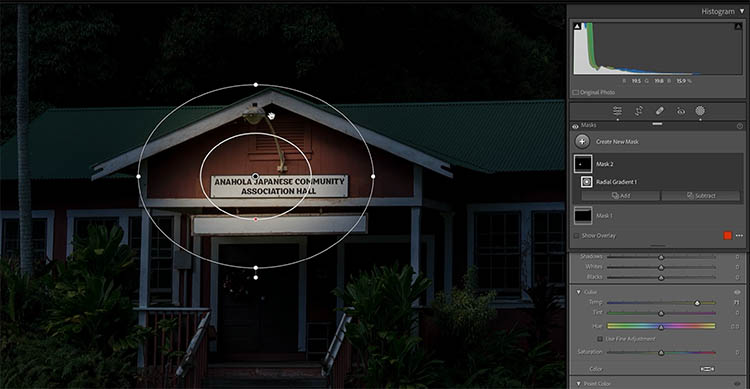
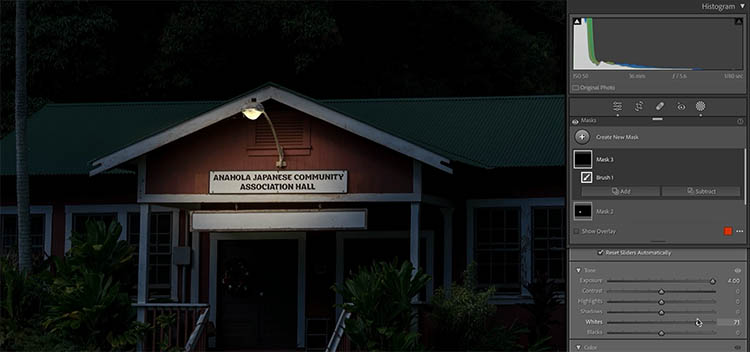
With the brush, remove from the gradient to brush away the light from areas that shouldn’t be illuminated, such as above the eves.
Add a brush and make it very bright to turn on the light.
A light bulb will create a pool of light on the ground under it.
Apply a radial gradient to add the light area. Make it heavily feathered for soft light.
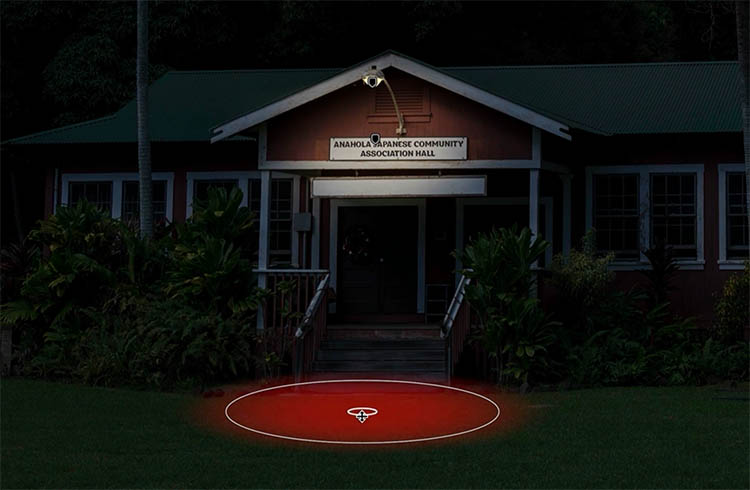
Turn up the brightness just enough, so that the ground has some nice soft pool of light.
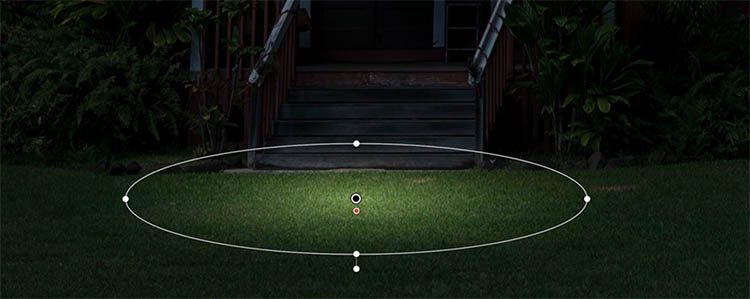
Lighting up the stairs
The stairs are directly under the light bulb and will be lit up. Using the brush, add light to the stairs.
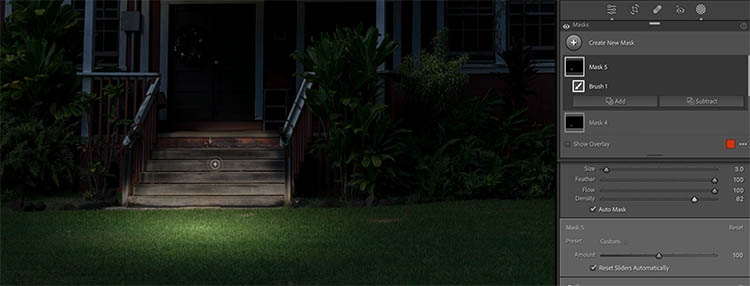
Because the light is above and behind the stairs, light wouldn’t reach the front of the stairs and there would be shadows under the overhangs.
Use a second brush and turn the brightness down. Paint shadows on the front faces of the stairs. This helps add some depth too.
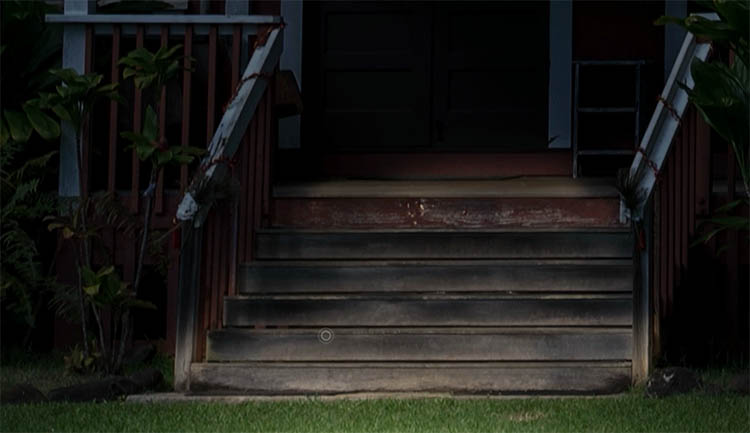
Objects facing the light would get a little bit of edge light.
Using the brush with Detect edges on, paint the leaves that are facing towards the light.
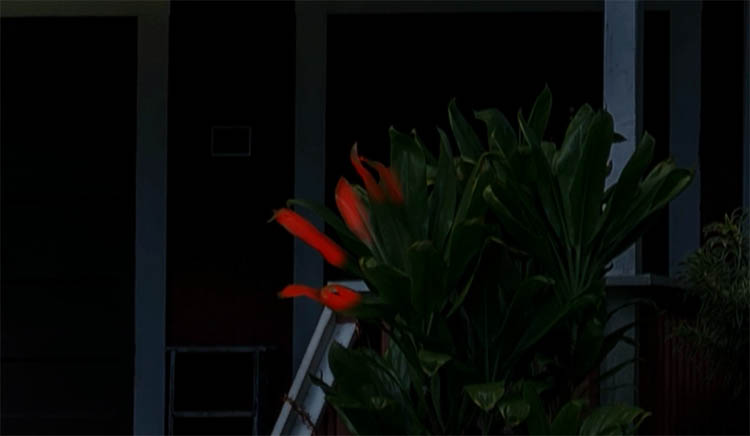
Keep adding edge lights to areas that are facing the light such as the tops of the stair rails.

Now we have a building nestled in the jungle and mountains, at night, with a light on. You can repeat these steps if you want to light up the windows.
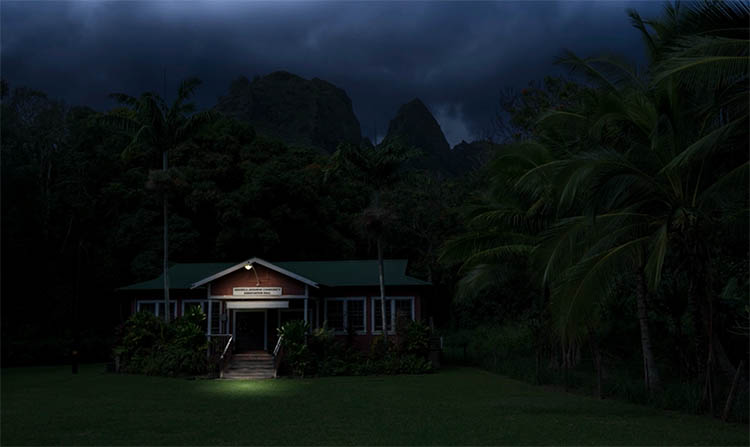
Even if you aren’t turning day to night, you can use parts of this tutorial for smaller tasks, such as turning on a light, or adding shadows to stairs or edge lighting to touch up your photos. I really enjoy doing this kind of work in Photoshop and Lightroom. It’s oddly relaxing.
I hope you enjoyed this! Let me know in the comments.
Colin
Recommended for this tutorial
Learn Masks in Lightroom and Camera RAW
Make precise local adjustments in Lightroom and Camera Raw with every type of mask.
$59.99 · one-time purchase · instant download

Free for you
The Photoshop Vault
Get my free Layer Blending Modes ebook along with dozens of exclusive Photoshop goodies: actions, brushes, presets and cheat sheets.
You're on the list, so your free goodies are waiting for you in the Vault.
Get Free Photoshop Goodies Open the Vault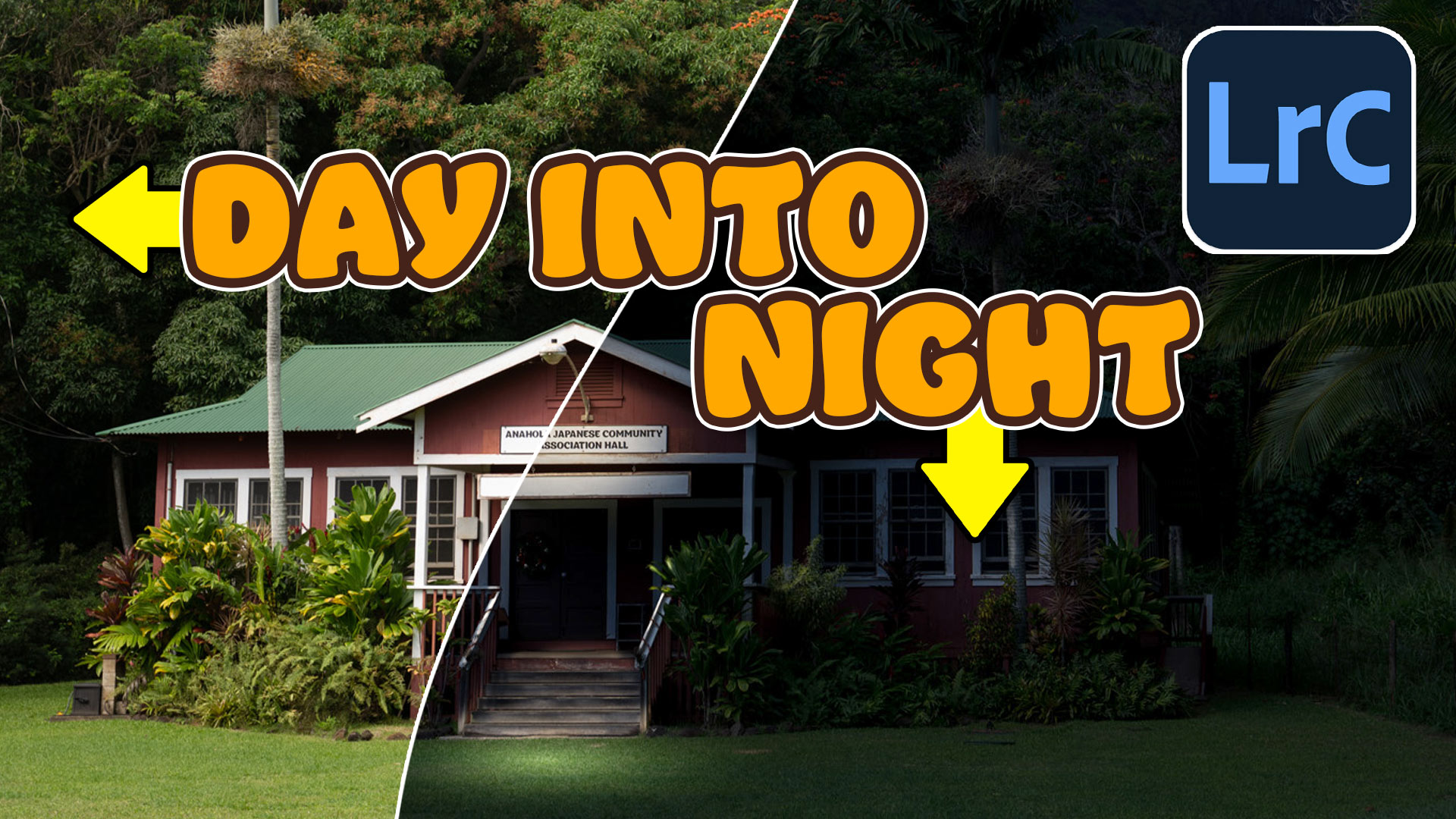

The 10 Best Photoshop Tutorials of 2020
The top free Photoshop and Lightroom tutorials. 12 best free Photoshop and Lightroom tutorials are right here. Read tutorial
Hidden Power of the 3 Brush Workflow in Lightroom to Dodge and Burn for depth in Photos
How to use the 3 Brush trick to easily dodge and burn in Lightroom. Read tutorial
How to change hair color in Lightroom with masks. Ombre hair effect and advanced masks.
How to change hair color in Lightroom using AI masks. Create Ombre and mermaid hair color on pictures. Read tutorial
Page Peel effect in Photoshop, Surreal Composite, peel back the night
This Photoshop tutorial has it all; How to make a page peel, how to turn day into night, blending layers, how to... Read tutorial
Dodging and Burning Natural HDR in Camera Raw and Photoshop
We look at two methods of dodging and burning. One is with Camera Raw (exactly the same in Lightroom) and the second... Read tutorial











I loved this tutorial, Colin, and hope to find one of my images that I’ll try it out on. Thx as always for your excellent tutorials. I’ve learned so much from you.
Thanks for the kind words. Glad to help
Always like your videos and this one was very inspiring
Love this tutorial Colin, I’m going to try it with another photo also.
have fun with it!