
Why are there tools missing in Camera RAW sometimes?
Where are the missing tools in ACR, and why do they only show sometimes?
You may notice sometimes when you open Camera RAW, some tools are showing and other times they are gone. This can be a bit confusing if you don’t know what’s happening. It’s actually really simple. You can open ACR (Adobe Camera RAW) as a Filter, or as a plugin. (Technically, it’s always a plugin, but I named it this way to make it easy to understand).
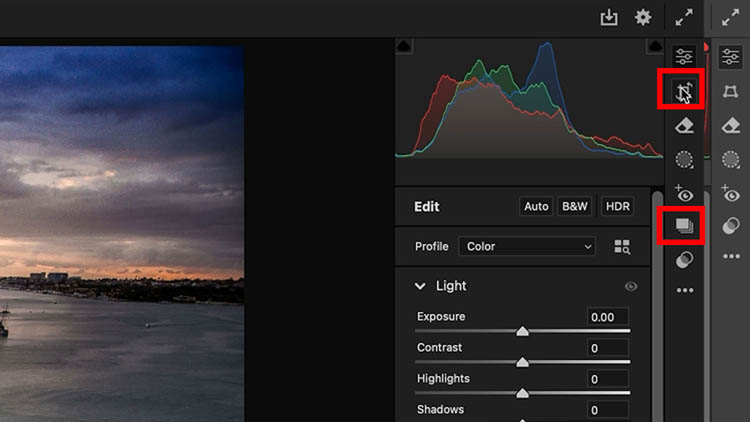
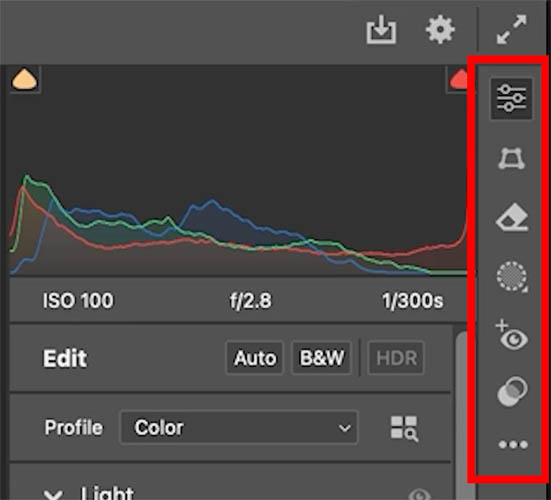
There are 2 ways to laugh ACR. Either directly, or through Photoshop as a filter. As you can see with the image below, you get a different set of tools on the right as a filter. The crop and rotate tools are gone. Also the resize option are missing.
Ok, let’s look at how to open 3 ways.
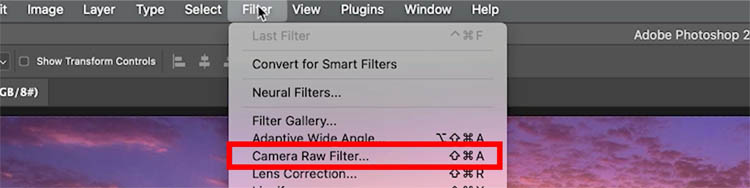
If you have an image open, choose Filter>Camera RAW
ACR will open, but it will be missing those transformative tools.
The reason for this, is because when you open as a filter, you are working from a document inside of Photoshop, not the independent RAW file. The raw file could be embedded as a Smart object, but it’s not open Directly in Photoshop, you have to go the ACR to access the raw file. You could also be working off a layer within a stack. Imagine if you resized, straightened or cropped that layer and then reapplied it to you stack, It would either mismatch the base document, or change the base document, neither of them are probably desired.
You can easily crop, rotate and resize within Photoshop. So, if its a physical limitation, or an intentional move by Adobe, it makes sense not to crop, resize or rotate though a filter.
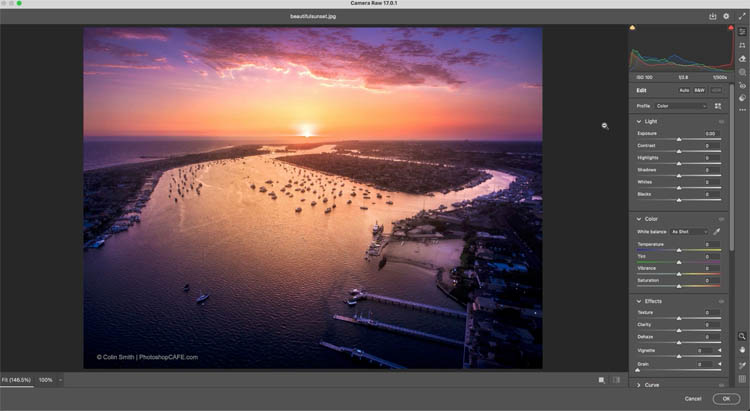
Let’s see how to get the full toolset.
Maybe you want to begin your journey with ACR and apply your basic adjustments, crop and straighten, before moving to Photoshop for finishing work. This is a common and perfectly good workflow.
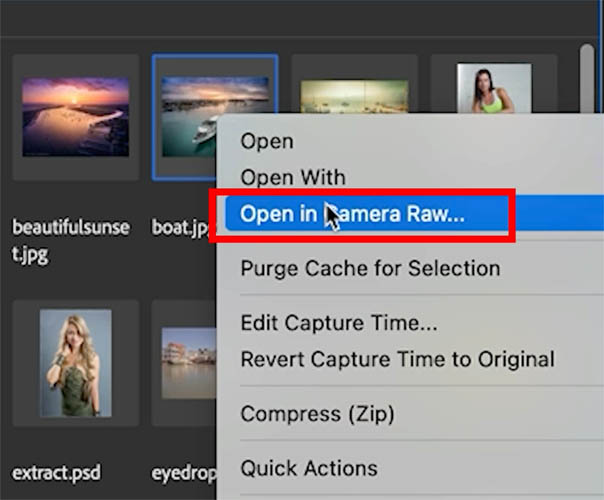
If you choose Adobe Bridge and right click, to choose Open in Camera RAW. you will open the image directly in ACR. This works with Jpg, Tif or PNG.
Notice all the tools are there.
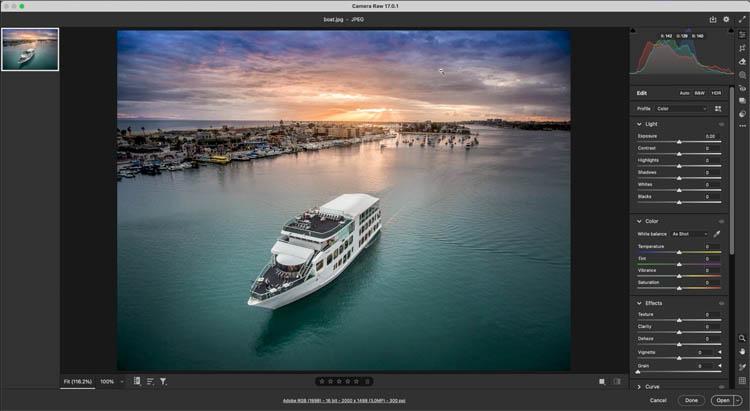
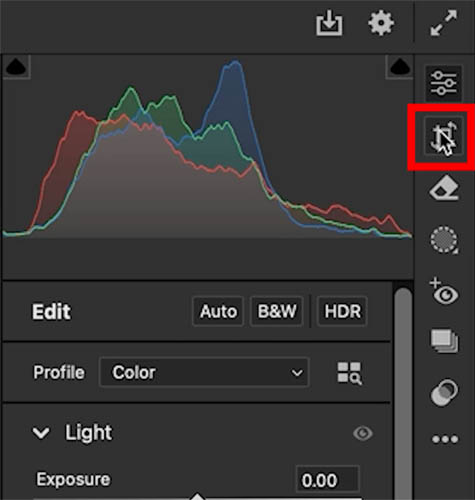
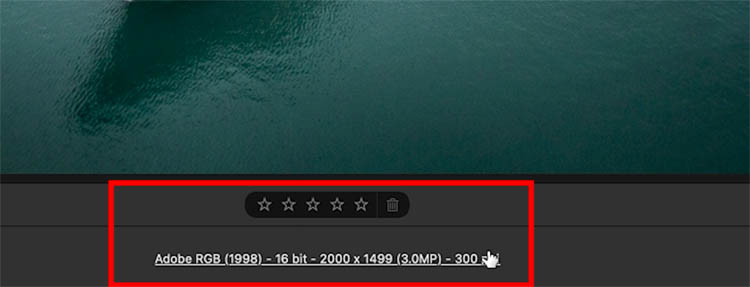
Another way to open directly into ACR through Photoshop, is to choose File >Open. Then navigate to the raw file. This will only work on RAW files and they will open directly into ACR. All other files will open into Photoshop.
There is an exception. If you change the preferences in Camera RAW from Photoshop.

Choose File Handling and choose Automatically Open all supported…
If you do this, when you open that file type it will automatically open in ACR. I would say most of the time, you wouldn’t want that for non RAW files. But if your workflow dictates it, there’s an option.

I hope you found this little article useful
Colin

Recommended for this tutorial
Learn Masks in Lightroom and Camera RAW
Make precise local adjustments in Lightroom and Camera Raw with every type of mask.
$59.99 · one-time purchase · instant download

Free for you
The Photoshop Vault
Get my free Layer Blending Modes ebook along with dozens of exclusive Photoshop goodies: actions, brushes, presets and cheat sheets.
You're on the list, so your free goodies are waiting for you in the Vault.
Get Free Photoshop Goodies Open the Vault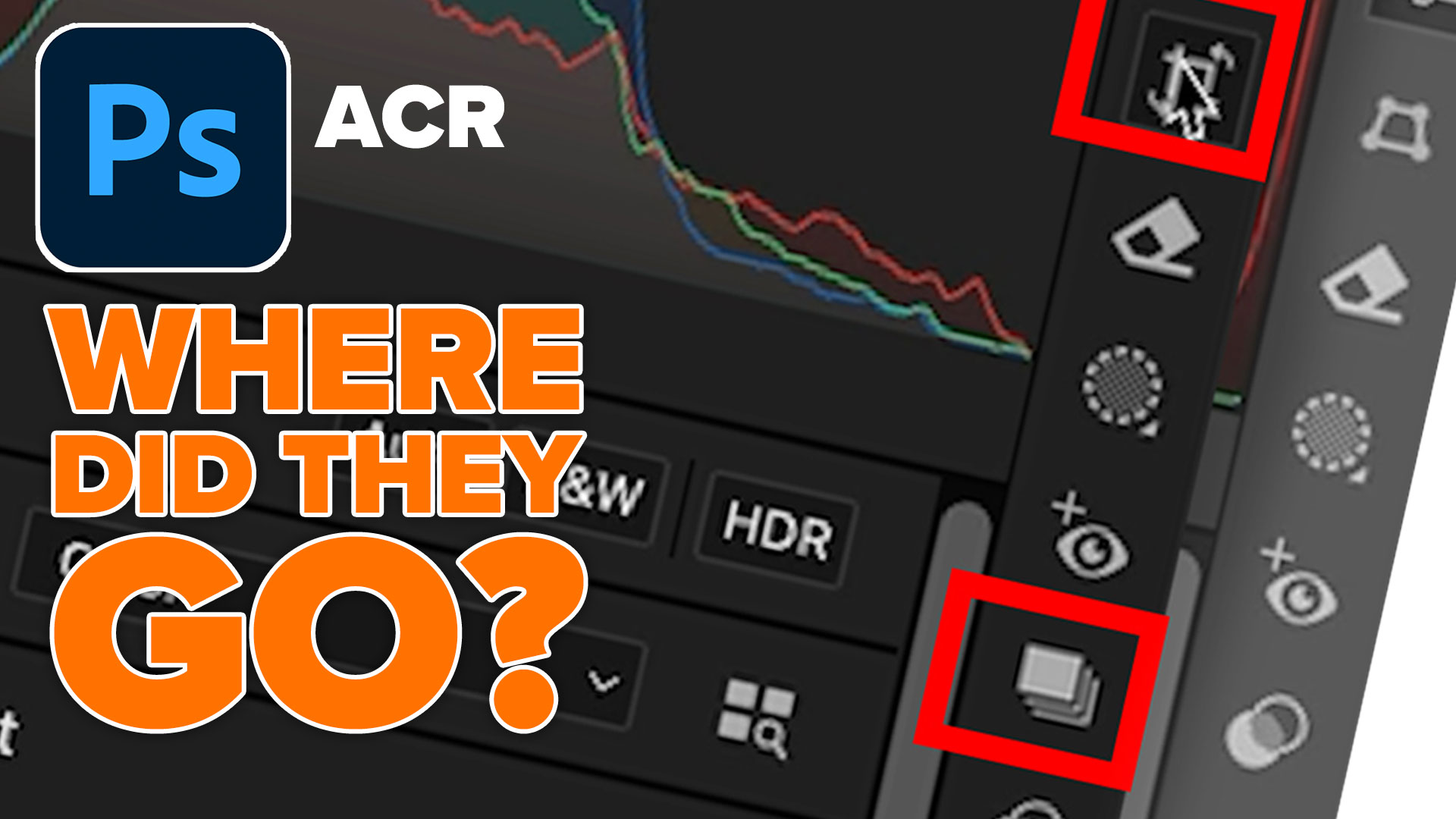
Filter brushes Adobe Camera Raw 9 Tutorial
All new local adjustments with the new Filter Brushes in ACR 9, allow you to paint on or subtract from gradient and... Read tutorial
Dodging and Burning Natural HDR in Camera Raw and Photoshop
We look at two methods of dodging and burning. One is with Camera Raw (exactly the same in Lightroom) and the second... Read tutorial
Fix color in photos, 1 click in Photoshop or Lightroom
Use this trick to Fix color in any photo in 1 click in Photoshop, Lightroom or Camera Raw Read tutorial
How to use Smart Presets with ai masks in Adobe Camera Raw and Lightroom
See the mind blowing ai smart masks and smart presets in Adobe Camera Raw and lightroom. This is unbelievable new tech Read tutorial
Photoshop contrast alternative makes every photo better
It's common to increase contrast in photoshop to add punch.Here is a better way to pop your images without losing quality. Better... Read tutorial












Great explanation. I wondered where the snapshot icon went. Thanks again
Hi Colin
I appreciate your effort in doing both a video and written explanation of your topics. The one today on why ACR is not “consistent” is one of those items I would just wonder what is going on and then give up on explaining it.
I have your Intro to PS videos. Do you update the ones that change with new releases?