30 Stupidly useful tips in Photoshop that you will regret not knowing
Photoshop Tips part 1
It’s Photoshop’s 30th birthday.
To celebrate, I’m going to share my top 30 Photoshop tips.
Here are the first 10.. I’ll make this a 3 parter, with 10 tips each (Actually I’ll give you more than 10 in each)
Part 2 Photoshop Tips here
Check out parts 3 and 4 here!
I hope this little tutorial saves you lots of time.
If it does, please take a few of those valuable seconds I just saved you to share this with a friend or 2 on Social Media or email.
Great to see you here at the CAFE
Colin
Keep growing with Premium Courses
Photoshop 2026 for Digital Photographers
Learn Photoshop properly, from the basics to pro retouching, step by step.
$129.00 · one-time purchase · instant download
Free for you
The Photoshop Vault
Get my free Layer Blending Modes ebook along with dozens of exclusive Photoshop goodies: actions, brushes, presets and cheat sheets.
You're on the list, so your free goodies are waiting for you in the Vault.
Get Free Photoshop Goodies Open the Vault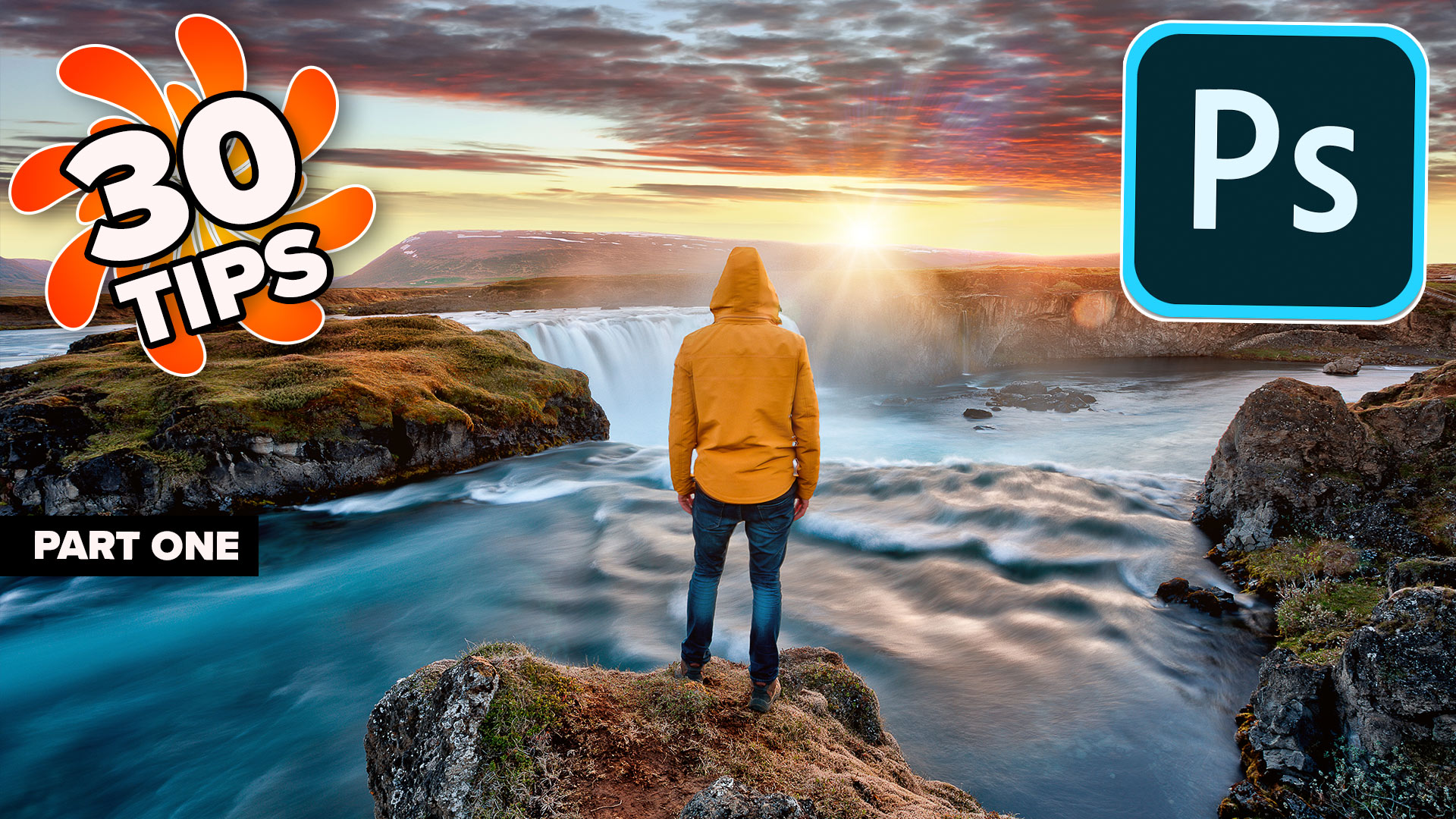
5 Time Shredding Tips in Photoshop (+ Rapidly make thumbnails)
I hope you found these tips useful. If so, please subscribe to our youtube channel and share them on Social media and... Read tutorial
Avoid the 3 worst photo editing mistakes in Photoshop
Stop ruining your photos in Photoshop because it will make you look like a noob. Here are 3 things to stop doing... Read tutorial
5 Photoshop tips you probably don’t know
5 awesome tips and hacks you probably don't know in Photoshop 2020 (new version) Read tutorial
How to rapidly grow your Photoshop skills, 5 tips
5 tips for rapidly improving efficiency and creativity in Photoshop. By following these tips, you can create professional-grade images and elevate your... Read tutorial
Change these Photoshop settings today
Change these Photoshop settings to make Photoshop work better for you. Read tutorial









Helpful information as always. I’d like to see how to build a collage template, say 3×3 square (nine) with image placeholders that autofit. I have Adobe CC and an intermediate understanding of PS, AI, and ID. Thanks again for what you do.
Wonderful first 10 tips on PS. I would like to see the other two presentations please.
Thanks Colin for the great tips. My fav is the straightening tip – awesome!
Always needing to learn.
Thanks for these Photoshop tips Colin. They are great. I have been following you for a few years now and enjoy your teaching style. Looking forward to parts 2 and 3.
Thank You Colin, you always helping the Photoshop CAFE community, we all appreciate your tips.
Have a wonderful day,
José
Great tips particularly the copy with the option key and also the straightening tip
I understood you samled a lot of photographs into one layar or each photo ended up as layars, but what should then that be used for? To bring them all into a pdf or what, I did not get the idea?
For any kind of compositing or design work.
Thank You!!!
Those were great tips. Keep them coming.
Thanks Colin, you are a great teacher and I appreciate all the free tips. I knew some of these but not about expanding the canvas, the align tools, and placing all open files into a document the easy way!
Thank you Colin, as usual there’s always something to be learned. I especially liked the “straightening” tip. Now all I have to do is remember them all.
Great lot of tips. Thank you. Looks like some more late nights learning
Thanks a lot for useful tutorial, well explained, easy to understand and definitely I didn’t know much of what you shared with us!
Please issue these as a printed outline, perhaps illustrated with screen shots if appropriate, as an option for people like me who find video tutorials a nuisance. I can absorb information much more quickly and efficiently in print than by sitting through several minutes of video. Appreciate your considering this.
Brilliant tips – 30 of them! Can my brain take it?
Really enjoy the tips especially Part 1 & 2. Is there an e-book available that one can use to come to grips with PS. I love the software but really struggle with the intricacies.
Keep up the good work. Cheers
Great tips…I am nearly 68..and have enjoyed Photoshop PS. love to be a part of Photoshop PS..and Thanks for tips.
I want to make a flower reflection in water…to be animated Gif… how do i do this?
I think I watched this too early in the morning….so much information. I struggle with brushes….Like how to organize them, create new ones in a specific existing group of brushes, etc, etc, etc. I’ll watch this again. Thanks so much for doing this!! It’s very helpful!!
Hi! It would be great to have a cheat sheet for this, as I, too, have trouble watching videos. I love your tuts and benefit from them, but only the ones that have cheat sheets. Thanks for posting all these!
Just a time issue 🙂
Create new text without selecting text or path underneath it! This has been bedeviling me for a while, and so simple! I have been making coin designs requiring lots of text inside of a circle [or circles]. Do you have a foolproof way of always aligning the proper center inside of a shape? The shape is not always in the center of the document. When I re-size text or text paths I always have to re-center. Thanks, Colin!
Make a slection and choose free transform, will show the center
I like all these tips Colin!
Especially the select and align / distribute as well as the straighten using arbitrary!
Thank you so much
Thanks for putting up the video!! I have to say…I didn’t know that. But now I do! I wish I have known these tips earlier. Especially the part where you can view all of your images with the “Reveal All” . I would have saved lots of time working on my images and graphics in different layers with the tip, have I known it earlier. Again, thanks Colin!