
Photoshop 2022 Learning Center. New Features in Photoshop 2022
What’s new in Photoshop 2022 Photoshop v23
Here is a list of the new features in Photoshop 2022 along with tutorials in how to use them. Watch the top feature video and then I’ll be adding a new video every day this week! As always, we have you covered here at photoshopCAFE on day ONE!
New Features in Photoshop 2022
Every year, at the beginning of Adobe MAX, Adobe drops the biggest update to most of its CC products. Photoshop, Camera RAW and Lightroom are definitely a big part of that. Check out my other post on the new features in Lightroom (Masking Panel, it’s HUGE!)
The biggest features in Photoshop (IMO) are Improved Object Selection and some powerful Neural Filters.
Object Selection
Object Selection gets a major update. It’s like science fiction, or maybe just how friends and clients always though Photoshop worked from watching TV shows, where they yell “enhance” or click something and suddenly its extracted from the background.
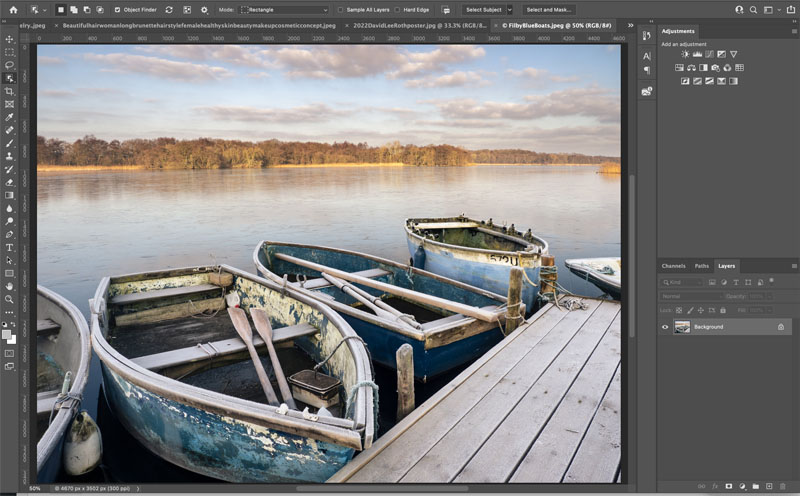
This is exactly what happens.
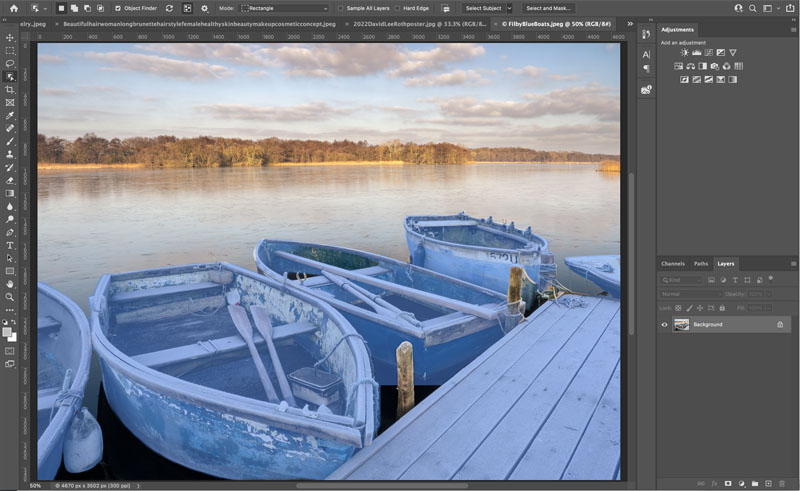
When you choose the Object Selection tool, Photoshop automatically analyzes the image using AI and decides which objects can be extracted. As you roll over different people or objects, a blue silhouette will appear over them. Simply click and a selection will be created around the object. This is different than the select subject button, because this new method can identify and isolate many different objects in an image.
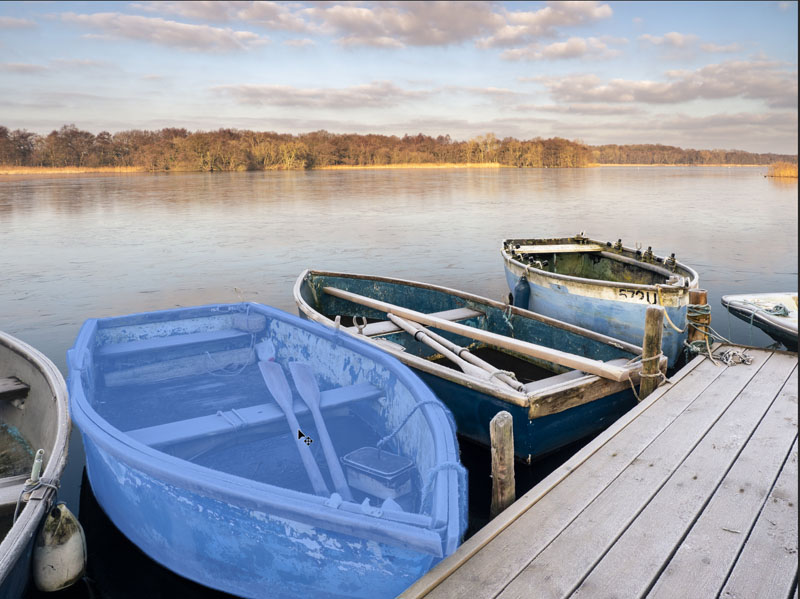
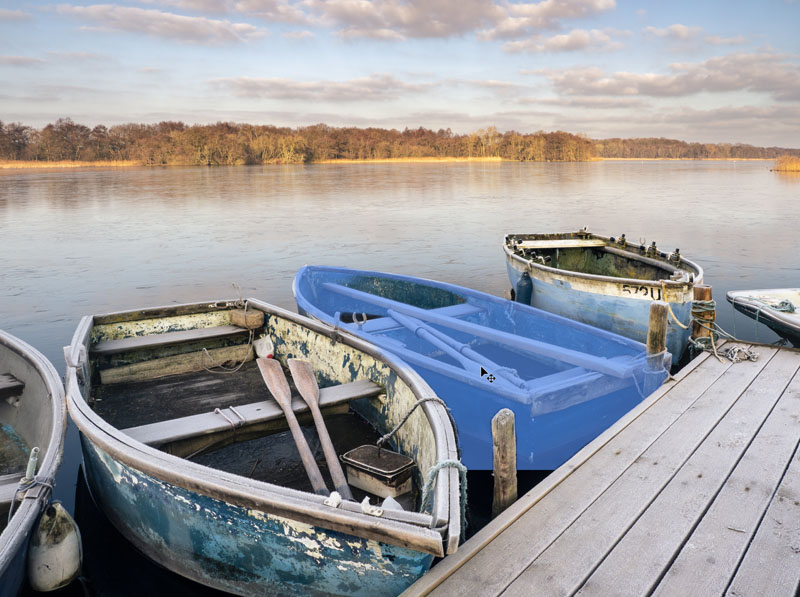
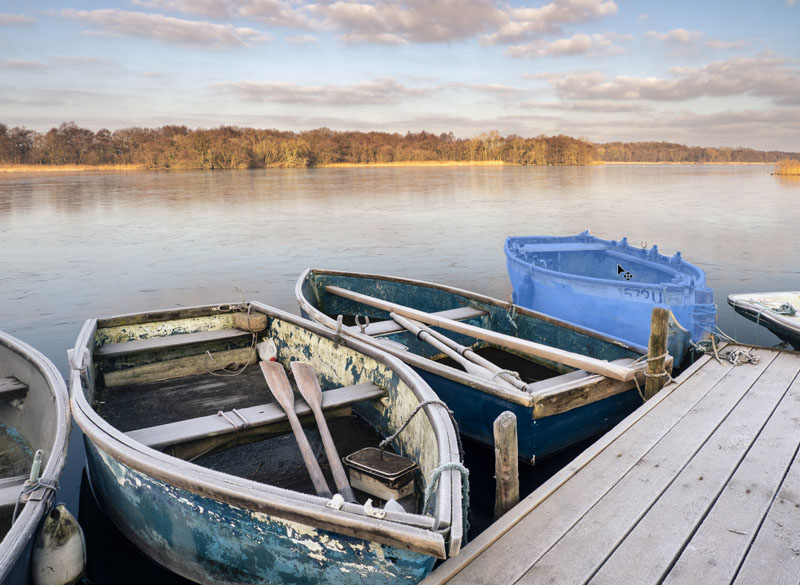
The algorithm for making AI powered selections has been improved for even more accurate selections than before.
At the time of testing, the “object Finder” is only enabled when the Object Selection tool is enabled. You will see a spinning arrow to indicate the tool is at work. If you find this is distracting while working there is an Object Finder checkbox, so you can quickly turn this feature on or off.
Click the options to enable lots of options such as color and opacity of overlay, as well as an option to add an outline to it.
You can also Turn the overlay to always on, always off or auto (rollover the default). Interesting to note, in always off, you can still click an object to select it.
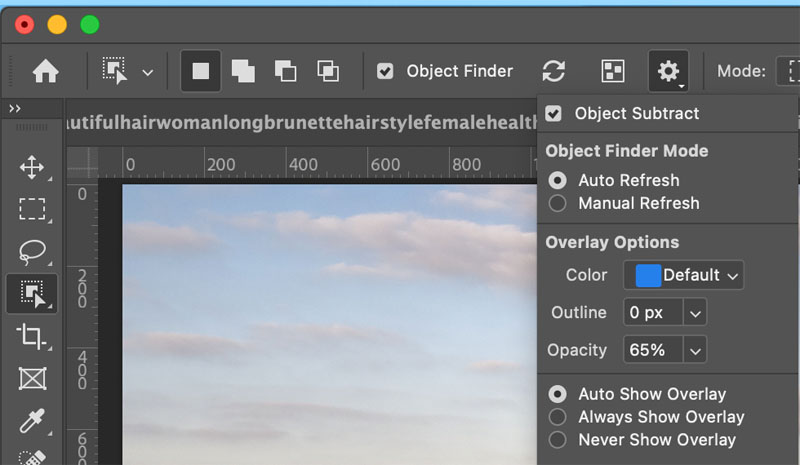
You will see another option to auto refresh and manual refresh under Object Finder modes. The manual would be useful for those times when you are cloning etc and you don’t want it constantly updating the overlays.
Apart from the obvious, cutting out and masking separate objects, these quick selection can come in handy for retouching, dodging and burning and other enhancement tasks with adjustment layers, or working on a single layer.
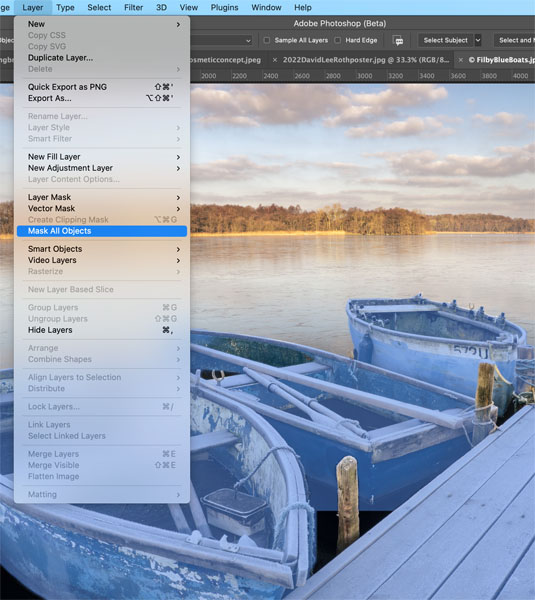
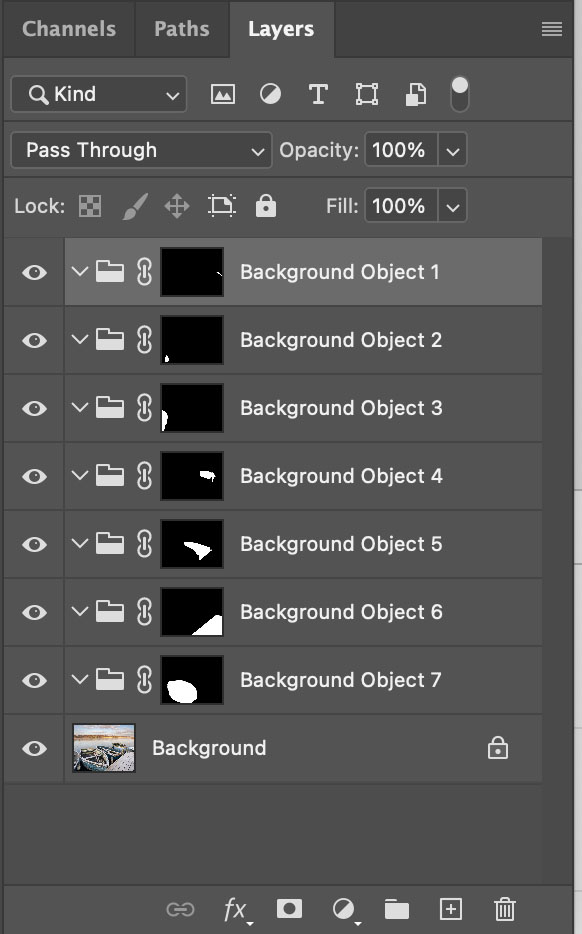
There is also a really handy option to turn every detected object into a separate layer mask. Choose Layer>Mask all Objects. This creates an empty layer group with a mask for each object. This has lots of uses.
AI Powered selections and Masks in Camera RAW
This is a huge, if not the biggest improvement to come to Camera Raw and Lightroom in many, many years. We have the ability to select sky and select object in Camera RAW. Because this works identical to Lightroom, I won’t repeat everything here, see my Lightroom New Features article for and in depth look at this feature.
This also comes with a masking panel that allows to to select the different masks, as well as combine, extract or intersect with each other or other local tools including gradient, radial and adjustment brush. All of these tools as well as the 3 range masking tools all live in the same place and can be called by clicking on the mask button.
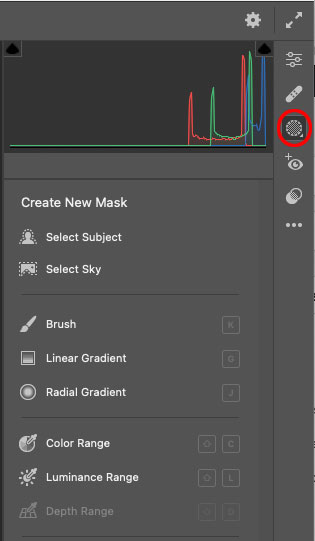
New Neural Filters
There are 3 new AI powered Neural filters added to this release of Photoshop.
Harmonizer, Color Transfer and Landscape Mixer.
Harmonizer.
A welcome update to Match Color. When you are combining images, (compositing and collaging) very often (usually) the color and tones don’t match between the different photographs. Its a lot of work to match the images so they look like they actually belong together.
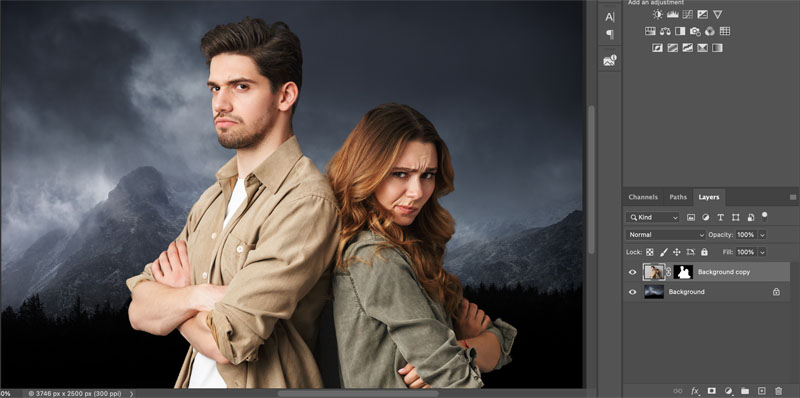
Now you can choose the layer you want to adjust, choose Filters>Neural Filters>Harmonize.
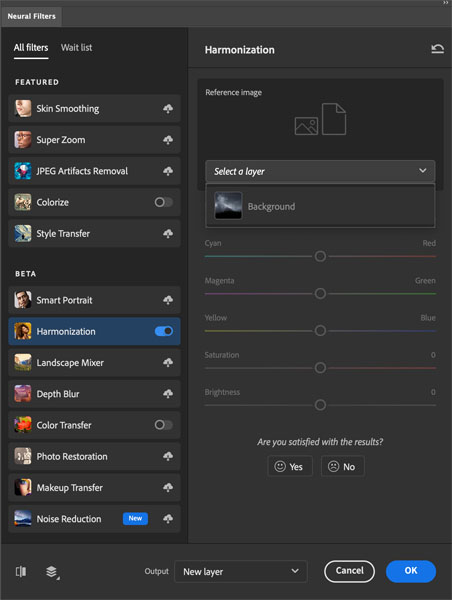
Choose the layer you want to match under the Reference Image.

AI goes to work and adjusts the tone and color of your layer.
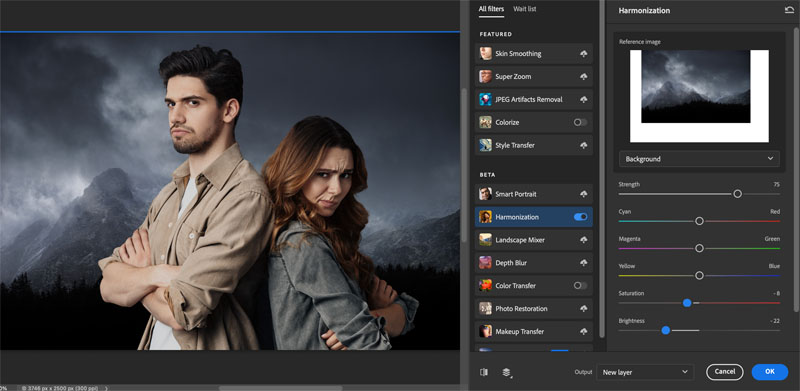
You can change any of the color values (all 6 primaries are there).
The common sliders you will adjust are the Saturation and Brightness.
You can output onto same Layer, new Layer or Smart Object.
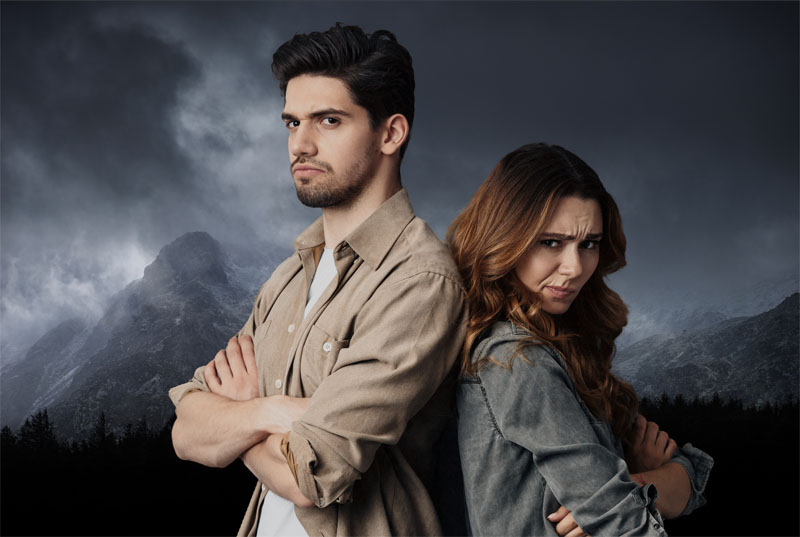
I can see this being a very popular tool with compositors.
Color Transfer.
Another AI Powered tool that I think people will really love is the Color Transfer. I’m sure you have used color or gradient overlays, perhaps even gradient Maps These are really good tools for color grading images.
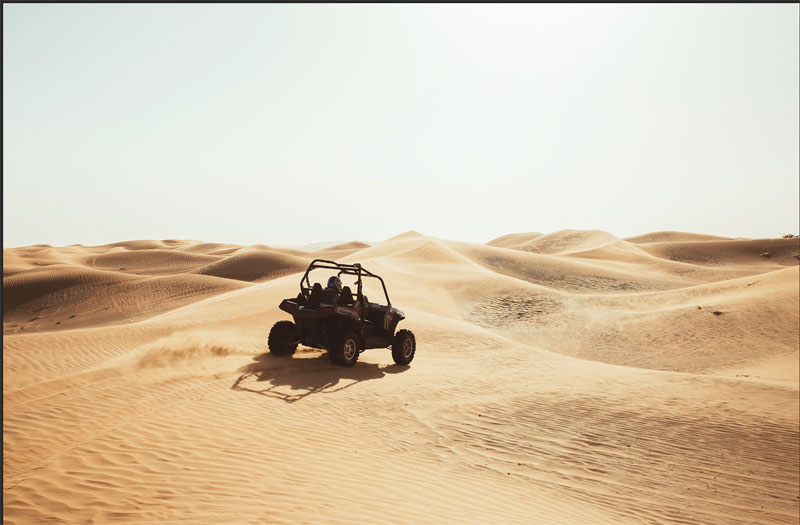
Color transfer takes this to a different level.
I’m going to start with a creative way I would use this and then we will look at the basic options (kinda reverse of what people normally do).
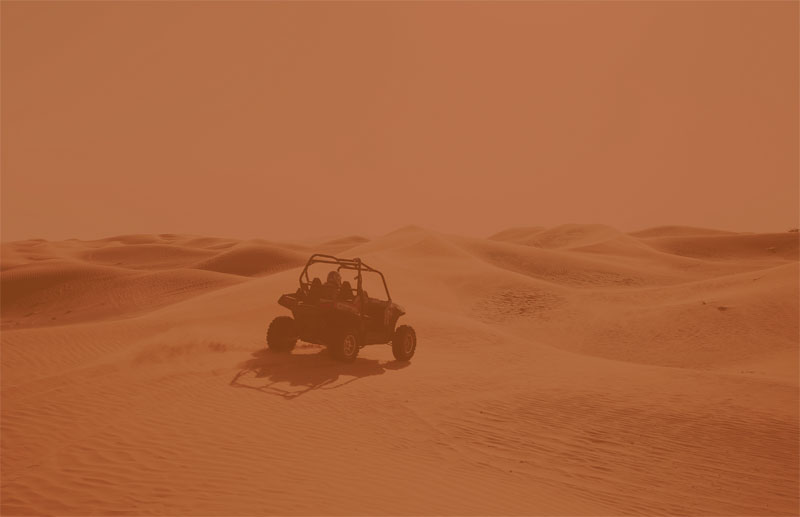
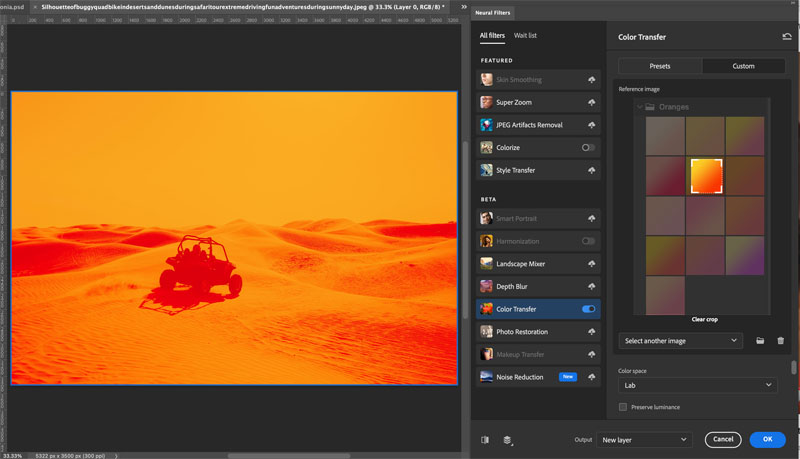
Lets make this photo of dune buggy look like its on Mars.
I took a screen capture from the movie The Martian.
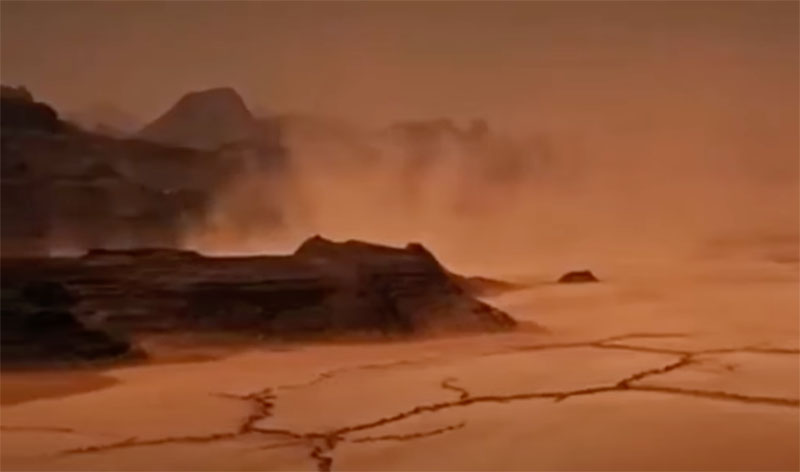
Choose Filter>Neural Filters> Color Transfer.
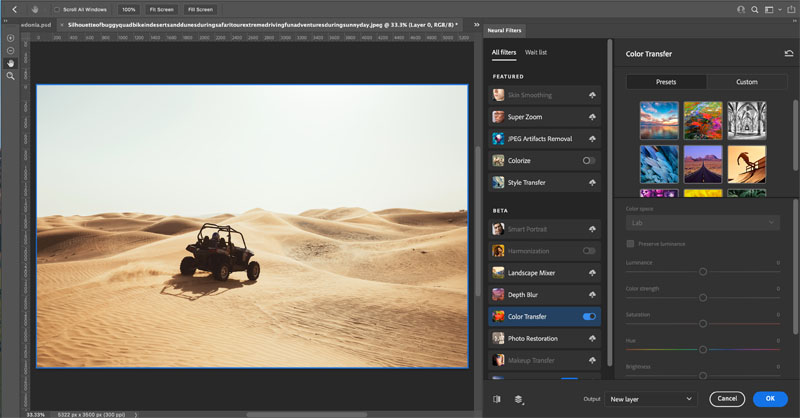
Choose custom and select the screen capture from the File Browser.
Notice how it applies the color effect is a really good way.
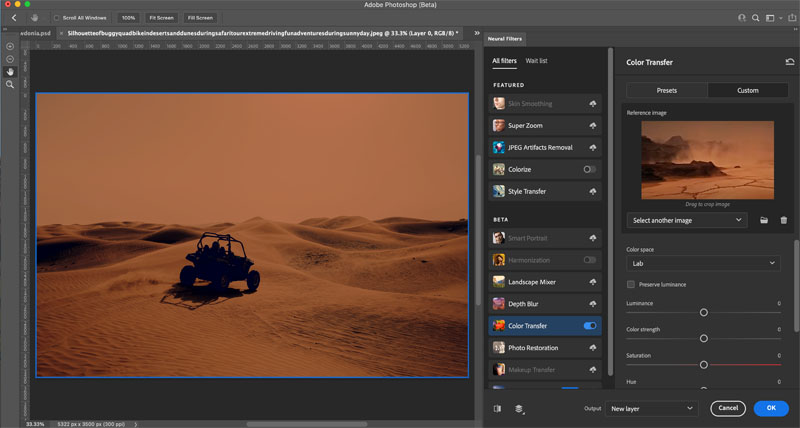
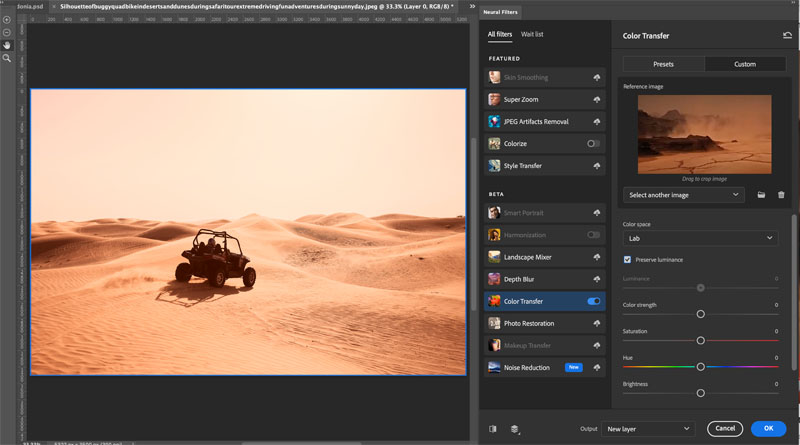
You can change the settings to customize the result.
There are masking tools on the left so you can remove the color effect selectively.
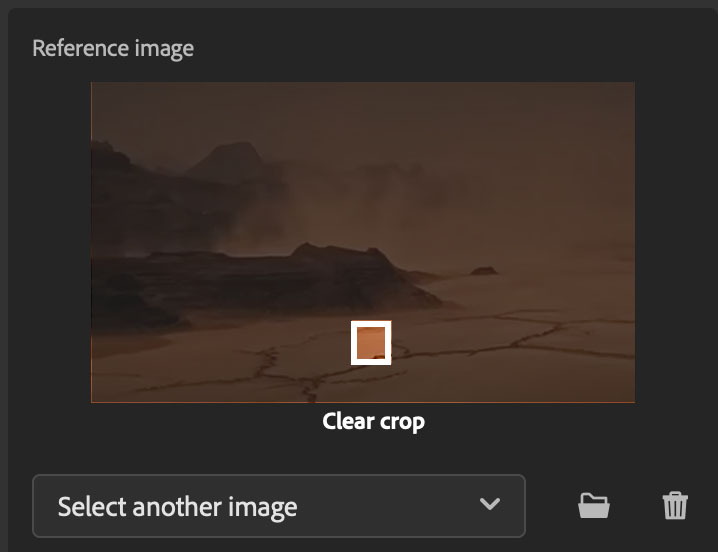
The other option, is to drag a box in the reference image window. This box enables us to isolate a part of the image to be used for the transfer, rather than the entire image.
See the result we can get. So show how well it works, I took a screen capture of the gradient panel and applied a single gradient using the color transfer with the selection tool.
If you want to just go quick, start with the presets and choose one from the list. Personally I think the power of this filter is in using custom images.
Landscape Mixer.
Maybe not as practical as the other 2 filters I just showed you is the landscape mixer. This is a very powerful and a little unusual. I think concept artists will like it. This is the way to copy the properties from one environment to another. For example, take a desert scene and apply an oasis to it.
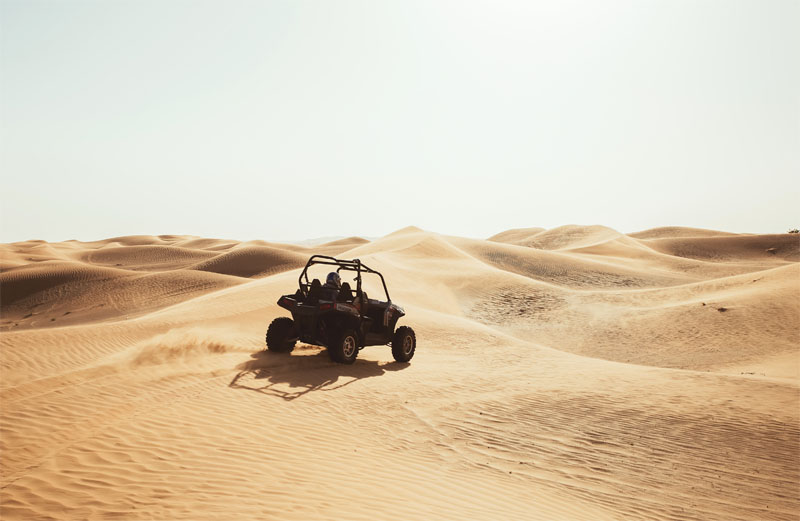
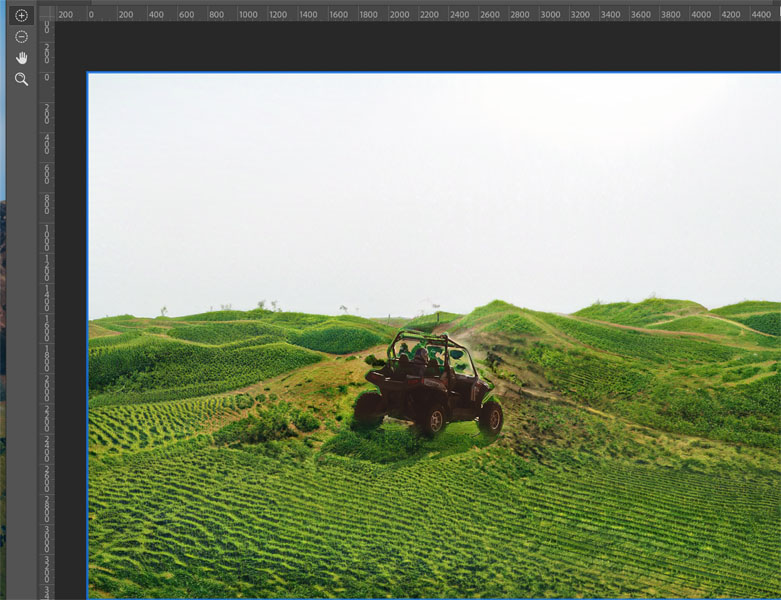
Look at our same desert scene with the dune buggy. You can make it grassy or snowy.
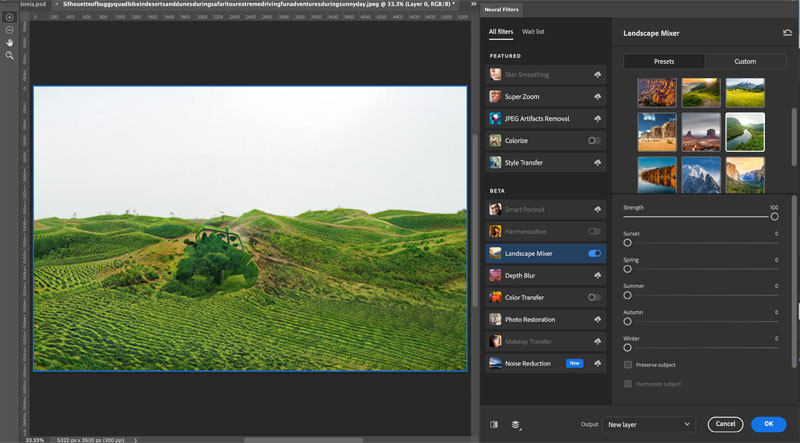
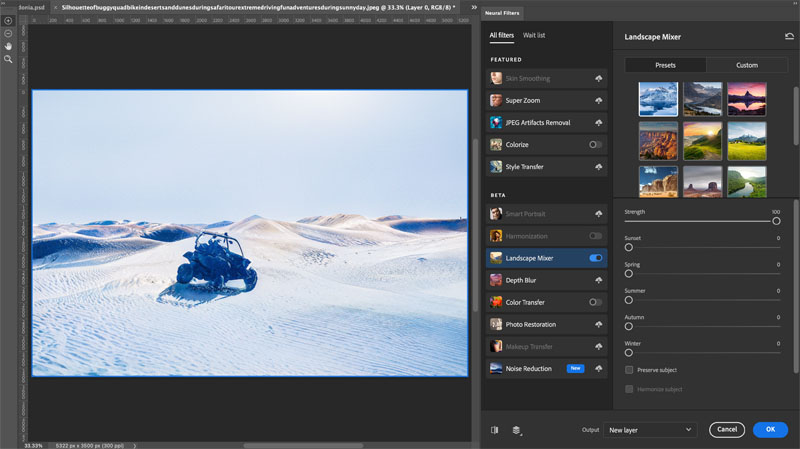
You may have noticed the dune buggy also changes.
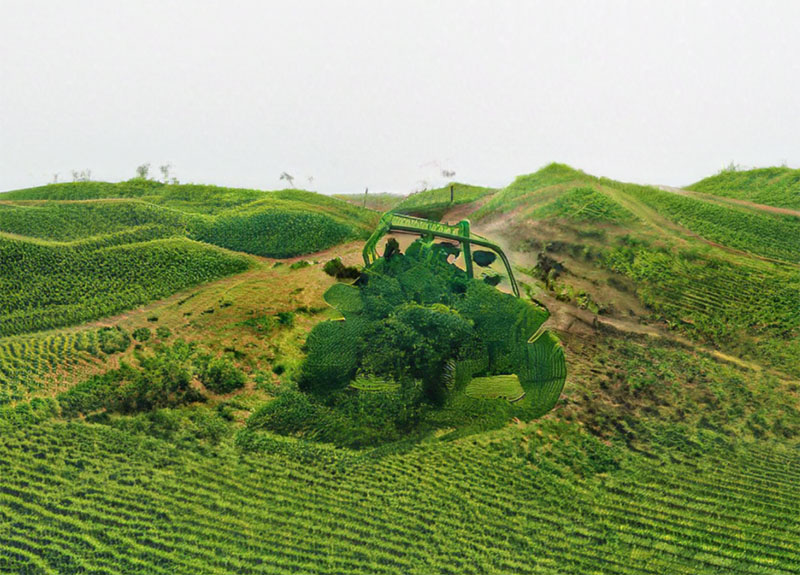
Fortunately Masking is available, including select subject from the top
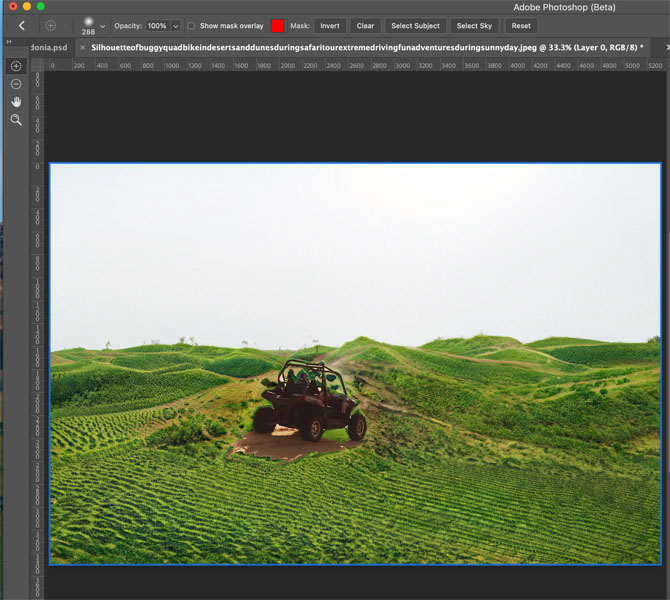
You can also mask manually using the brushes on the left. Or just output to a new layer and mask in photoshop using the object selection tools.
Other new features worth mentioning are:
- illustrator to PS (Paste as layer into Photoshop for Illustrator and maintaining vector shapes in Layers).
- Share commenting
- Apple XDR Monitor Support
- Export As 2 up
- Content Authenticity
- Oil Paint GPU
- GPU rulers
- Enhanced Stylus support Windows
- Improved Color management
- Masking in Lightroom
This is the start of our Photoshop 2022 Learning Center. Drop back every day this week for new content!
Photoshop 2022 Superguide
- All the top new features in Photoshop 2022
- LIGHTROOM CLASSIC 2022 NEW FEATURES
- Instant Selection with Object Finder
See you at the CAFE
Colin

Keep growing with Premium Courses
Photoshop 2026 for Digital Photographers
Learn Photoshop properly, from the basics to pro retouching, step by step.
$129.00 · one-time purchase · instant download

Free for you
The Photoshop Vault
Get my free Layer Blending Modes ebook along with dozens of exclusive Photoshop goodies: actions, brushes, presets and cheat sheets.
You're on the list, so your free goodies are waiting for you in the Vault.
Get Free Photoshop Goodies Open the Vault
What’s New in Photoshop 2026 (Full Release Overview)
Explore the top new features in Photoshop 2026, Full release Read tutorial
Big ambitious NEW features in Photoshop 2025 July 29 update
How to use the NEW features in Photoshop 2025 July 29 update, free written tutorial and short video tutorial by Colin Read tutorial
New Features Lightroom Classic 2025. LRC 14
New Features in Lightroom Classic 2025 aka Lightroom Classic 14 Read tutorial
5 big new features in Photoshop 2026 August update
5 New Photoshop 2026 Features You Need to Know Adobe has added a number of new features to Photoshop 2026, and some... Read tutorial
How to Use the Light Adjustment in Photoshop: In-Depth Guide
Colin Smith shows how to use Photoshop’s Light adjustment layer to recover highlights and shadows, control tone, use masks and stack adjustments. Read tutorial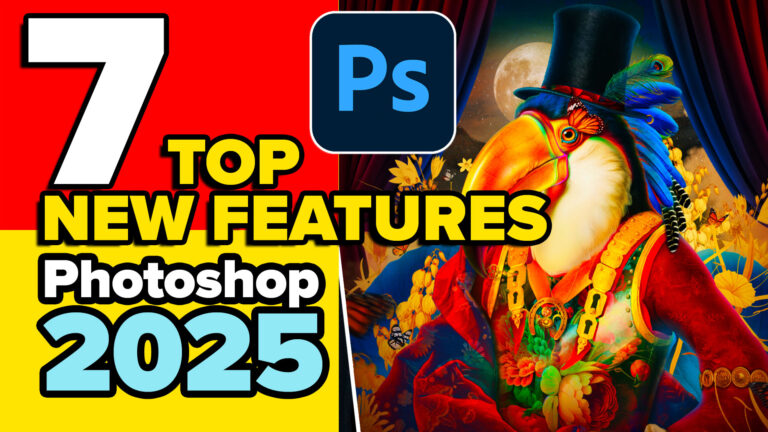












Wow!!!! Wowww! Can’t wait to try this new version!!!♫♥♥ Thank you my friend…
Hi Colin, I tried the new Object Selection Tool and it works fine except that the color overlay doesn’t show. Is there a reason for this? Something I missed?
Sheila Macdonald
Many thanks again,,,, always a real treat,,,,
Colin, Do you know if the new PS and LR updates will run with MacOS Big Sur. My MacBook Pro is a mid 2014 model and can no longe update to the new OS (Monterey). It did update to Big Sur v11.6.1. Thanks, Ian
Yes, Im running them on Big Sur
Fantastic! Can’t wait for my Mac to arrive in the next couple of weeks so I can try these out! I am especially excited about the object selection and color swap options — I have been struggling with workarounds for both of these for so long and with such frustration!! Now if they would just make a brush tool that adds and subtracts contrast (in fully adjustable amount) )without affecting color — PLEASE tell me they’ve added that! Can’t wait for the rest of the week’s tutorials, thank you!!
Well done Colin. That is a brilliant lesson. Whilst I have learned a lot from Ramelli and Nace, they drive me nuts by inundating me with ads their paid-for content. You are cool and laid back and that is why I buy your stuff when I see something that I like. Thanks for what you do.
Hi Clolin,
Great video on the new filters w/Adobe Photoshop!! I am going to be following your videos from now on. Do you know if I sign up w/ Adobe in Nov/21 will it come with the yr.22 filters?
Thanks, Richard Warriner
thanks 🙂
I have the same issue as Sheila Macdonald reported. The colored overlay does not show. I am on version 23.0.1 Any help will be appreciated.
This new feature, “interoperability with Illustrator,” is my favorite new feature. It’s the most astonishing thing that’s happened to me in a long time.