
How to automatically edit Landscape photos in Adobe Camera Raw + Lightroom using Smart Presets
In this Tutorial we are going to Edit a landscape photo using Camera Raw or Lightroom (same develop settings).
We are going to use AI mask and create presets. Then we are going to batch process other images using Camera Raw, Bridge and Lightroom. It doesn’t matter if you use Photoshop, Camera Raw or Lightroom, this tutorial will work in all of them. I recently made a tutorial on ai presets on people in Camera Raw, check out the tutorial here.
Lets start with an edit.

First we will open several images into Camera Raw.
In Adobe Bridge select the images to open and right-click, Choose Open in Camera Raw
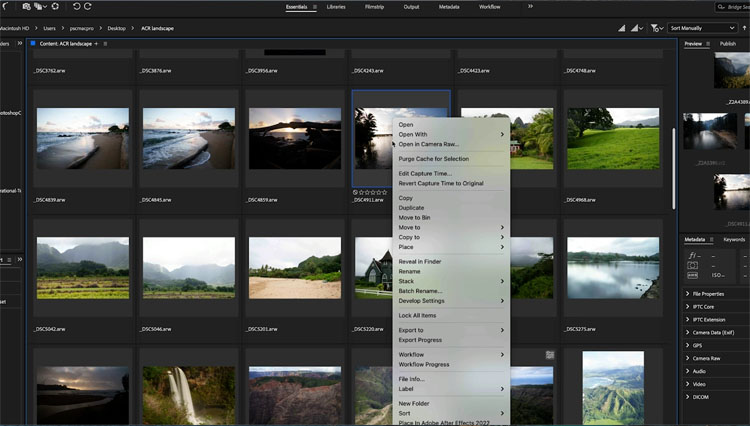
Here you can see 4 images open in the filmstrip on the left.
Lets work on this image of the canoe that I captured in Hawaii.
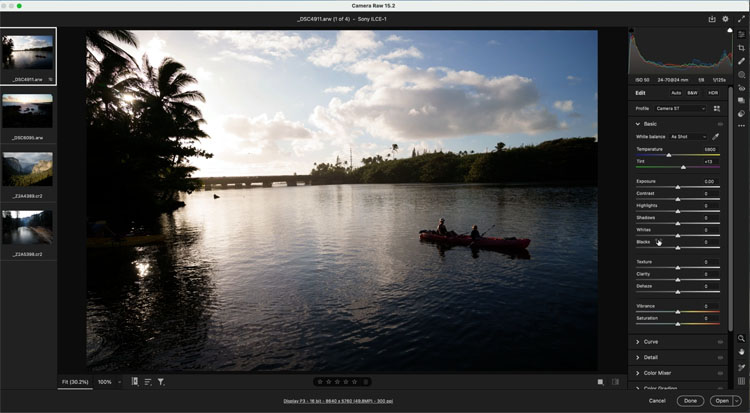
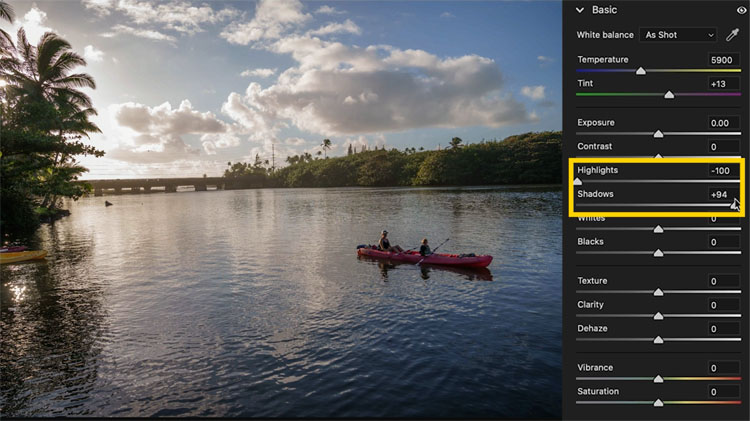
Disclaimer: I am going to do very heavy handed edits here, so you can clearly see what’s happening. In reality, you would work on a set of very similar images and do more subtle edits that suit the photos you are working on. This will nicely demonstrate how it works and also how the ai masks can adapt to different images.
In this case, I pushed the recovery sliders as far as they can go, shadows and highlights. (In reality, I’m aggressive with highlights, but use Shadows with a very light touch.) But, you will also see, we can change these settings later.
Lets add more definition to the sky
Choose the mask
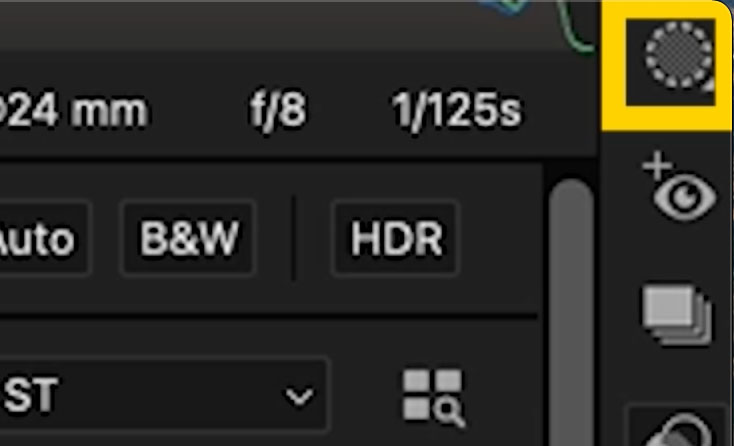
grab Select Sky
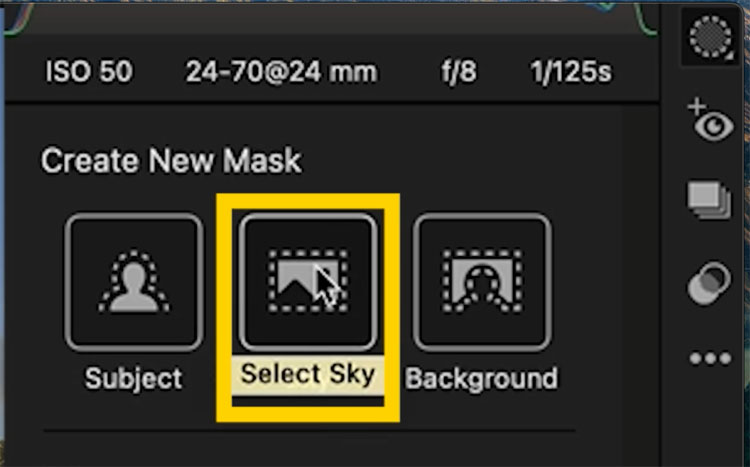
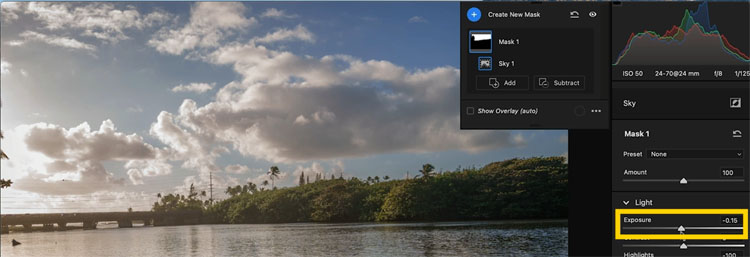
Now you can adjust the sky. Move highlights to the left and lower the exposure slightly.
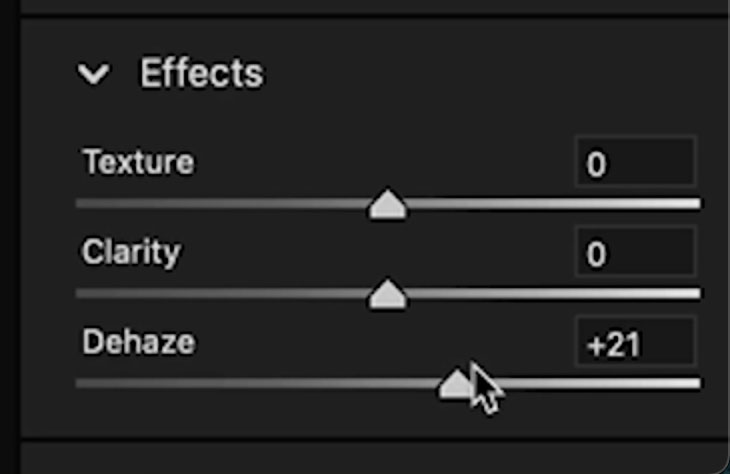
Here is a good tip for clouds. Move the dehaze up a little bit, it really makes clouds pop.
Making a smart preset in Adobe Camera Raw
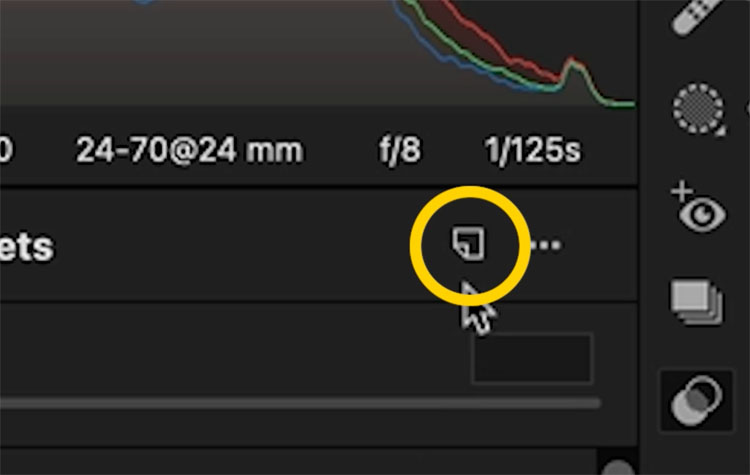
Click the new preset button under presets
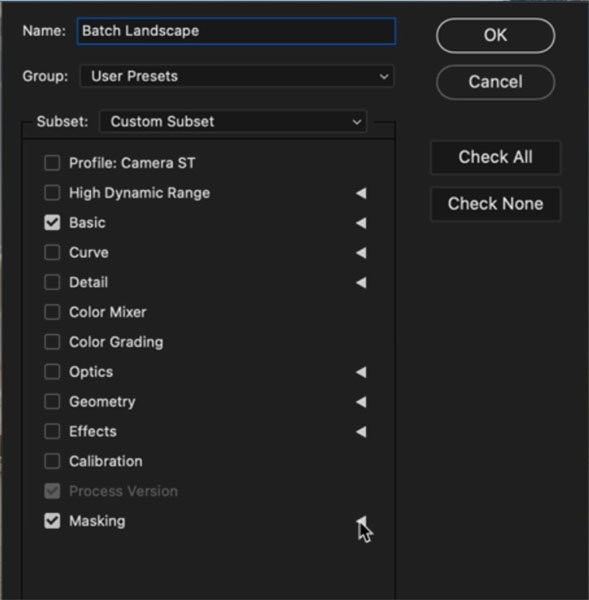
Name the Preset. In this case, I called it “Batch Landscape”
Applying a Smart Preset to Batch Process photos
Using Smart Presets in Adobe Camera Raw
Lets start in Camera Raw.
Choose the images in the filmstrip
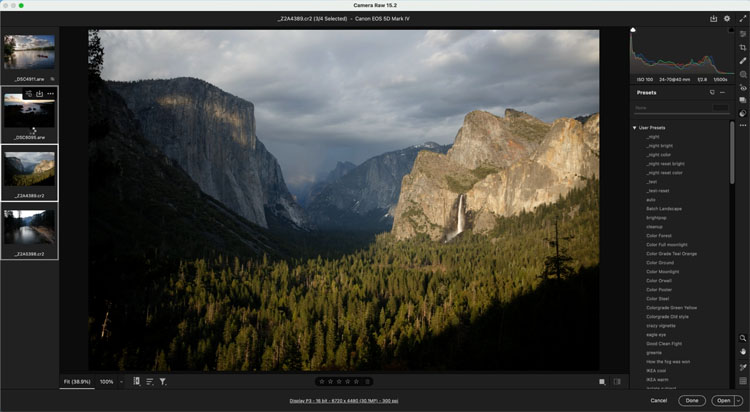
Choose our preset from the Presets.
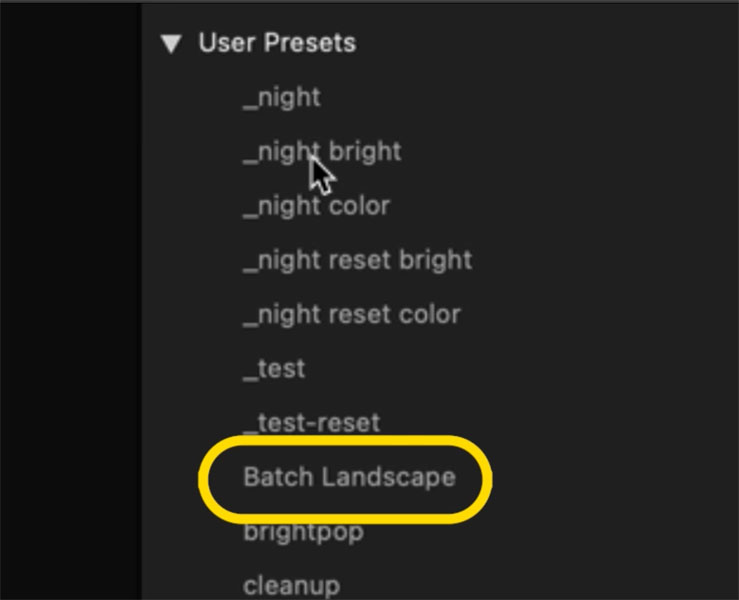
And it will apply to all the selected photos.
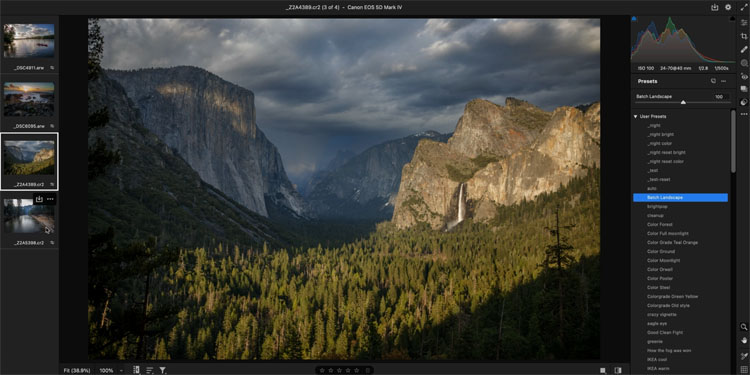
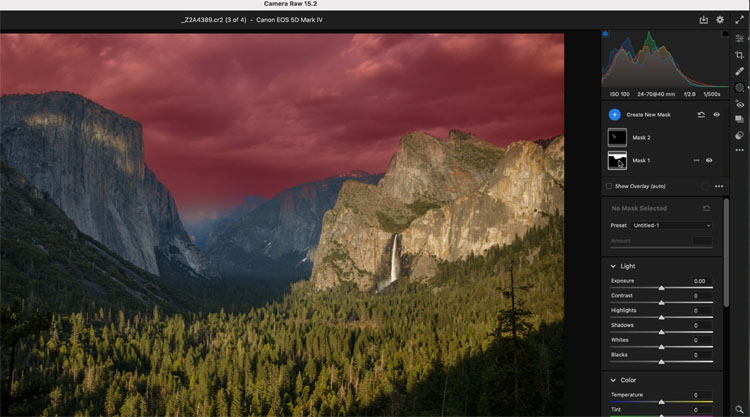
Notice that the masks are added to each image and adapt to each different sky.
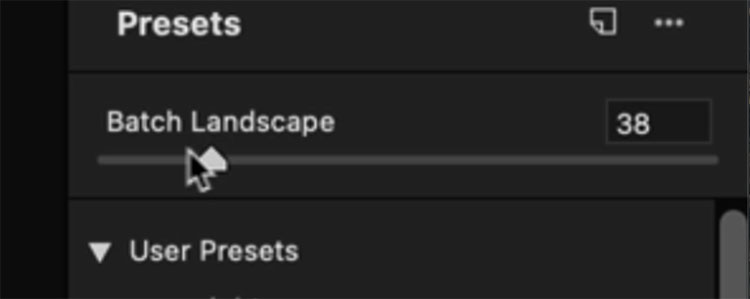
If the effect is too strong, you can lower it at the top of the Presets panel.
Using Smart Presets in Adobe Bridge
Make sure you first apply the preset to at least 1 image in Camera Raw
Click Done
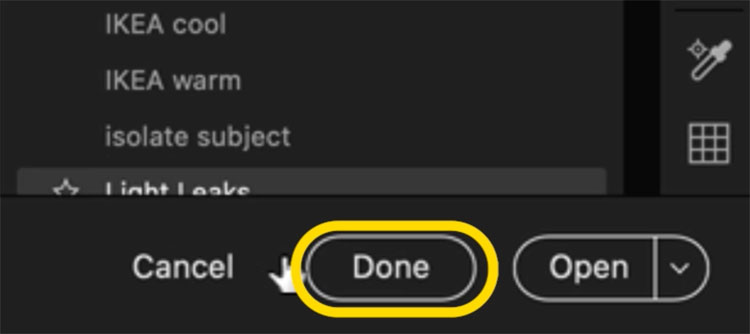
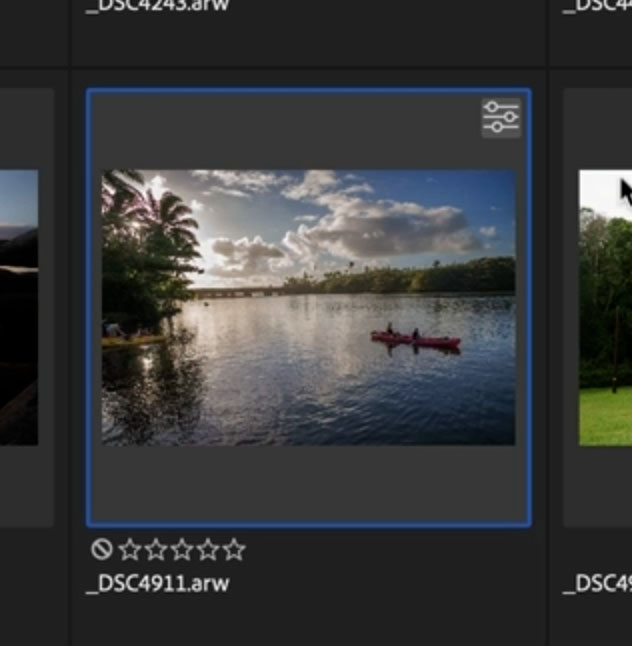
You can see the badge in the top Right that indicates adjustments have been made.
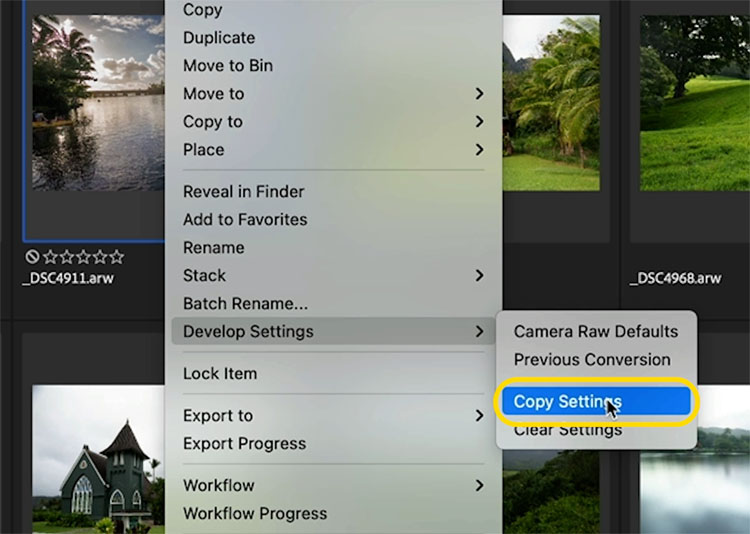
Right clack and choose Develop Settings>Copy Settings
(You can do this without even launching Photoshop or camera raw as long as you have an edited image in Bridge.)
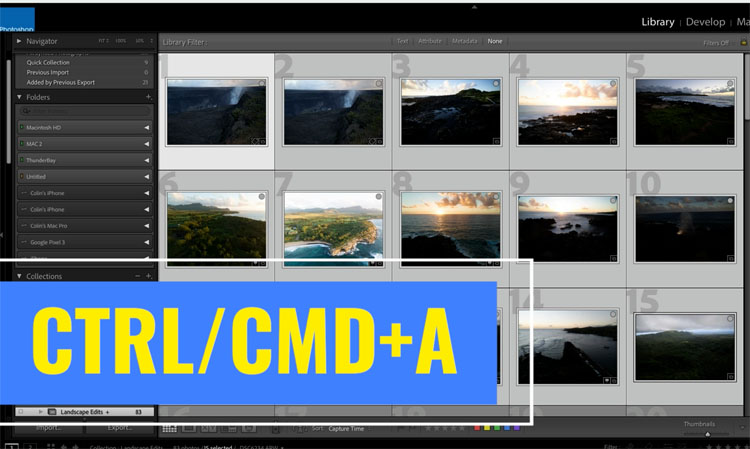
Choose the images you want to apply the settings to
If you want to do them all, press Ctrl/Cmd+A
Right Click and choose Develop Settings>Paste Settings
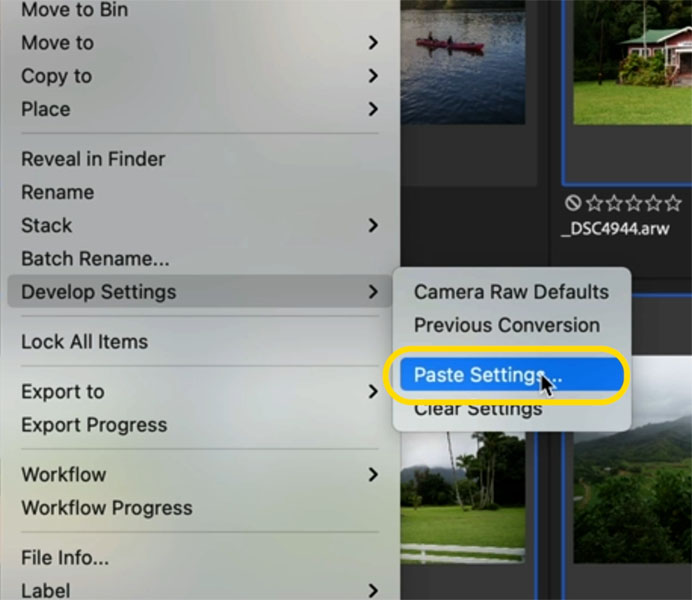
Choose all
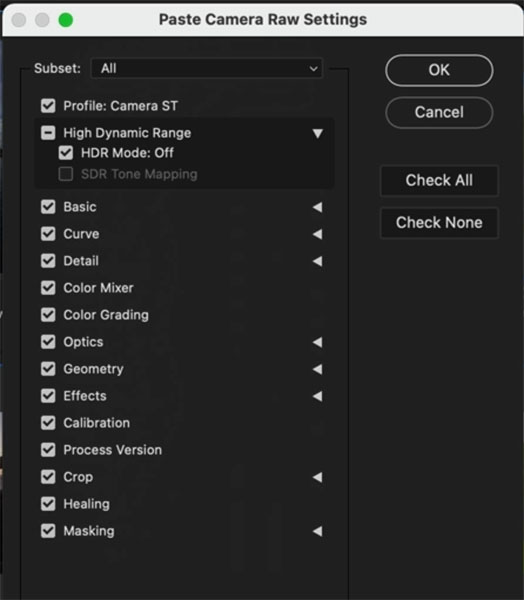
The images will all receive the smart preset that adapts for each image
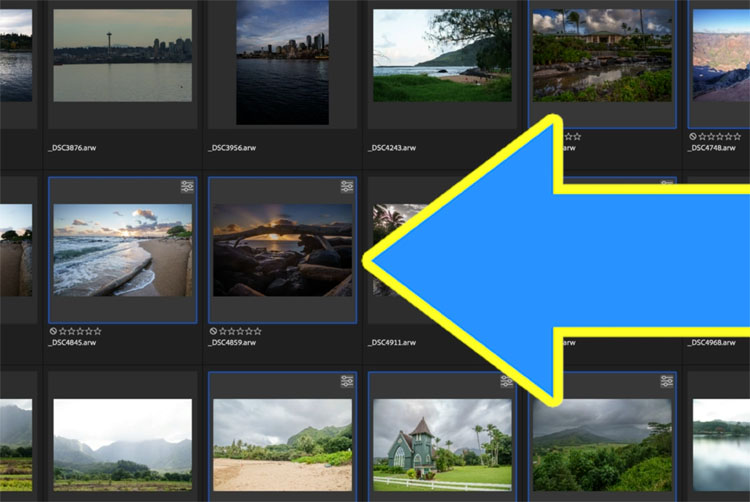
Using Smart Presets in Lightroom
When you make a Preset in Camera Raw, it automatically appears in Lightroom and vise versa.
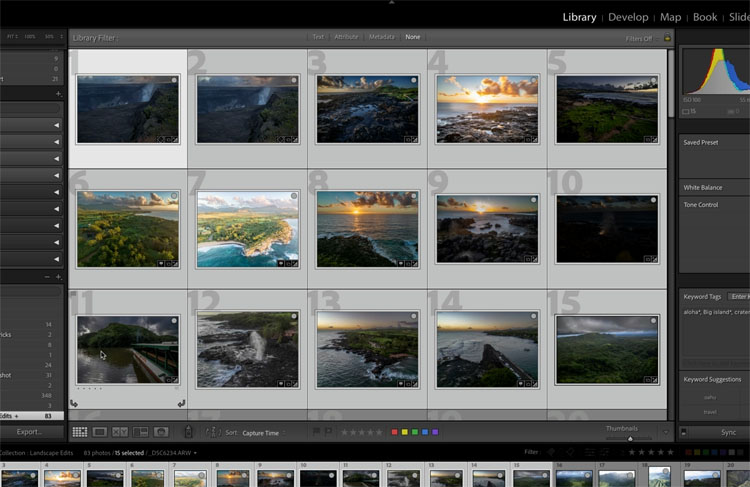
Select the images to edit in Lightroom.
In the Library module, choose Quick Develop and grab the preset from the Drop Down menu
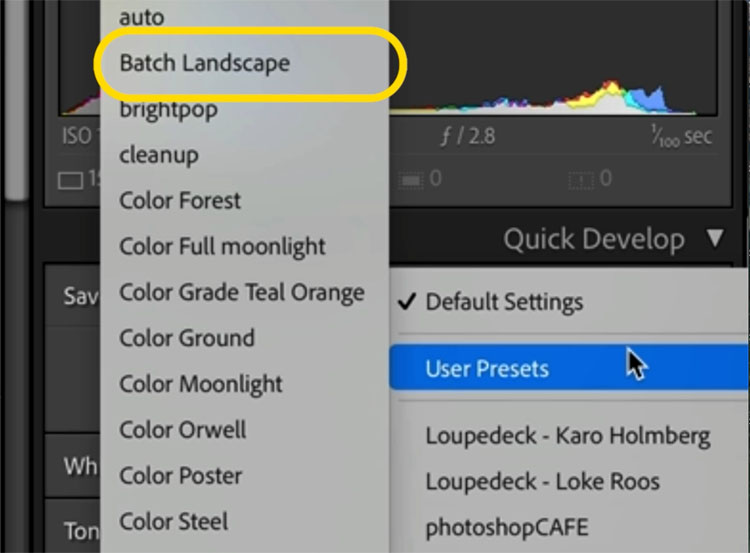
It will apply to every image that you selected.
I hope you found this quick tutorial useful. These Smart Presets are something that can really save you a lot of time.
If you use Lightroom or Camera Raw, check out these 5 tips on Lightroom and these 5 powerful tips for Camera Raw.
Great to see you at the CAFE
Colin
PS if you want to get really good at Lightroom or ACR, check out my latest courses.
Lightroom Classic For Digital Photographers
Adobe Camera Raw for Digital Photographers

Recommended for this tutorial
Learn Masks in Lightroom and Camera RAW
Make precise local adjustments in Lightroom and Camera Raw with every type of mask.
$59.99 · one-time purchase · instant download

Free for you
The Photoshop Vault
Get my free Layer Blending Modes ebook along with dozens of exclusive Photoshop goodies: actions, brushes, presets and cheat sheets.
You're on the list, so your free goodies are waiting for you in the Vault.
Get Free Photoshop Goodies Open the Vault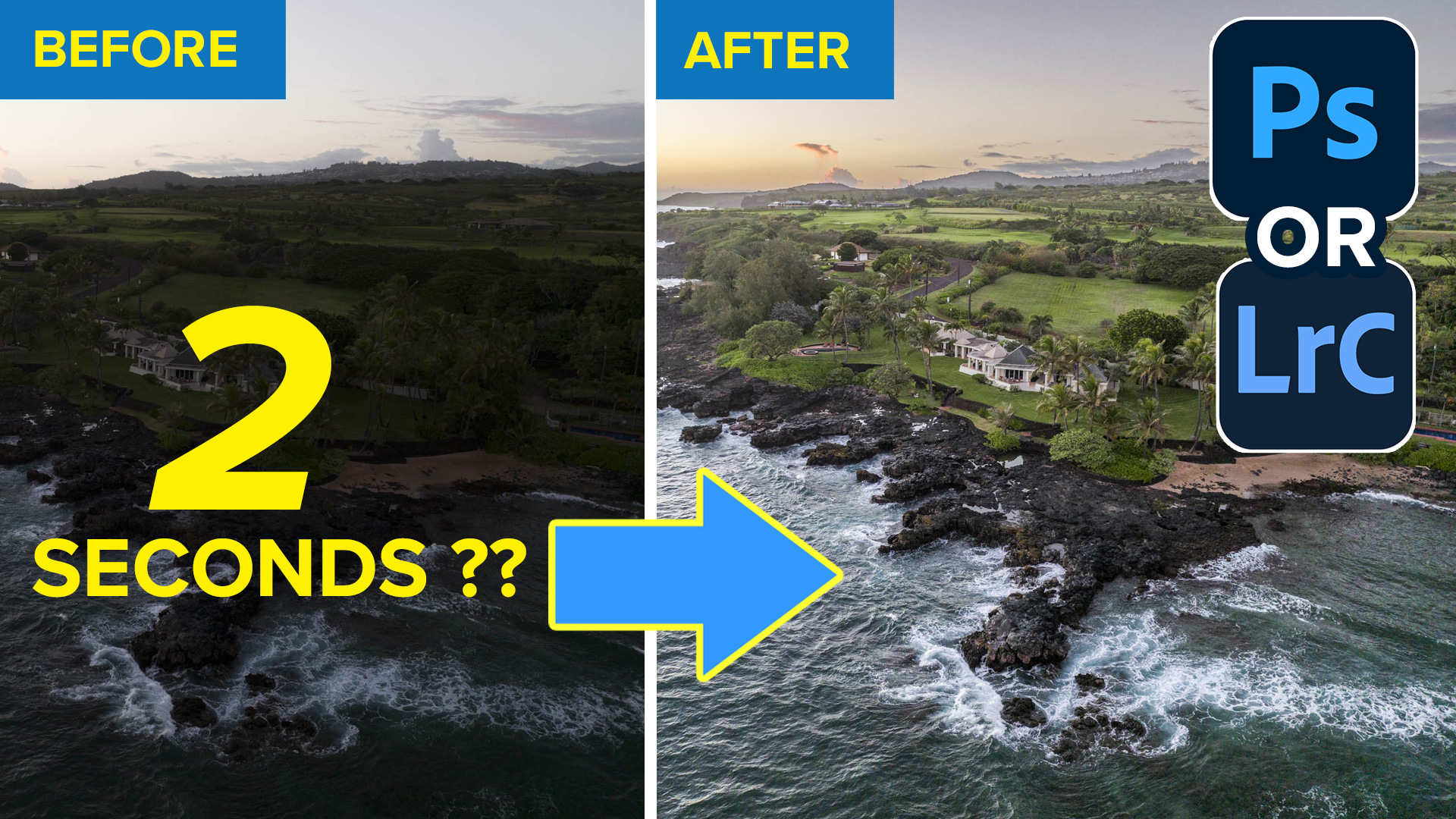
Processing HDR Landscape Photography in Adobe Camera Raw and Lightroom
You are able to work with merged HDR images in ACR and Lightroom , meaning that you have a lot more tonal... Read tutorial
Camera Raw Presets. How to Create and use Presets in ACR
Photoshop Camera Raw is a powerful photo editor. Presets can easily change your photographs with a single click. This free tutorial shows... Read tutorial
Fix color in photos, 1 click in Photoshop or Lightroom
Use this trick to Fix color in any photo in 1 click in Photoshop, Lightroom or Camera Raw Read tutorial
How to use Lightroom Presets in Photoshop
Learn how to use Lightroom Presets in Photoshop. This tutorial shows you how to make a cool preset in Lightroom and then... Read tutorial
How to retouch a face in Lightroom or Camera Raw
How to retouch a portrait photo in Lightroom or Camera RAW. This Lightroom tutorial shows how to smoothen skin, whiten teeth, enhance... Read tutorial










Colin I absolutely love this tip! Going to save me a hell of a lot of time editing old images I’ve always wanted to revisit! Now I can with ease!
Thank you buddy.