
How to use Repeat transform in Photoshop, for repetitive transformations
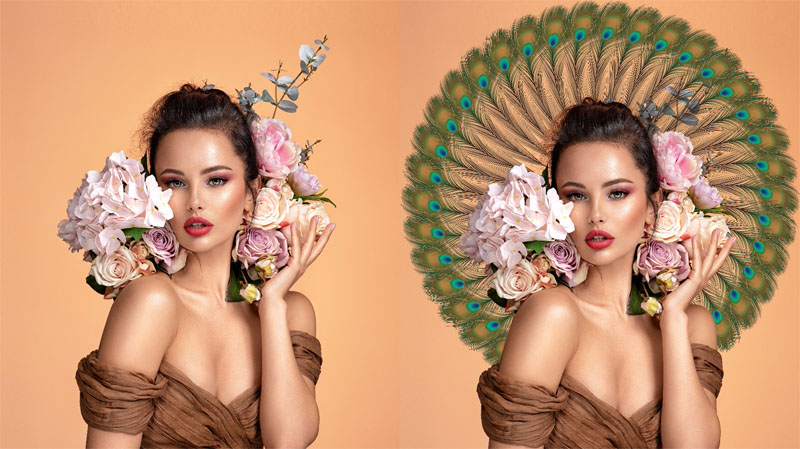
I’m going to show you a feature in Photoshop that makes it easy to repeat transformations over and over again to create some really cool art.
We will use a picture of a woman and a feather from Adobe Stock.
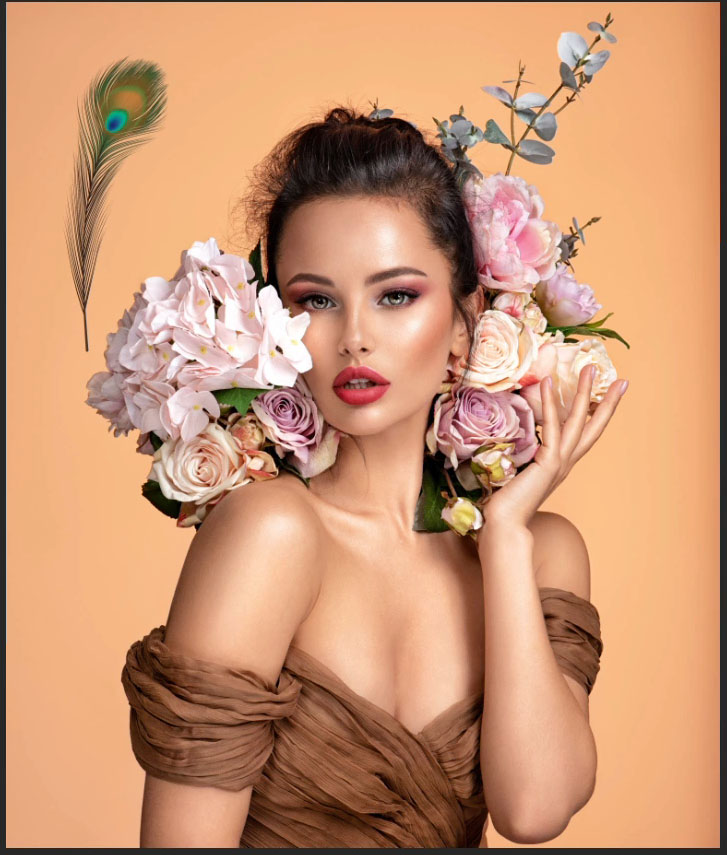
The feather is already cut out (I have lots of other tutorials on cutting out things in Photoshop and combining images in photoshop.) We will focus on making multiple feathers and arranging them without it taking a lot of time, or being hard work.
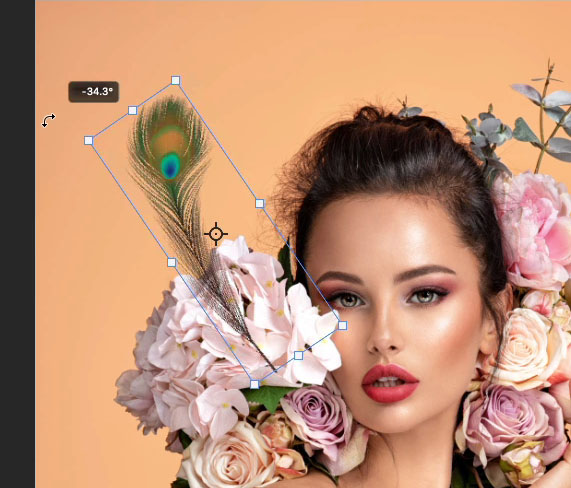
1. First thing, is to position the feather. Press Ctrl/Cmd+ T for free Transform. Rotate and position it. We want to make multiple feathers and rotate them around the head.
2. With the move tool selected (V). click on the top left of the toolbar to make the piviot point visable.
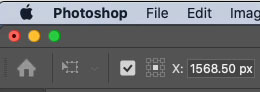
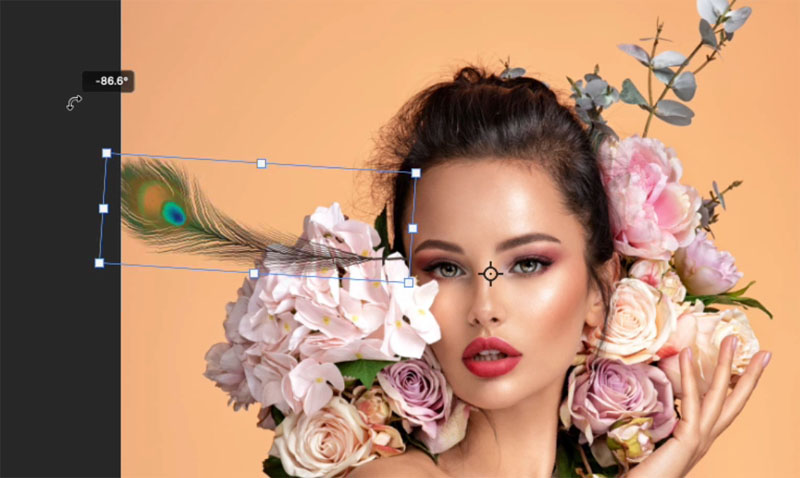
3. Drag to move the pivot point. It can be positioned outside the object boundaries, all transformations will happen around this pivot point. The video shows a good way to test the positioning of the pivot pont, by rotating the image around the point and visualizing where it will go.
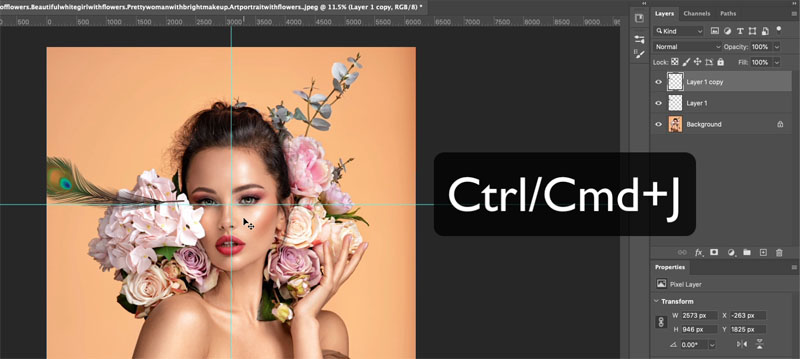
4. With the feather selected press Ctrl/Cmd+J, to duplicate the feather layer. Ctrl/command + T for free transform.
5. Rotate the duplicated feather into position. You only have to do this once, here is the magic…
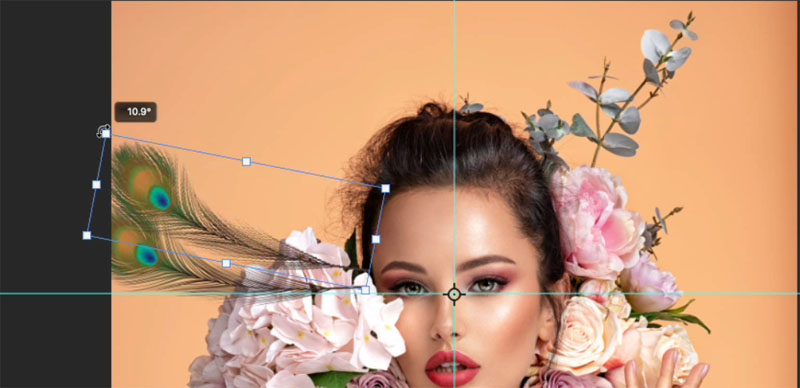
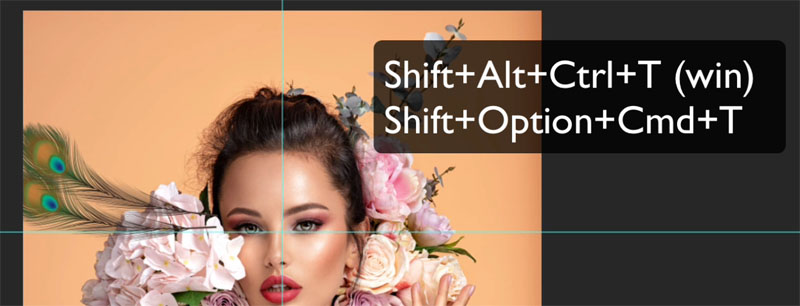
6. Holding down Shift+option+command (mac) Shift+Alt+Ctrl (windows) and tap the T key, notice that it repeats the last transformation and creates a new feather layer. Each time you tap the T key (while still holding down the other keys) you will get another copy with the transformation applied.
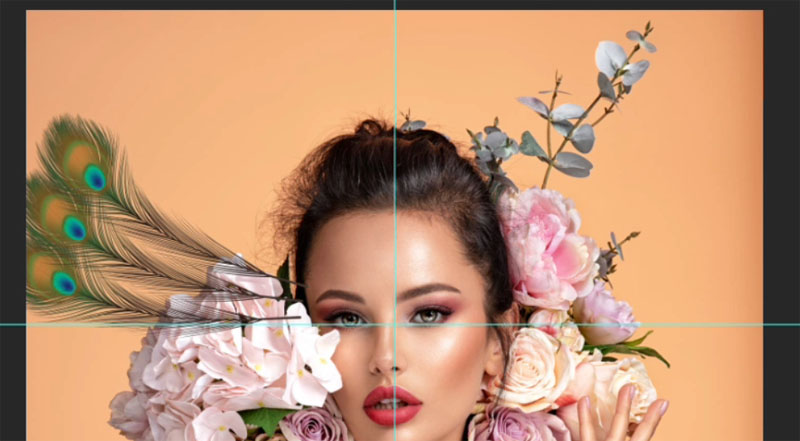
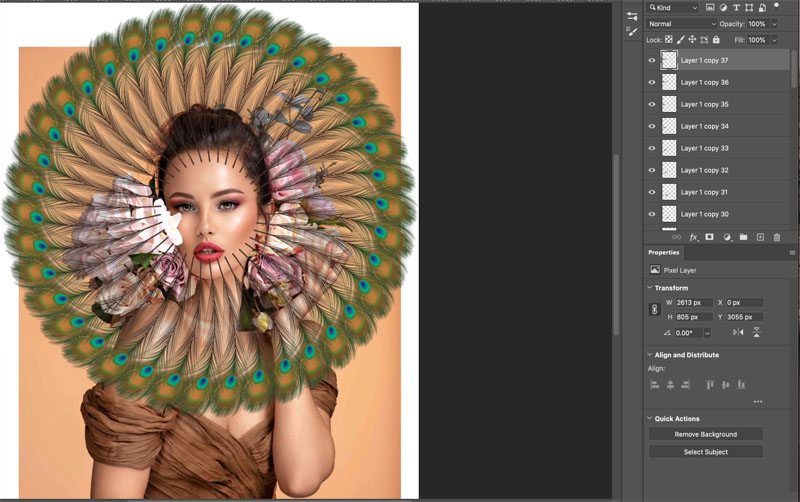
7. Repeat this all the way around.
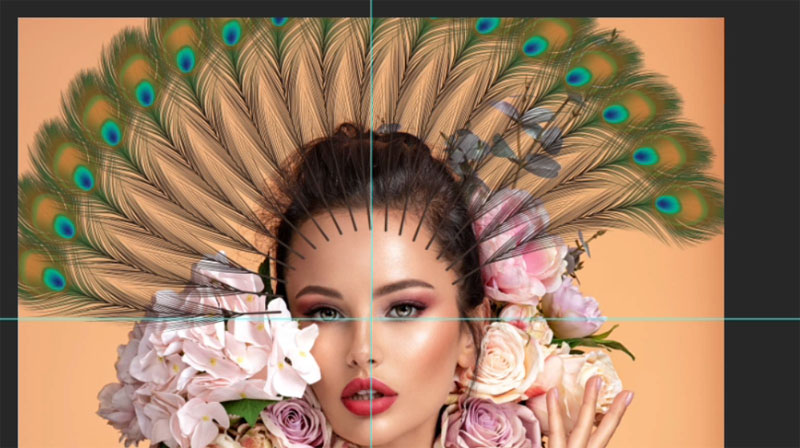
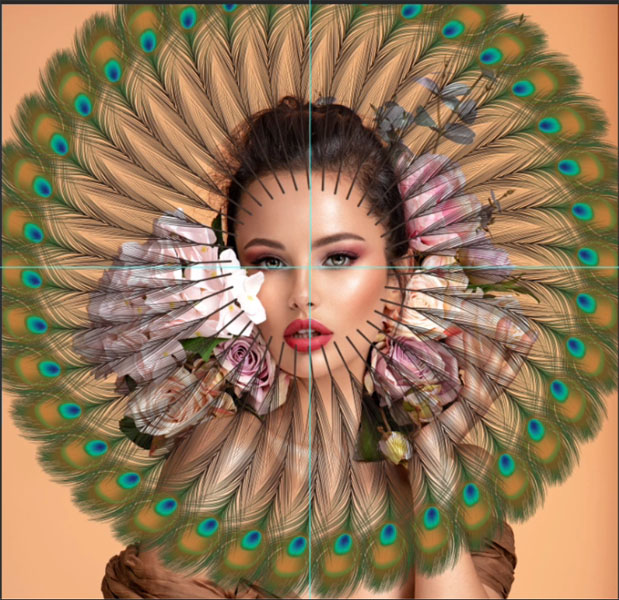
Because it’s repeating that same transformation from the pivot point, that pivot point is really important.
8. Let’s organize. Select all the feather layers: click the top one in the Layers panel. Hold shift and click the bottom feather layer, all the layers in between with be selected.
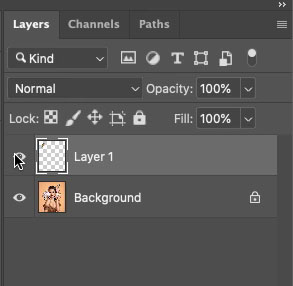
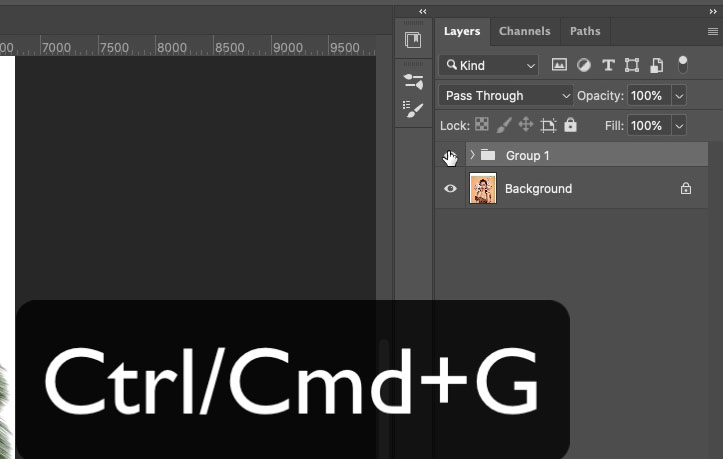
9. Press Ctrl/Cmd+G to put them all in a group. Much easier to work with. Click the eye in the layers panel to hide the feathers.
Extending the background
Here is how to extend the background color. We can use Generative expand, or do it manually.
1. Choose the Rectangular marquee tool.
2. Drag to make a thin selection.
3. Press Cmd/Ctrl+T for free transform.
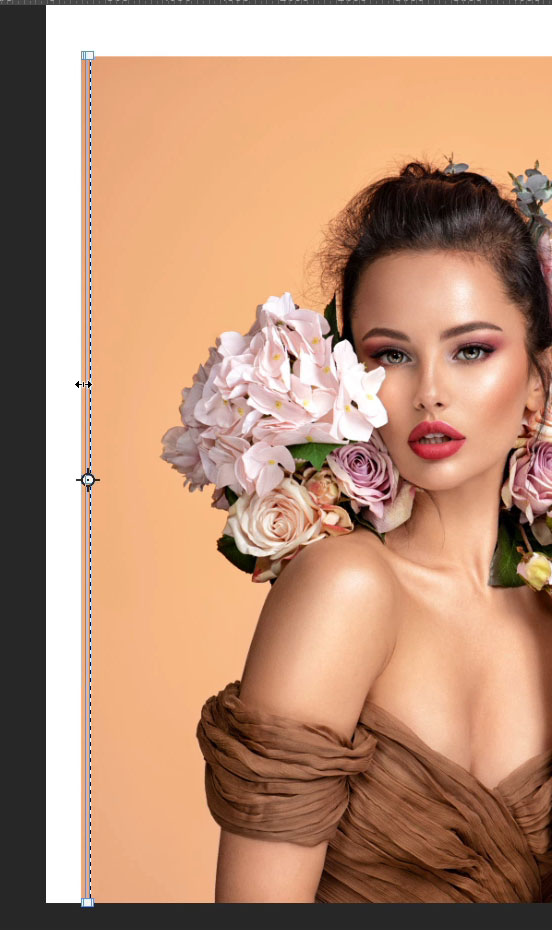
4. Drag the left side of the box while holding down Shift.
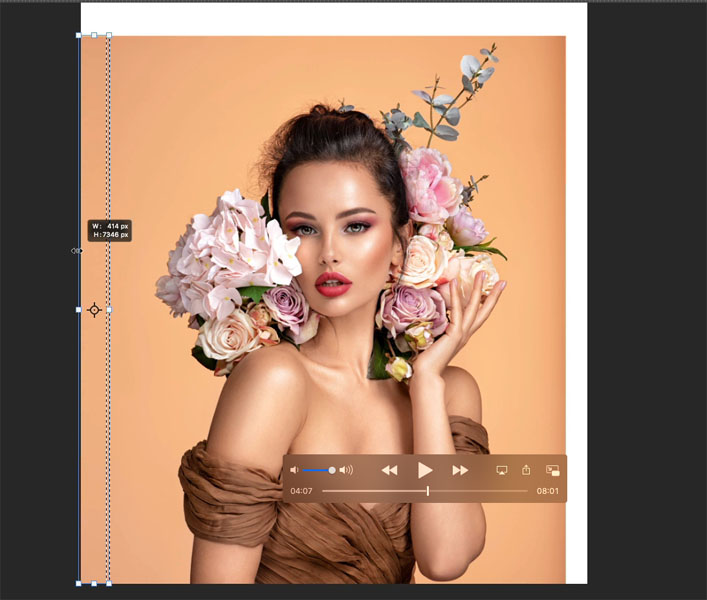
5. Press enter to apply. Repeat for the other 3 edges.

Let’s cut out our model.
1. Click the Object Selection, or quick select tool from the layers panel.
2. Click on select subject.
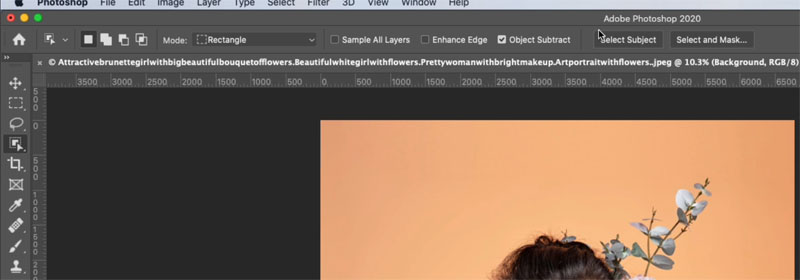
You will see marching ants selections. The selection doesn’t need to be perfect for this.
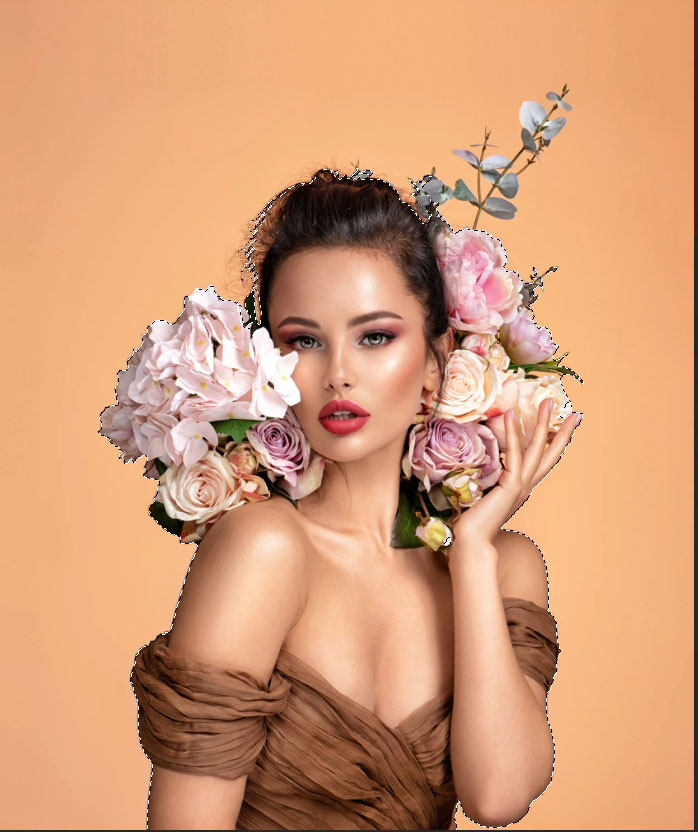
3. Press Ctrl/Cmd+J to copy the selected pixels to a new layer.
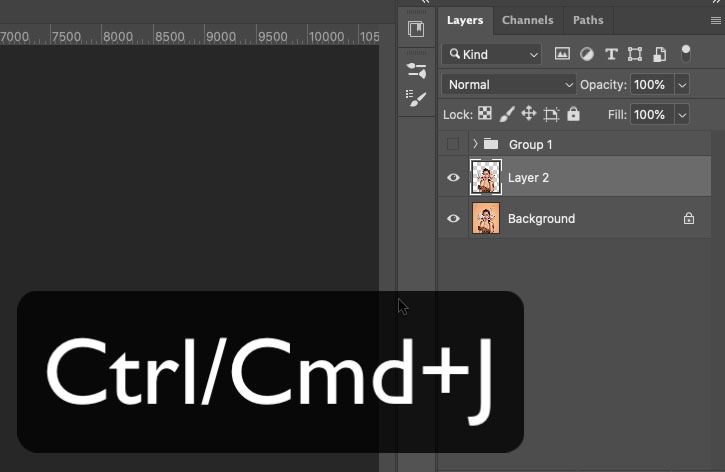
4. In the layers panel, drag our cutout of the model, above the Feathers group.
5. Click the eye to make the feathers visible again.
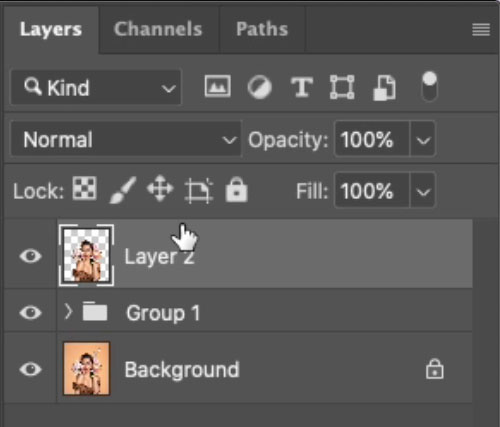
And here is our result! That could have taken a lot longer without the repeat transformation.

I hope you found this tutorial useful!
Browse our hundreds of other free tutorials here, or search for what you are looking for in the search at the top of the page.
If you are ready to get serious about Photoshop, see our full length courses here
Great to see you here at the CAFE,
Colin

Keep growing with Premium Courses
Photoshop 2026 for Digital Photographers
Learn Photoshop properly, from the basics to pro retouching, step by step.
$129.00 · one-time purchase · instant download

Free for you
The Photoshop Vault
Get my free Layer Blending Modes ebook along with dozens of exclusive Photoshop goodies: actions, brushes, presets and cheat sheets.
You're on the list, so your free goodies are waiting for you in the Vault.
Get Free Photoshop Goodies Open the Vault

The 10 Best Photoshop Tutorials of 2020
The top free Photoshop and Lightroom tutorials. 12 best free Photoshop and Lightroom tutorials are right here. Read tutorial
Photoshop colorize neural filter, 3 tips for total control over color
I have been experimenting with the amazing colorize ai powered filter added to Photoshop. I discovered a few things that will really... Read tutorial
Quick Actions in Photoshop, a hidden gem for beginners
Do you use Quick Actions in Photoshop? How to find quick actions and how to use these quick actions on your images Read tutorial
Photoshop tutorial -Creating a Custom Brush from a photo
This tutorial is a 2 in one. Learn how to make a custom brush from a photo. Also learn how to fix... Read tutorial
Make 3D Photo Cube in Photoshop (and animate it)
You will learn how to make a 3D Photo cube. Attach your photos to the faces of a cube and rotate it... Read tutorial










👍👍👍👍👍
👍👍👍👍👍
Colin, this was SO much fun to watch. Thank you for making something that WAS do painstaking so perfect.
I am using windows 10 and PS CC 2020 and am unable to get the pivot point to lock when I drag it to a new position. I did click the little window on the top left of the tool bar to make my pivot point visible. After I move my pivot point I have to click the check mark to accept it or I cannot go to Ctrl J to copy it. When I click the check mark to accept my pivot it goes back to the center of my feather. I don’t know what I am doing wrong. Any ideas??
Colin, this was absolutely an amazing tutorial!! I’ve been wondering how to repeat something, now I know how. Also the stretching of the canvas was another learning experience for me. Great Job!
the command/option/shift+T is not working … I’ve checked everything I can think of and it doesn’t do a thing … I don’t think I’m missing anything and I’m using the new 2020 version of Photoshop … any ideas ?
Great tutorial Colin. Always looking for more creative ways to enhance my images.
Great tutorial idea. Thanks. I’m working with my Photoclub tomorrow is a post processing special interest group. Gotta us this instruction video with them!
Thank you! This will make some compositions so much easier.
Great having the written word with it. Roger
There are so many other lessons taught about the subtleties of Photoshop in addition to the central subject. Your tutorials always open my imagination to so many possibilities. Thank you.
Great tutorial, will definitely experiment artiscally with this.
sweet!