Stamped metal text
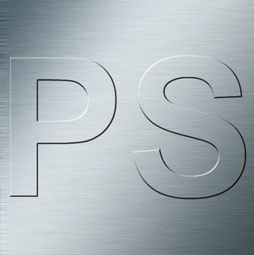
You have seen stamped metal text, maybe its on the emblem of a product etc, here is an easy tutorial to recreate this effect in Photoshop.
1
First of all start with the texture that you want to emboss. Use a photograph, or create one yourself using this tutorial.
2.
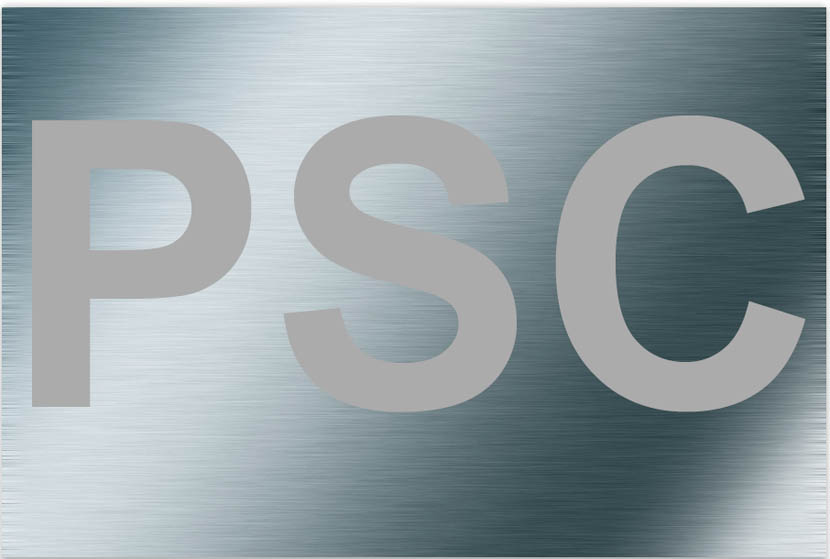
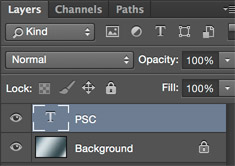
Add your text, or you can also use a shape, such as a logo on a new layer, just make sure that there are transparent areas. The color of the text or logo doesn’t matter
3.
Make a copy of your background layer (Ctrl/Cmd+J)
Drag the copy above the type layer
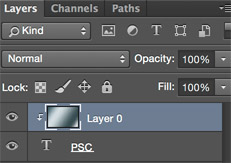
Hold down the alt/Option key and hover your mouse on the line between the new layer and the text layer. You should see a little figure of 8 icon
Click to apply and the texture should now be clipped to the text as indicated by the arrow on the layer, as shown.
4.
If done correctly, you shouldn’t see anything on your image now except your background texture
here is what it looks like if you hide the background for a second.
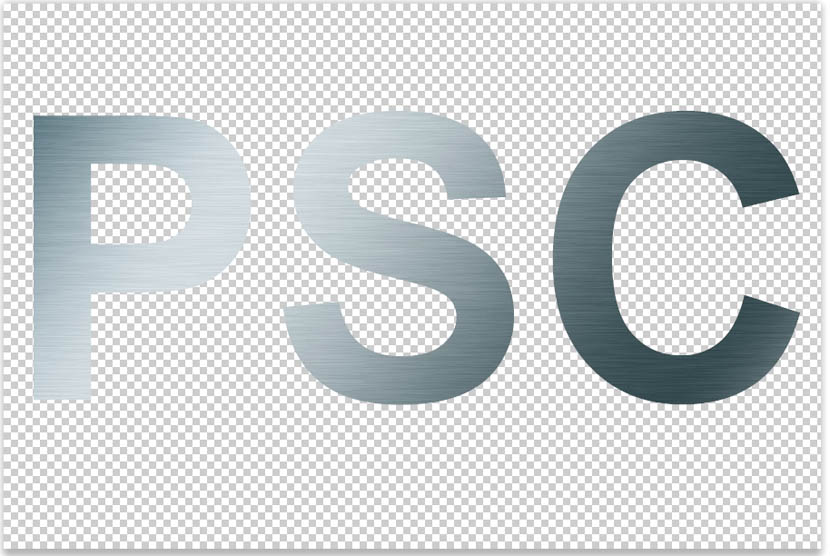
5.
Let’s apply some layer styles. Make sure you apply the effect to the type layer, NOT the top layer. Click the type layer to select it and choose the layer styles from the bottom of the layers panel.
Add a basic bevel and emboss as shown
Turn on anti-alised, and click the Contour button on the left.
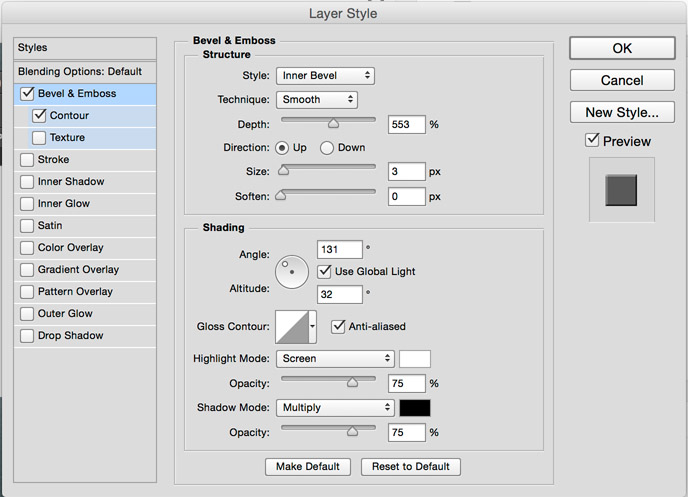
6.
And here is the basic effect, very simple this time around.
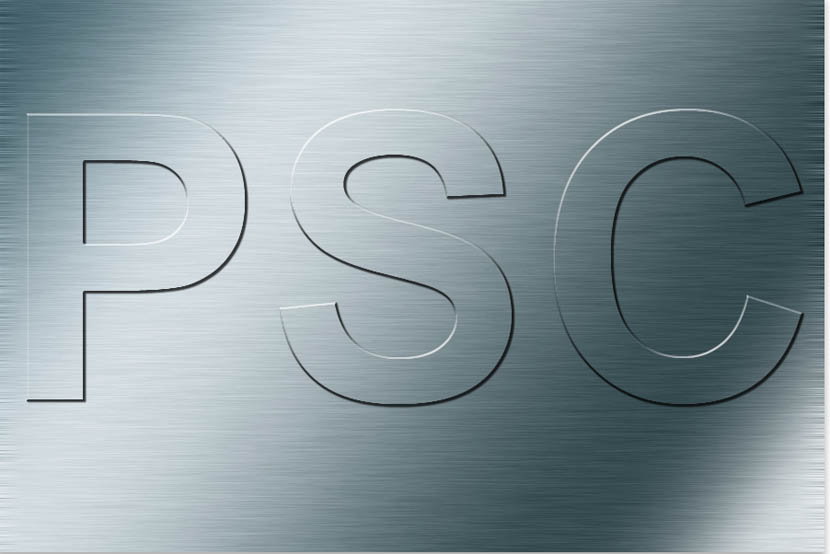
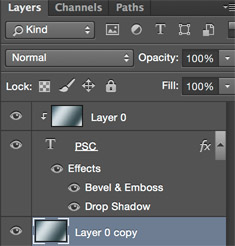
This is what the layers panel should look like.

Recommended for this tutorial
Photoshop Compositing: Sky City Project. Photoshop 2026
Build a complete composite from start to finish and learn the techniques behind it.
$39.99 · one-time purchase · instant download

Free for you
The Photoshop Vault
Get my free Layer Blending Modes ebook along with dozens of exclusive Photoshop goodies: actions, brushes, presets and cheat sheets.
You're on the list, so your free goodies are waiting for you in the Vault.
Get Free Photoshop Goodies Open the Vault
ANIME BEADS Photoshop Tutorial
I received a request from the forum for this effect from one of our Members living in Japan. This is a technique... Read tutorial
Outline text in Photoshop Photoshop Tutorial
Here is a fun little tutorial that will show you how to make chrome outlines around your text. Have fun and experiment! Read tutorial
Plastic Engraved type in Photoshop Photoshop Tutorial
How to embed type in photoshop. Heres a tutorial that will how you how to carve your mark. This is so simple... Read tutorial
Chrome text in Photoshop Tutorial
The essential chrome effect, don't leave home without it. This works on any object, not just text. Learn how to create chrome... Read tutorial
How to wrap text around a photo in Photoshop tutorial
In this Photoshop tutorial, I'm going to show you how to wrap text around a photo using displacement maps and image warp.... Read tutorial