
Photoshop basics. complex selections with the marquee tools. Adding and subtracting selections

Combining selections tools in Photoshop
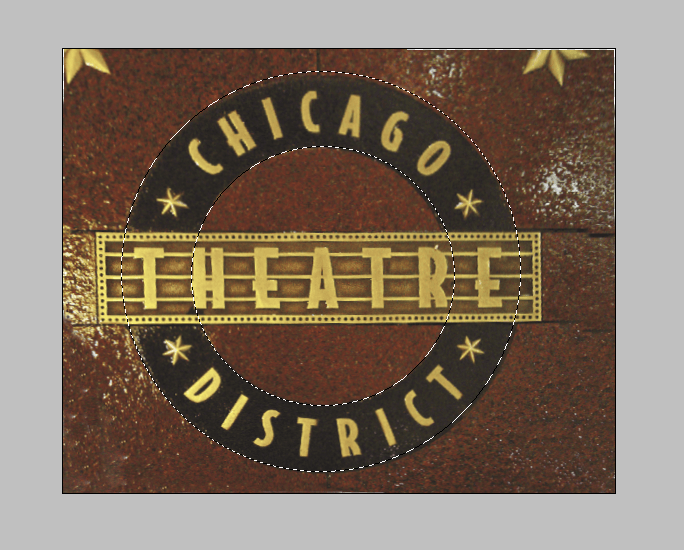
Is it possible to make a selection of this semi-complex shape in only 3 selections? Of course the answer is yes.
Ok if you’ve given up, or want to check your answer, here’s how its done.
Step 1
Using the elliptical marquee tool make a selection around the outside circle. If you hold down the spacebar as you create the selection, you move the entire selection. Release the spacebar but not the mouse to continue drawing the selection.
Release the mouse. You will now see the marching ants as you have selected the outside circle.

Step 2
Let’s cut a circular selection out of the center to select just the ring.
With the elliptical marquee tool still selected, hold down Alt (Option). You will see a little minus sign by your cursor. You are about to subtract from your selected oval. Drag in the middle until you selected the inside circle.
Release the mouse and now you have selected the ring. Congratulations, you just created a complex selection.
Step 3
What about the rectangular shape? Do you think that we should subtract or add a selection here? You got it, we need to add some pixels to our selection.
Choose the rectangular marquee tool.
Hold down the shift key. You will now see a plus sign by your cursor. This means that you will add to the selection
Drag the cursor over the rectangular area.
Release the mouse. You now have selected the shape using a combination of tools. You have also used the add, and subtract from selection options. Powerful allies when making selections.

Step 4
Ok what are you going to do with this selection? The most common reason people will select is to remove the background. Here is the best and easiest way of doing just that.
With your shape still selected. (If you accidentally turned off the selection, choose Select>reselect.)
Choose the move tool. (V key)
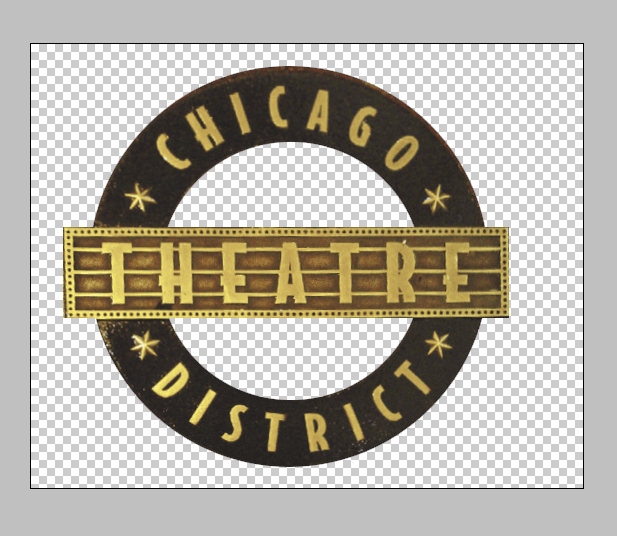
Press Ctrl-J(c-J) to copy the selection to a new layer.
Click the eye icon in the layers palette next to Background
The background is now hidden and you see the checkerboard pattern. This lets you know that the shape is now floating on a transparent background. You can add this to a collage, save it for a publication, export it as a transparent image for the web or what ever you want to do with it.
xtra credit
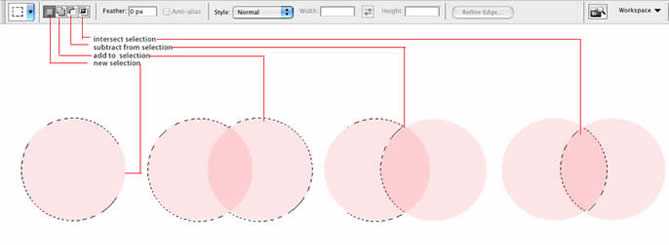
The different options from the options bar to make complex selections with the marquee and lasso tools.
Add to selection: Combines the selection together
Subtract from selection: Removes the shape from the existing selection
Intersect selection: Only the overlapping area will be selected
As you just saw, you can combine different tools to make complex selections. As you become more comfortable with Photoshop, try to use the different tools to make your life easier. Because there are so many tools in Photoshop, it may take a bit of practice to know when to use each tool. This book will help guide you in that direction.

Keep growing with Premium Courses
Photoshop 2026 for Digital Photographers
Learn Photoshop properly, from the basics to pro retouching, step by step.
$129.00 · one-time purchase · instant download

Free for you
The Photoshop Vault
Get my free Layer Blending Modes ebook along with dozens of exclusive Photoshop goodies: actions, brushes, presets and cheat sheets.
You're on the list, so your free goodies are waiting for you in the Vault.
Get Free Photoshop Goodies Open the Vault
Cut out hair and difficult Images in Photoshop Tutorial
We will use Channels to help mask out a complex objects with clean edges. This technique will also save you a lot... Read tutorial
Removing a Picture from it’s Background Photoshop Tutorial
Here is a highly requested tutorial. Everyone wants to know how to take a picture and replace the background or make it... Read tutorial
Blending layers in Photoshop, Double Exposure Tutorial
The intro to the hit TV show True Detective has everyone talking about the double exposure effect. I have made this tutorial... Read tutorial
Add birds to a photo in Photoshop, make background transparent
How to add birds to a photo and make the background transparent without having to make selections. Add life to your landscape... Read tutorial
How to make 3D pop out effect in Photoshop in 4 simple steps
How to make the “out of bounds” or 3D pop-out effect in Photoshop. 4 easy steps (download included) Read tutorial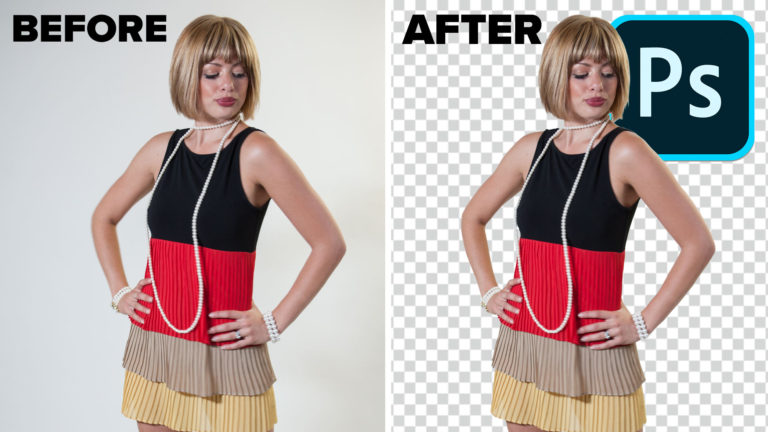












Do you still have the CS6 Super Guide available? If so please send. Thanks, Matthew
If you create an account at PhotoshopCAFE (from the store) you can download those whenever you like from your account center, and it’s free.