
How to Speed up Photoshop + How to fix any problem in Photoshop
Tuning Photoshop for speed and fix bugs.
Here are 10 Tips to make Photoshop lightning fast and how to fix almost any problem in Photoshop without reinstalling.
Photoshop is a bit like your car. If you don’t keep it maintained and then take it in for a tuning, you are amazed at how well it runs. Many of us never even take the time to set up Photoshop correctly in the first place (or we don’t know how). A lot of this is in setting up a few simple preferences and a couple of ways of working more efficiently. When things go wrong there are 3 things you can do to fix it and these work almost every time.
Please take the time to watch the video to see these tips in action, I will also reference them below so you can bookmark this page as your go to for troubleshooting.
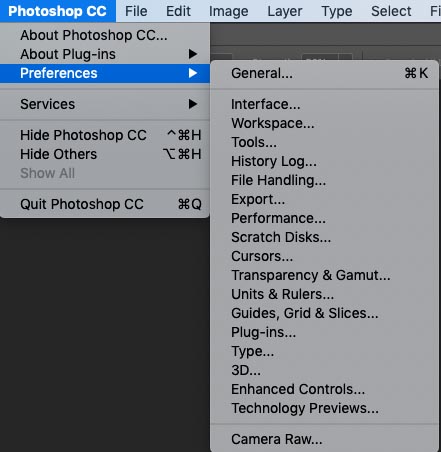
Where are preferences?
NOTE! Ask the preferences ca be found Photoshop>Preferences on Mac and Edit>Preferences on Windows
Please also note, most preferences changes will require a restart of Photoshop to take affect.
Performance
Here is a collection of tips to help make Photoshop run faster and smoother.
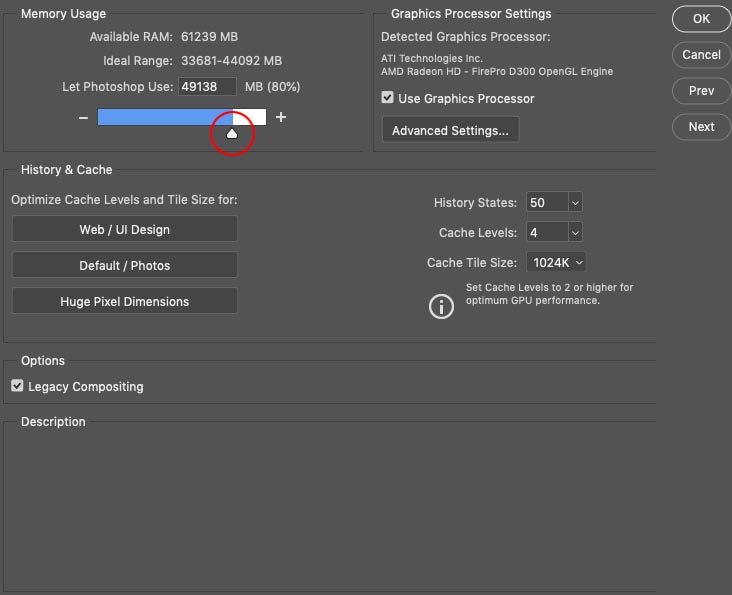
1. Use more RAM
Ram doesn’t magically make Photoshop run faster, but it can remove bottle necks and make it more efficient. If you are running multiple programs or filtering large files, then you will need lots of ram available, You can buy more, or make better use of what you have.
Set your RAM to 80% to get the most to Photoshop while still leaving enough for your OS and utilities, If you have a large amount such as 64GB and don’t run other programs with Photoshop, bump it up to 90%.
This is under Preferences>Performance
2. Optimize your Scratch Disk(s)
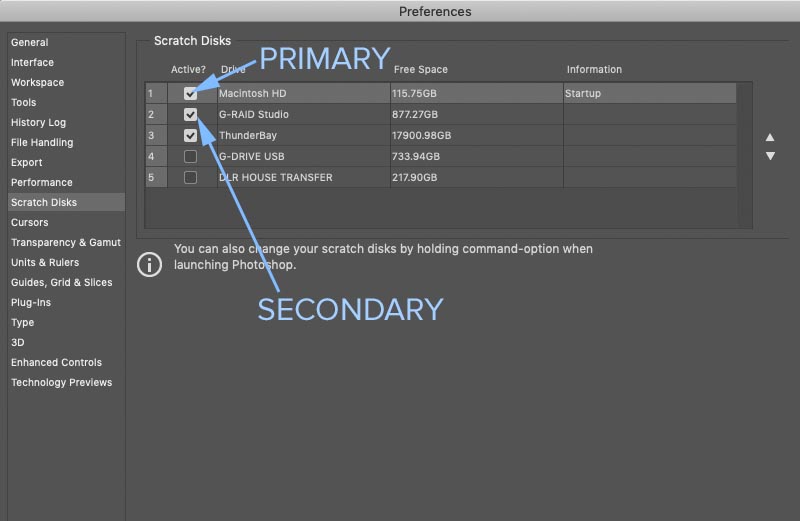
When Photoshop runs out of RAM it moves the tasks to your hard drive. If you have more than one, you can set the fastest drive as your scratch disk.
Use your fastest drive (with free space) as your primary scratch disk and try to attach a second drive as a failsafe in case you run out of space, to avoid the Scratch Disk Full error
If you want maximum performance, install an additional SSD drive that you only use for Photoshop, don’t run your OS or other programs from there, not even Photoshop. Set this as your primary scratch disk and you will find that Photoshop runs smoother, particularly for large files or files with lots of layers.
3. Don’t Copy Paste, ever!
I have seen people Copy and paste images in Photoshop to combine them into 1 document. When you copy, you put that image into your buffer and it will stay there until you restart your computer or you copy something else. It’s better to drag the images from one window to the other and leave that memory free for other things. (See a good demon of this in the video)
4. Emergency Dump – Purge Photoshop
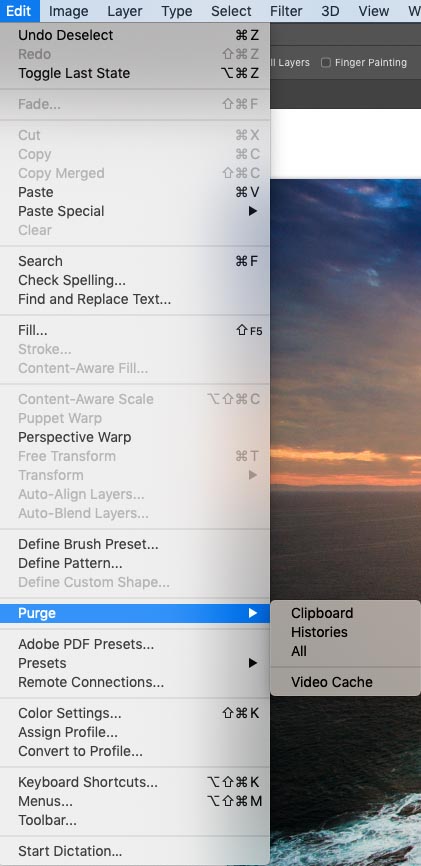
One good thing about being around for a while (Using Photoshop for 20 years) is that we learned to be super efficient while working because computer resources were very tight. A lot of people newer to the Photoshop games aren’t even aware of this feature. Have you ever worked on a huge file and you can’t run a filter for example because there isn’t enough free memory. (Not enough free memory error message). You can to an emergency dump and actually complete that task.
Choose Edit>Purge>All
Clearing the Clutter In Photoshop
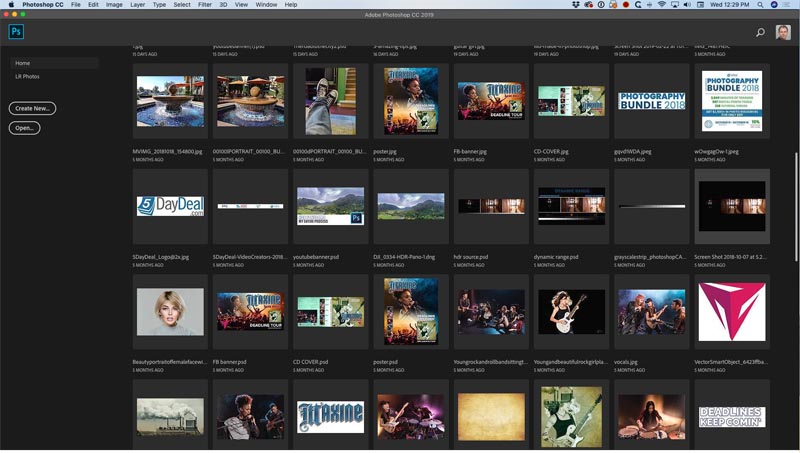
5. Disable huge home screen
When you launch Photoshop you will see a welcome screen that takes over. This can be useful by showing recent files as well as access to your Lightroom photos. However, when you close your document, instead of showing a blank Photoshop, it goes back to this huge screen, If you choose to disable it, it’s easy.
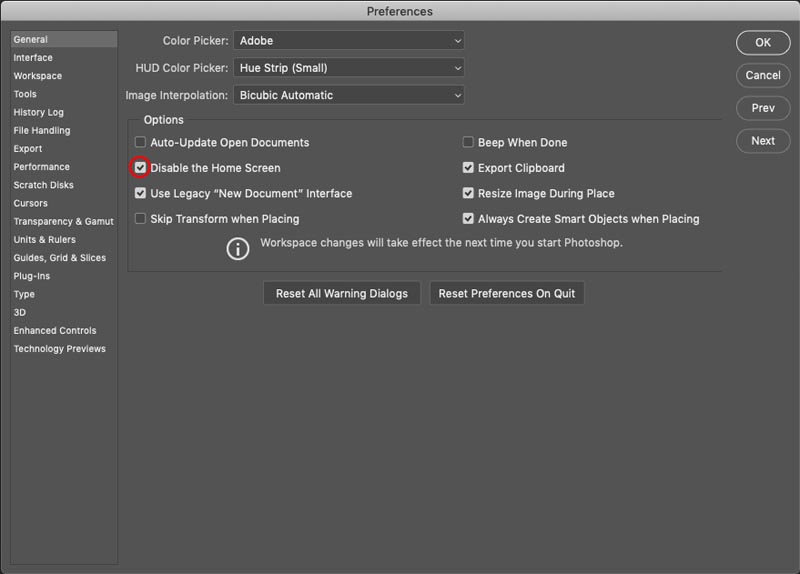
Choose: Preferences>General
Click: Disable the Home Screen
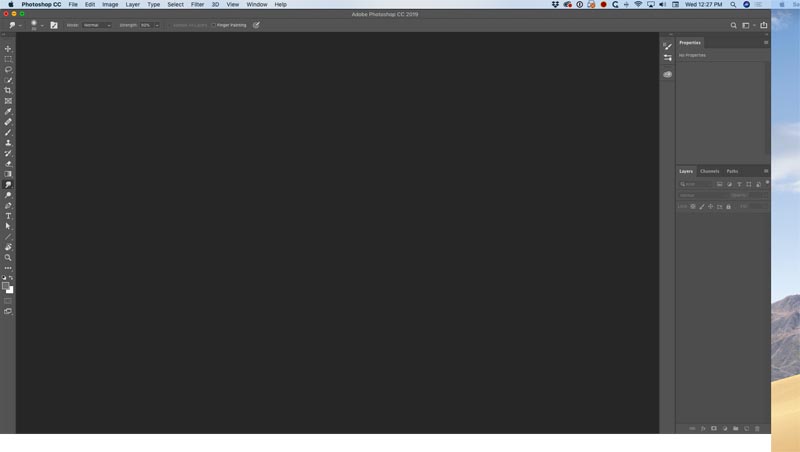
And the Home screen will be gone (after a restart)
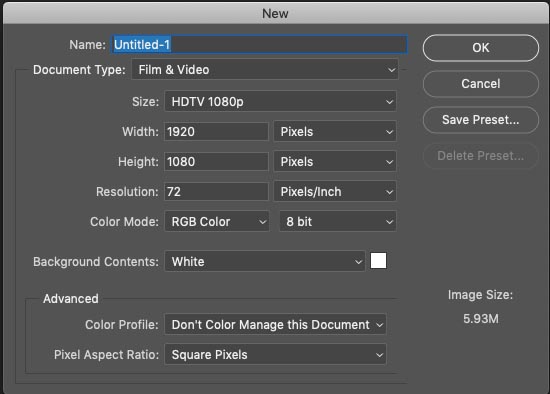
6. New Document Window taking over?
Have you noticed the New Document window keeps growing? If you want to go back to the old one, here is how.
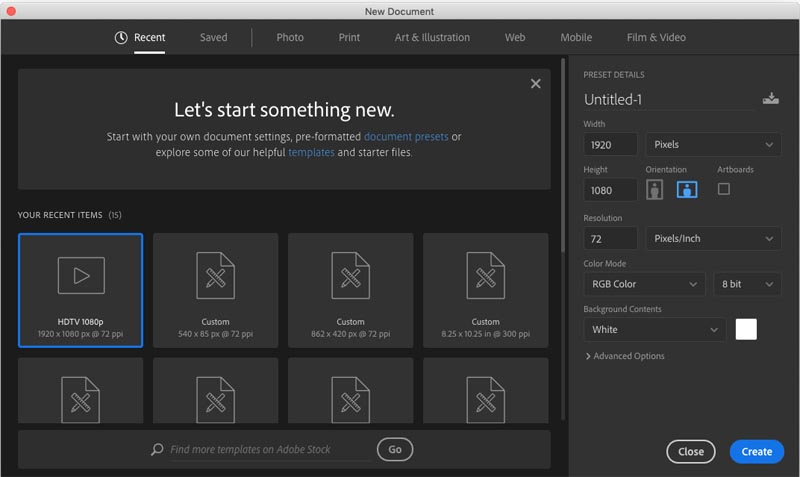
Under General, turn on Use Legacy “New Document” interface
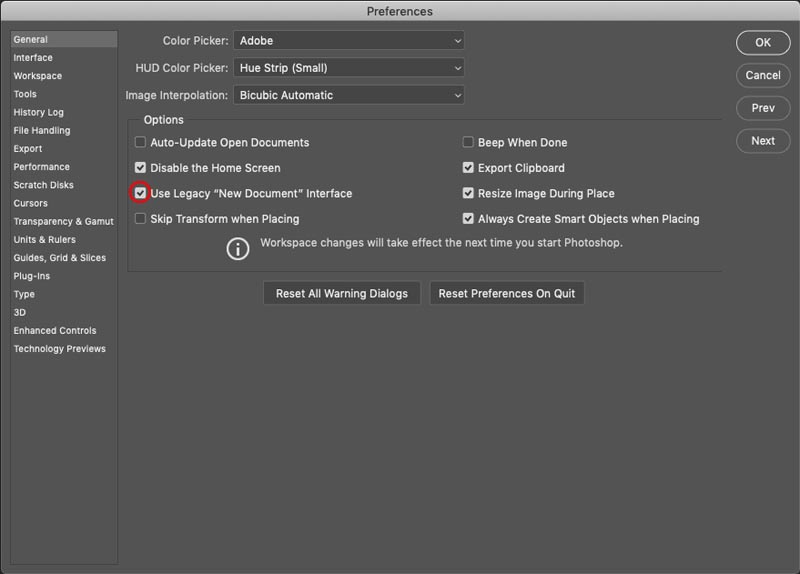
And now the regular dialog box will show. If you want easy access to Templates, use the new dialog box, not the old (legacy) one.
7. Show MAX recent Files in Photoshop
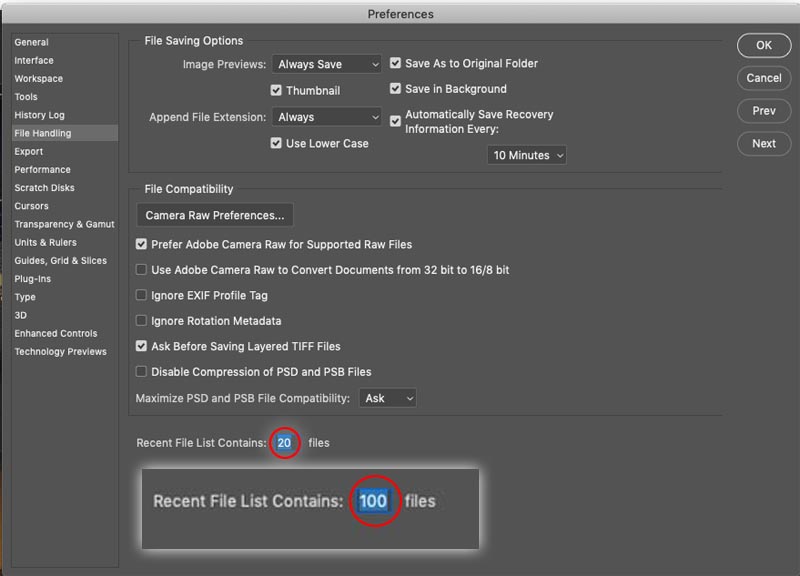
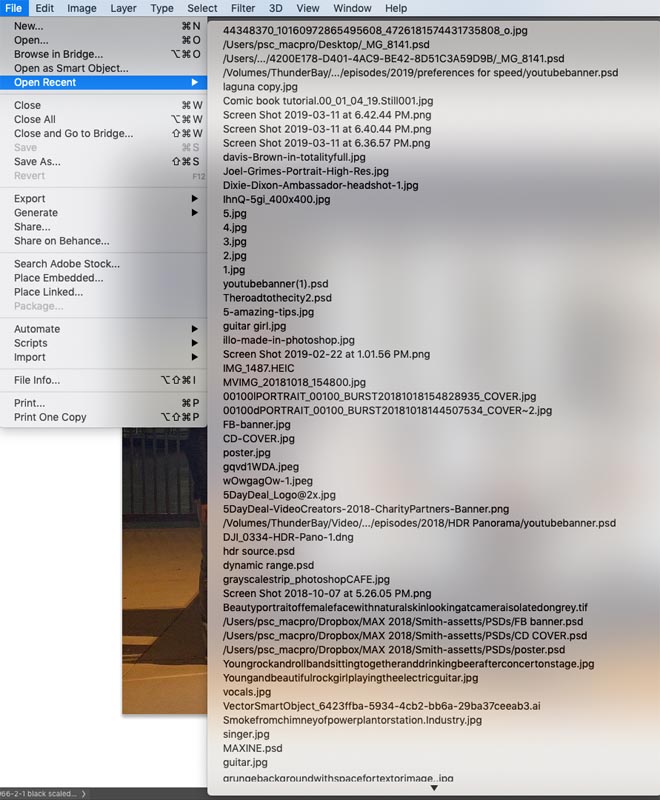
When you choose File>Open Recent, you will see your last 20 images. You can change that to show the last 100.
Choose Preferences>File Handling.
Change recent files to 100. You don’t need to restart for this one, and it will immediately show the last 100 files.
Troubleshooting Photoshop
This section will help you fix almost any problem you will encounter in Photoshop. Some “bugs” can easily be squashed with the following 3 tips.
8. Toggle GPU features for a bug free Photoshop
If you are getting display glitches, such as weird interface garble, you can fix that by changing your GPU (Graphic Processing Unit) settings.
Choose Preferences?Performance
First of all turn off Use Graphics Processor (GPU) and see if that fixes the issue.
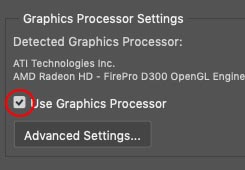
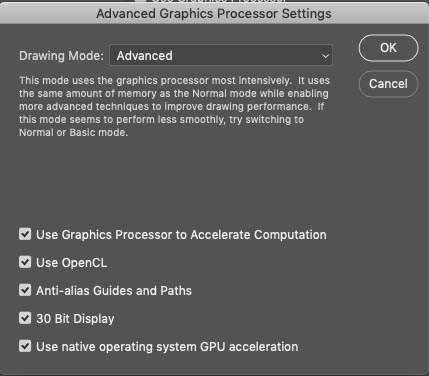
If it does fix it, go into advanced settings and try disabling features one at a time until you find the culprit.
9. Photoshop Legacy Compositing Engine
In the last update some people were complaining that their Blending modes didn’t look right, or the color was weird.
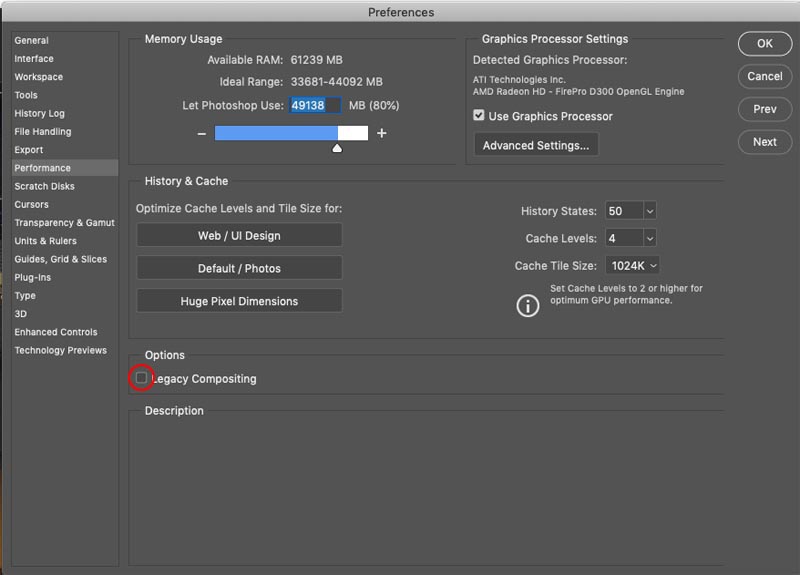
This can be fixed by using the legacy compositing engine. (Make it work like it did in CC 20018 and earlier). This can be found in Preferences>Performance.
10. Reset Photoshop Preferences to fix most problems
This fix has been around as long as Photoshop, it’s just easier to do now.
When all else fails, resetting your preferences can fix most issues. Make sure to back up your presets first, (I show this in the video above).
When you trash your preferences file, Photoshop builds a new preferences file as it launches and resets all the settings and libraries to the factory settings. This resets everything and removes bad presets etc. Most of the time this will fix Photoshop problems. Case in point, some people were freaking out (Some youtubers had a melt-down) with some bugs when they upgraded to CC 2019. Resetting the Preferences actually fixed the bugs. (Aren’t you glad you’re part of PhotoshopCAFE CAFE Crew and get the email that showed how to do it, on day 1. Oops, you’re not a member? Sign up here, its free and takes 11 seconds).
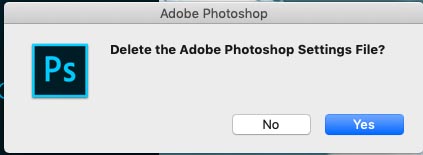
Good news, you don’t have to find the prefs file anymore. When you go to launch Photoshop hold down Ctrl+Alt+Shift (Windows), Cmd+Option+Shift (Mac) and click the Photoshop launch icon.

You will see a dialog box that asks if you want to delete the settings file (Did you back up your presets yet? Make sure you do first) Click ok and Photoshop will launch with the default factory settings.
NOTE: Choose Edit>Presets>Export/Import Presets to back up and reinstall custom presets (shown in the video)
I hope you found this article/tutorial really useful. It seems that people don’t write about this kind of thing much these days. If there are other obscure things in Photoshop you are curious about, let me know in the comments.
Thanks for checking out this weeks tutorial and see you all next week.
Great to see you here at the CAFE
Colin

Keep growing with Premium Courses
Photoshop 2026 for Digital Photographers
Learn Photoshop properly, from the basics to pro retouching, step by step.
$129.00 · one-time purchase · instant download

Free for you
The Photoshop Vault
Get my free Layer Blending Modes ebook along with dozens of exclusive Photoshop goodies: actions, brushes, presets and cheat sheets.
You're on the list, so your free goodies are waiting for you in the Vault.
Get Free Photoshop Goodies Open the Vault

5 Photoshop keyboard shortcuts everyone should learn
Keyboard shortcuts for Photoshop. Work faster with these 5 keyboard shortcuts, to get things done faster and to do things that can't... Read tutorial
7 tips in Photoshop that are insanely useful, that are hiding in plain sight
These 7 tips are going to make you kick yourself, that you didn't know them all before. All of these are "Hiding... Read tutorial
How to Update Photoshop – Watch this before updating!
How to Update Photoshop without losing anything. This tutorial shows you how to update Photoshop, what do do before updating and how... Read tutorial
How to clear recent files from Photoshop Home Screen
It's simpler than you think to reset the home screen in Photoshop, but it isn't at all obvious. Read tutorial
Photoshop and Lightroom integration
Watch this video to discover how to best work between Photoshop and Lightroom. Find out how to keep your Lightroom adjustments fully... Read tutorial











Colin
if I clean up my preset for refresh photoshop will delete any actions I created also?
I don’t believe it erases actions, but back them up anyway to be safe.
Thank you very much for this tutorial! I intend to purchase a DDS drive now just for a scratch disk. These tend to be more expensive than a regular external drive … so my question is: if the dds drive is smaller and fills more quickly, can I just erase it from time to time to keep my photoshop app working efficiently?
If you just use it as a scratch drive, you don’t need a huge size. Even if you work off it with your images and move them later, sure.
I’m an old photoshop user but can always be taught new tricks…..Thank You!
Hello Colin! I met you at Creative Live in Seattle last year. I gave you a Post Card from Klaass Images. Thank you for your generosity in sharing knowledge! If you send me your address, I’ll send you my latest Panoramic Postcard. My website still goes to my FB page. I’m working with Zenfolio to get a regular website.
Thanks Colin! Brilliant and definitely a time and memory saver!
Changing available RAM was my favorite.
My favourite is: Purge All
Hi Colin Thanks this is very helpful.
Thanks. I made some changes according to your suggestions. I am still having a problem with enhanced detain in that the enhanced box renders a black screen. The before is normal with a picture. My GPU is a GTX 760, nvidea, which is approved. I have ordered a GAMING GeForce RTX 2080 Ti Twin Fan Graphics Card for this and better graphics overall. Latest Win 10 as recommended, 64MB ram i7 processor, 1TB SSID, two 8TB internal HDs. My ASUS laptop renders enhanced detail just fine, although with Canon and Nikon I use, I see no improvement in detail.
Thanks for the postcard Johann, it was nice meeting you when I was last on Creative Live!
Question Colin, How does going from 20 to 100 “Recent file list” in Prefs’ increase the speed of Photoshop. Logic tells me that it would slow it down.
Thank you,
Myron
This is super helpful – guilty of copy paste – so learning how to purge my clipboard was good – Glad to know how to reset photoshop preferences. You are the best! Thank you
I wish I had learned this before I called a technician to do just what you described. He charged me $70 and wouldn’t tell me what he did to fix the problem! Thank you so much!
Really helpful, thanks. As a Windows 10 user I find Edge runs in the background, even though I never open it, and often interferes with PS & my Wacom tablet. So I run a clean with CCleaner before opening PS as that ensures Edge is properly closed. And my system gets a clean 🙂
Thanks for the Tip Colin, I’ve made some changes and now i’m going to try them out.
Hi Colin Very interesting I have had problems with opening raw files from Camera Raw I can double click and get them into Camera Raw but after I have done my adjustments etc and want to open in back in Photoshop it just will not go I have had two tech guys look at it they say it is because I am working on a net work I have installed a a Synology drive have you any suggestions There is a work around by bring photos onto my main Mac and it will then click through the process cheers Sue Shepherd New Zealand
Thank you, Colin, for your always helpful videos. I have hundreds of brushes I have downloaded. How can I back them up onto an external hard drive without removing them from my computer? If I understand the export/import feature, it will remove the brushes until they are imported back. Also, all of my downloaded brushes are on the panel on the Photoshop screen, but are not listed in the Preset Manager. Thanks for your help.
Getting rid of that Home screen was my favorite and really glad to know about cutting & pasting. Thanks
You are always a great wellspring of information. Thank you for this information!
Hi Colin,
I ran into a trailing problem when using brush tool. Is there any way to have the brush moves constantly without delaying or trailing? Thanks so much.
turn off smoothing, or turn it down to 0
Is there a font number limit like there was in earlier versions? Would that slow PS down?
– my problem is with using any liquify, or today when I was in Camera Raw and used the Eclipse tool to mask and work on a specific area, it shut down the program completely.
Hi Colin. Thank you for helping so many. I have an issue with CC 2019 ver 20.0.5. If I’m working in CMYK, the type tool doesn’t work properly (can’t select individual words, only the entire text block) and the lasso tool doesn’t show line you trace while you trace, only after you unclick. I read online that keeping an RGB file open while working on CMYK file fixes these issues. I tried it and it worked. Seems a little ridiculous to have to open a file you’re not editing to make upgrade work. Thoughts? I’m on Mac.
I typically don’t work in CMYK, If it’s a print job, I convert at the end
It’s also happening in Working Gray – Dot Grain 20%.
As for CMYK, I am converting at end too, however, the cyan and green are taking it in the shorts, which means I have to make limited edits in CMYK.
More than anything, I am just wanting to know why I need to have an RGB file open to get the marching ants and fonts to work.
Hello, thank you very much for giving information. As a beginner, I have learnt a lot from this.