
High Pass Sharpen, the Pro way to sharpen your photos in Photoshop tutorial
How to use High Pass sharpen in Photoshop. The best way to selectively sharpen photos in Photoshop. This tutorial shows a non destructive way to sharpen photos using the high pass mask in Photoshop. Also, learn how to create an action.
SHARPEN Photos in Photoshop using secret High Pass Mask
Hey Cafe Crew, it is Colin Smith here from Photoshop Cafe and today, I am going to show you how to do High Pass Sharpening which is selective and non-destructive. You are never going to need any other kind of sharpening again.
High Pass Sharpening is a really great technique that I use for my sharpening. It gives me so much more control and also, I can select where I want to apply it, how much I want to apply it as well as, it is completely non-destructive. So I can change my mind later on. As a bonus, I am going to show you how to create an action as well. So, we can reuse this.
Step 1
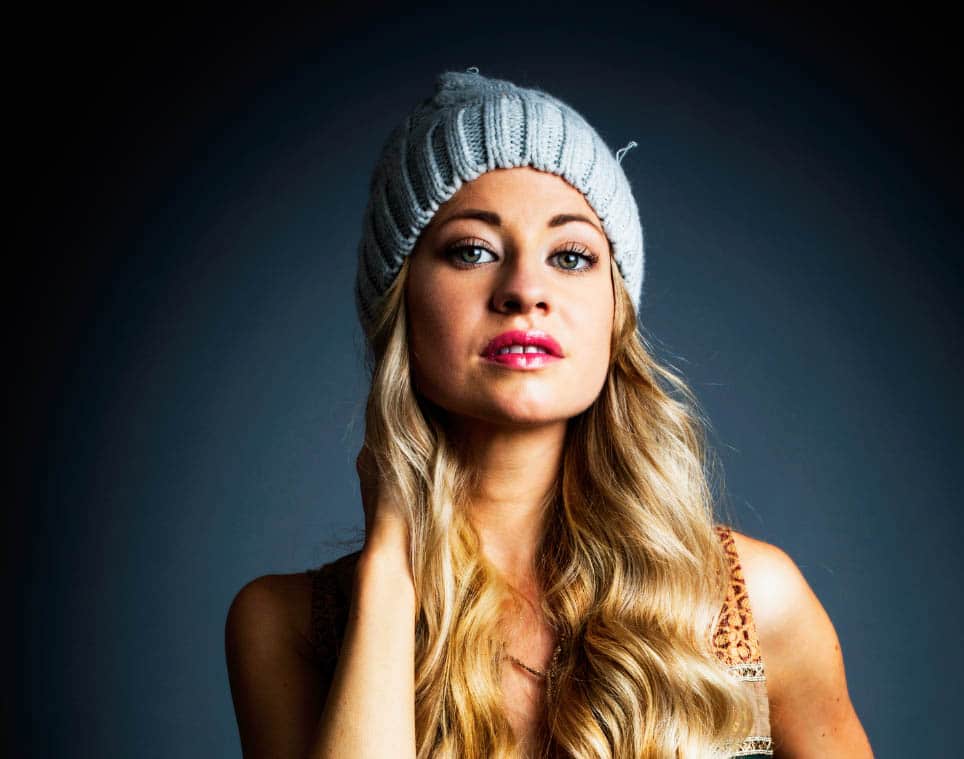
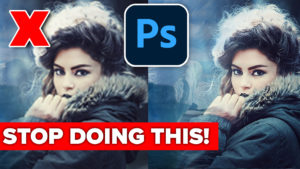
Let’s start here with a photograph that I shot last week , it’s looking pretty good but it needs a little bit of sharpening.
Now obviously, we don’t want to sharpen the whole photograph. We don’t want to sharpen her face and her skin and her hair because that doesn’t look good. But we need to sharpen the rest of the photo and then we are going to paint it away from those other areas.

Step 2 Recording an action in Photoshop
When you make actions in Photoshop, you are creating a little macro script. Fortunately, you don’t need to do any coding. Just hit record and Photoshop will memorize everything that you do. You will be able to play it back on any photo and Photoshop will automatically repeat the steps. This is an action and they are wonderful!
Get some free actions and presets here
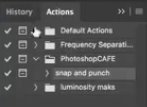
Open the Actions panel by clicking F9 or going to Window>Actions
Here’s the Actions Panel opened.
Step 3
Create a new Action by clicking on the icon at the bottom of the Actions Panel.

Name it HP Sharpen
Under Set, I selected PhotoshopCAFE (make any set you like, custom is a popular name).
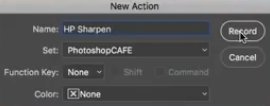
Click Record and the red recording button appears. You are now recording the action.
Lets continue with the tutorial on sharpening.
Step 4. High Pass Sharpening in Photoshop
Duplicate the Layer by selecting it and hitting CTRL+J.
Change the new Layer’s blending mode from Normal to Overlay.
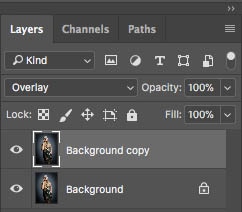
It will look a little strange right now, don’t be alarmed, it’s part of the process
Step 5
Go to Filter>Other>HighPass
Choose a radius that provides the amount of sharpening that you want. Don’t overdo it. Usually between 1-2 is usually enough.
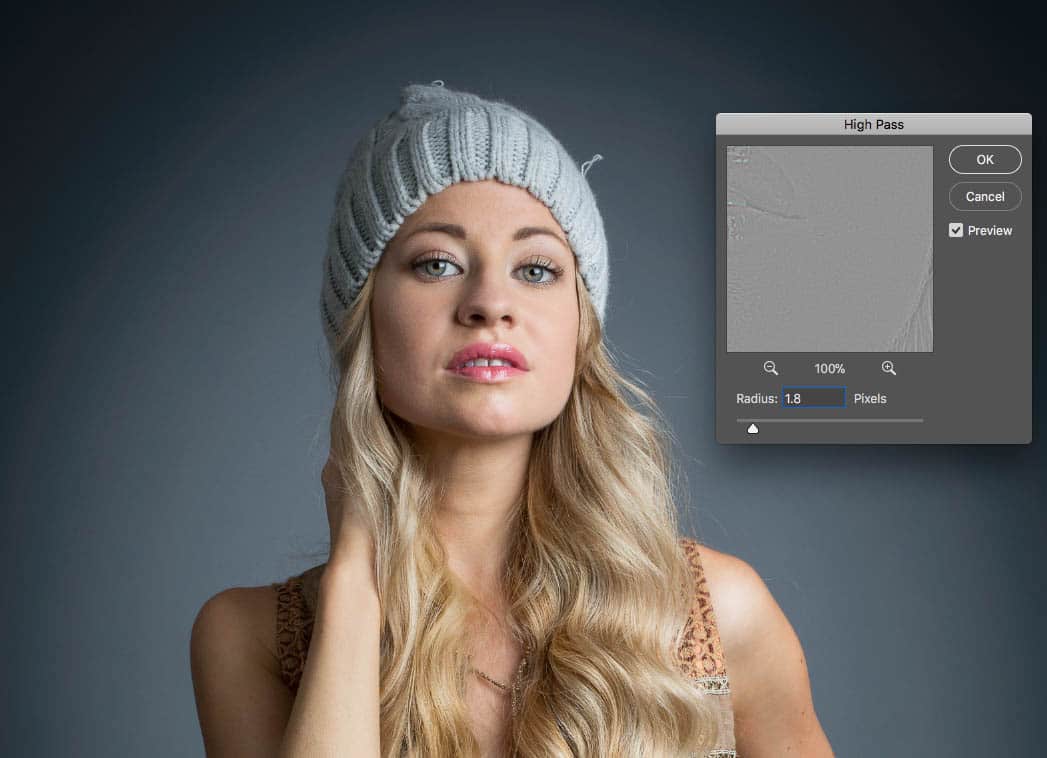
Click OK.
Step 6 Setting up the masking
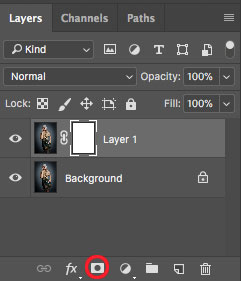
Create a layer mask by clicking the layer mask icon.
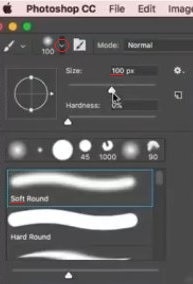
Grab a brush by hitting B.
Set the size of your brush to 100 px.
Select Soft Edge brush.
Step 7
Reset the foreground/background colors by hitting the D key.
Press the X key to set the foreground to black.
Step 8. Finishing up the action and inserting a stop
(If you aren’t recording n action, skip to step 9)
Stop the Action by clicking the little stop icon in the Actions Panel.

We have now finished recording the action. However, it’s going to apply the same amount of Sharpening to every photo. We want to be able to adjust this setting as the action is playing. Here is how to adjust a setting mid-action.
Go to your Actions panel.
Click to create the little box next to High Pass.
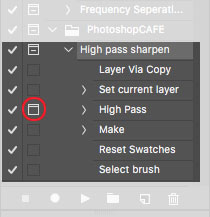
Now when it comes to the high pass settings, the action will pause and present the dialog box for you to chose a setting.
Once you have input your selection, the action will continue playing. Pretty neat aye?
This action, adds the High pass sharpening and sets everything up for us to do the masking (which we will do manually next).
Note: To use this action, just choose a photo, select the action and click play (the arrow icon) and all the steps will be repeated.
Step 9 Selective Sharpening
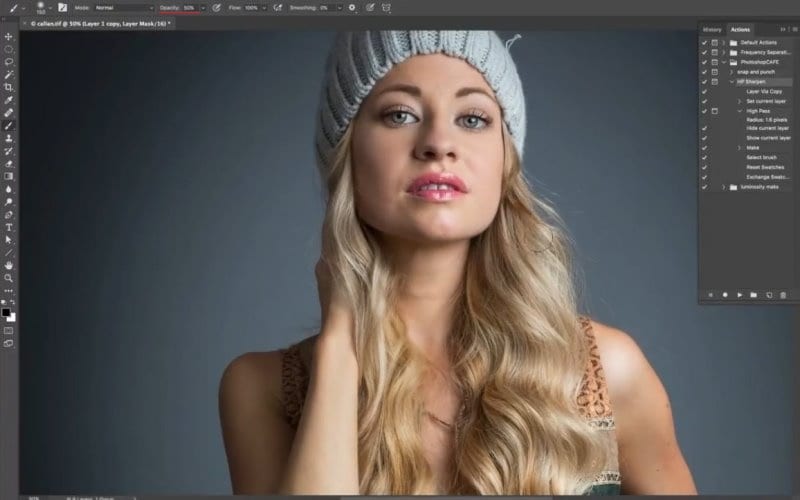
Now we are going to use masks to paint away the areas that we don’t want sharpened.
Note that we can paint with a black brush to hide the sharpening.
(Pro Tip: We can also use a gray brush to reduce the amount of sharpening and not fully remove it)
Select the layer mask
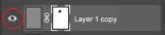
Paint with black into the areas that you want to hide the sharpening
In this case the eyes, nostrils, brows, mouth and hat are sharpening, but not the skin on her face or her hair.
We didn’t blur the skin, we just didn’t apply any extra sharpening to it. (You don’t want to go around just blurring skin, thats not the way to retouch. Try this technique for perfect skin)
Alternatively, if you prefer to start with an unsharpened photo and paint the sharpening on, Invert the mask (Ctrl/Cmd+I) and paint with white to add sharpening.

I hope you enjoyed this tutorial on how to create non-destructive, selective high pass sharpening as well as how to create an action.
Drop a comment, let’s get a discussion going. What you think about this, what’s your favorite technique in Photoshop?
Great to see you here at the CAFE
Colin

Keep growing with Premium Courses
Photoshop 2026 for Digital Photographers
Learn Photoshop properly, from the basics to pro retouching, step by step.
$129.00 · one-time purchase · instant download

Free for you
The Photoshop Vault
Get my free Layer Blending Modes ebook along with dozens of exclusive Photoshop goodies: actions, brushes, presets and cheat sheets.
You're on the list, so your free goodies are waiting for you in the Vault.
Get Free Photoshop Goodies Open the Vault
Advanced Photoshop landscape editing workflow
In this Photoshop tutorial, Colin Smith shows the entire process of editing landscape photos, start to finish. This tutorial joins all the... Read tutorial
Best photo sharpening tricks in Photoshop, STOP ruining your photos.
The best way to sharpen photos in Photoshop without damaging them. These sharpening tricks will transform your images for the better. Read tutorial
Camera Raw Presets. How to Create and use Presets in ACR
Photoshop Camera Raw is a powerful photo editor. Presets can easily change your photographs with a single click. This free tutorial shows... Read tutorial
How to Sharpen a photo in Photoshop
How to sharpen photo in Photoshop. This free Photoshop tutorial shows 2 ways to sharpen photos. Easy way to sharpen for beginners... Read tutorial
Avoid the 3 worst photo editing mistakes in Photoshop
Stop ruining your photos in Photoshop because it will make you look like a noob. Here are 3 things to stop doing... Read tutorial











Hi Colin thank you keep up the good work.
One of the best. You are great!
Thanks buddy Love it
very good but it’s always too fast to get, watching just once … if I can make it work it will change a lot of the work I do. A very exciting idea.
Written steps are coming soon!
Thanks for the high pass action. I love your work. Any chance of doing a tutorial on enhancing old black and white photos?
Great action! I found that if there is too much noise with the overlay blending mode, using soft light helps. It reduces the sharpening slightly.
how do I get all your lessons? Is there a yearly subscription?
All the tutorials here are free. For the premium ones, we sell them individually as downloads you own forever.
It all depends on how bad the photo is.
I visited the Facebook page for PhotoshopCAFE and don’t know where to leave a comment to win the Wacom Tablet. But then retired submarine sailors usually don’t win as we won whenever we returned from sea. Excellent video about the 5 hacks for the tablet. Thanks for the info. All the best, Lyndon Rich
Thanks for your service!
Sadly, the contest has already ended, but there will be more in the future!
Great tutorial, thanks.
Wonderful as always
Great information on the High Pass filter and the masking of it. Good stuff as always Colin.
Hi Colin.
Thanks for the High Pass Sharpening tutorial. Took me a couple of views to get my head around it, but now I’ve got it, what a boon this is going to be to editing. I’m sure resulting in much improved images.
Thanks again for a super tip. Keep up the great work.
Works great for me! Thanks!
Bill
Great video – two in one lesson.
That’s such a nice way to do it. I normally love to take the frequency separation than duplicate the layer, add a layer mask with black, paint some of the portions to make them natural, finally reduce the opacity to about 12/14%
Hi Colin do you have a windows version of your HP sharpening action I appreciate all your training help and find them very useful thank you
I believe actions are cross platform
Thanks regarding masking for high pass. Excellent idea! Also, it is possible to fine-tune the sharpening by changing the opacity of the high pass layer.
yes
🤗👏👏👏🏆🤗
Great, thank you! I always struggle with the order, normally I would want to CTRL J the background layer for further retouching (skin, liquify, etc). Is this still possible after sharpening using this method? How do I get a ‘new’ background layer to proceed? Thank you!