
How to Generate 3D with Generative ai in Adobe’s free Substance viewer
How to Generate 3D in Adobe Substance Viewer
This tutorial is looking at Adobe’s newest app, Substance 3D viewer. This app can integrate with Photoshop (I’m working on that tutorial next). Substance viewer can be used to apply textures and enviroments to 3D model and position them for placement into photoshop. Substance viewer also has the ability to generate actual 3D models from text prompts. This actually came out of one the sneaks at Adobe Max in 2023. This is a Quick Look, watch the video for more in-depth feature walk through.
Substance viewer is currently in beta and available for free.
How to Gert Substance 3D viewer
go to the Creative Cloud ap.
Click on beta.
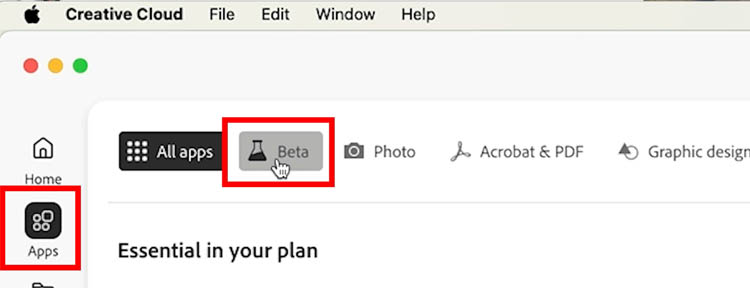
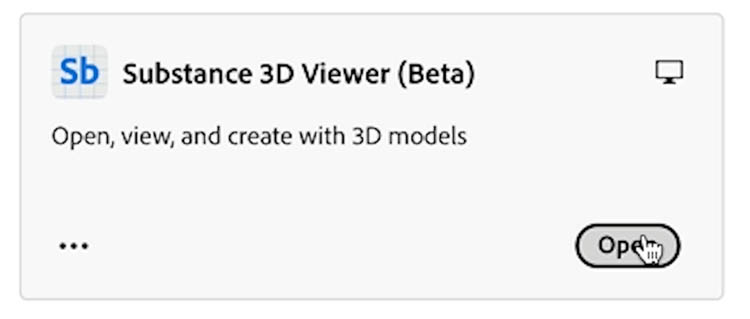
You will see Substance 3D viewer.
Download it to your Mac or PC.
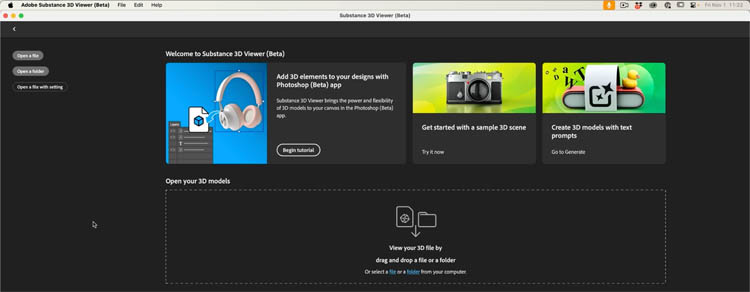
Once you launch Substance 3D viewer, you’ll see a welcome screen.
Ill go over all the features in another tutorial, let’s look at the Generative ai capabilities in this tut.
Click in the top right thumbnail that says: Create 3D model with text prompts.
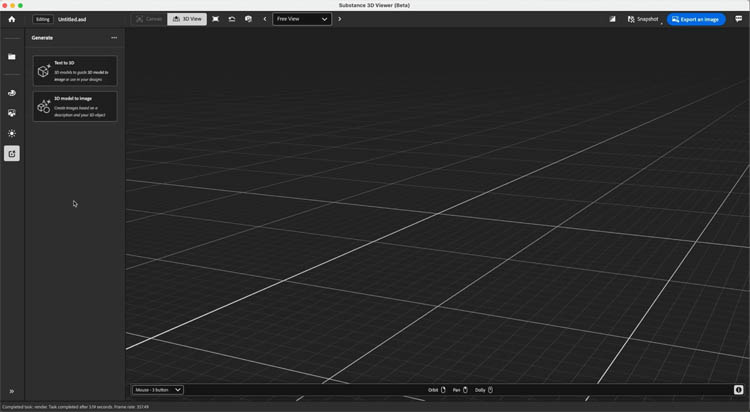
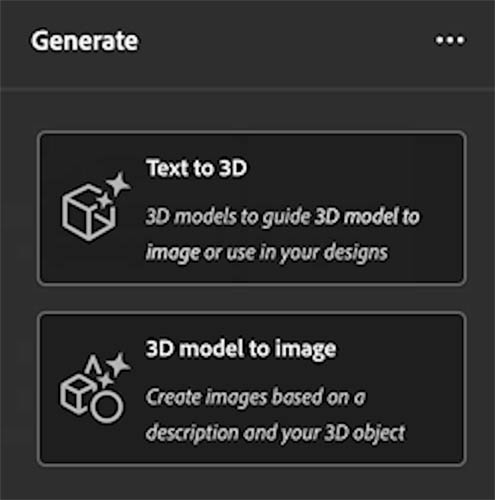
You’ll see 2 options on the left. Choose text to 3D
Type in rotary telephone and generate.
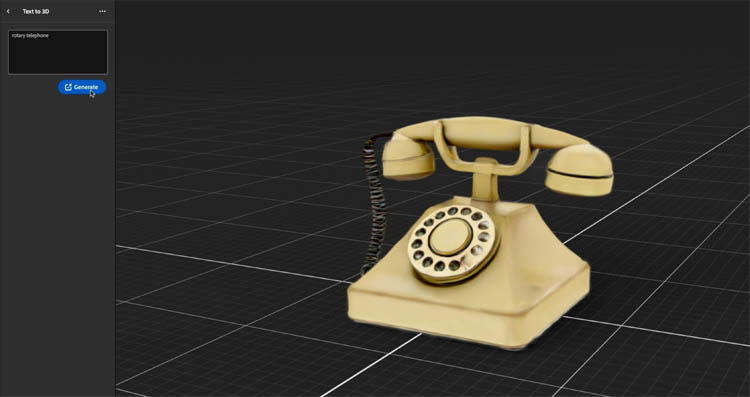
This is an actual 3D model that can be tumbled and scaled.
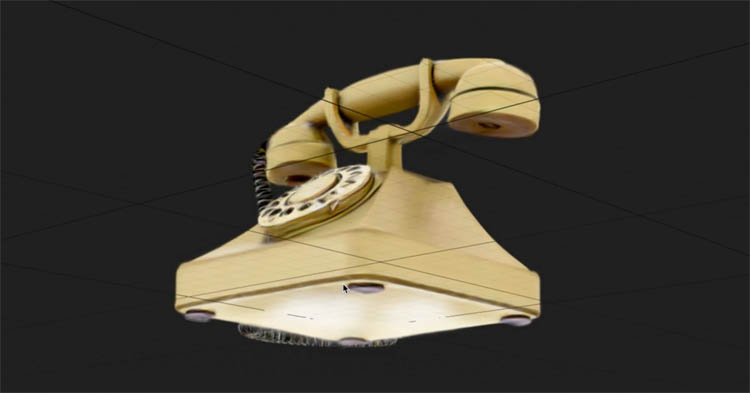
It may not look like an amazing 3D model, but it serves a very important purpose for Generative ai.
Up until now, you have been able to generate with text prompts and reference images. You can sort of get what you want, but you are limited by existing photos.
With 3D, you now have the ability of get exactly the angles you want, by positioning the 3D model. I really think, this will become a very important part of generative ai in the future.
We can now. choose 3D model to image. Add your desired prompts and let the 3D model guide the main object.
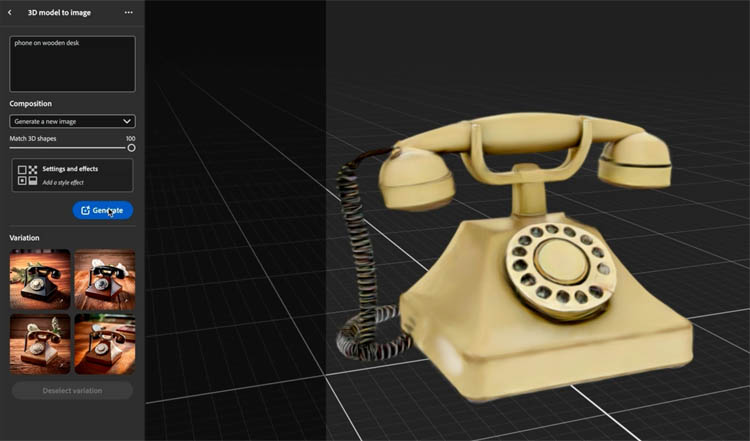
phone on wooden desk. This phone, looks very similar to the 3D model, but this is now a rendered image.
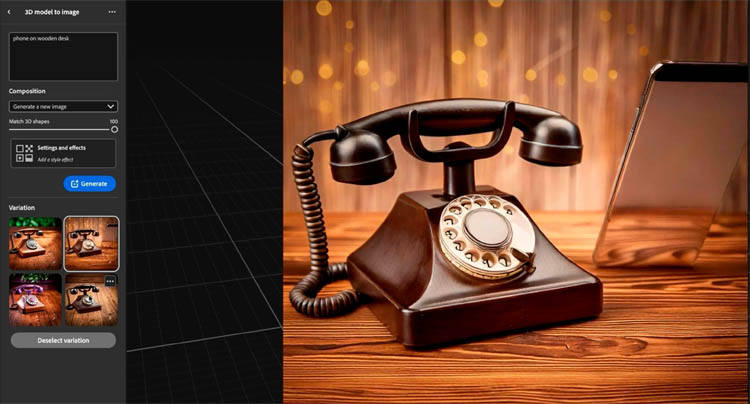
Change the prompt to say plastic phone.
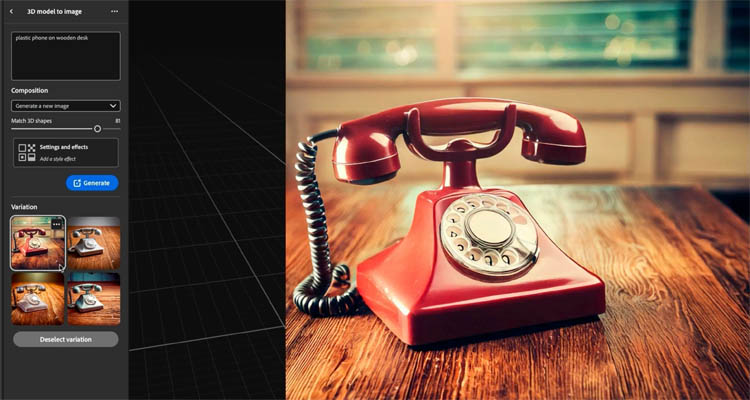
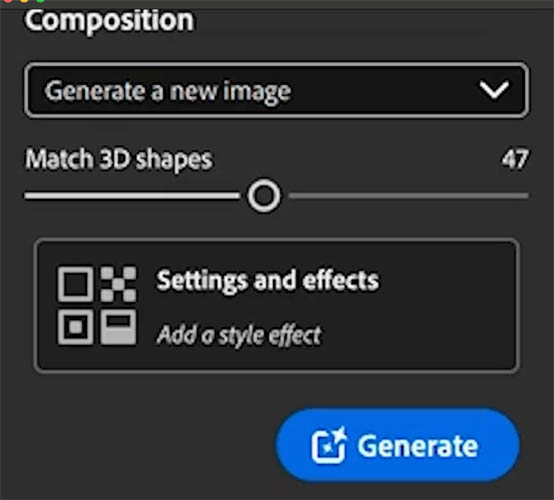
You can adjust the sensitivity to determine how closely you want to match the 3D object.
You can also bring in your own 3D models.
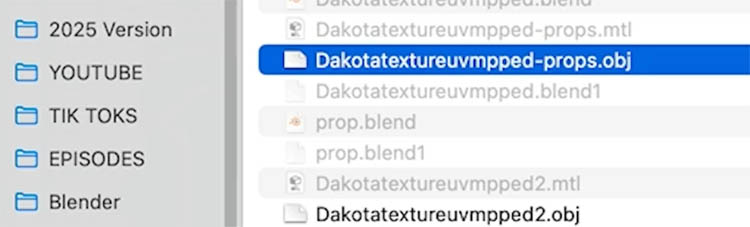
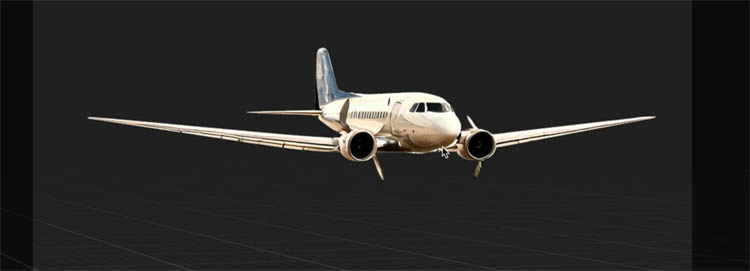
Here is a model of a DC3 that I created in Blender and exported as an .obj.
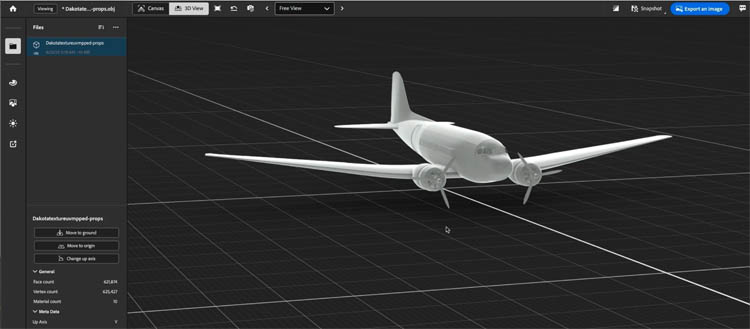
If you want, you can also apply a texture to your model using the materials. I’ll do another tut on that.
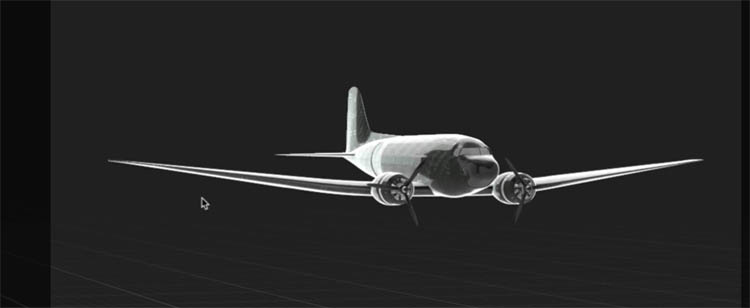
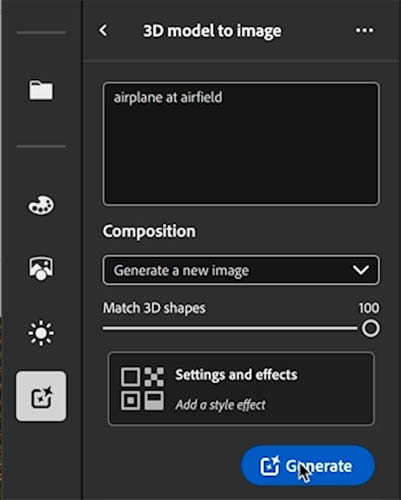
Now, I can enter a text prompt and use the 3D model that I built by hand.
Airplane at airfield.
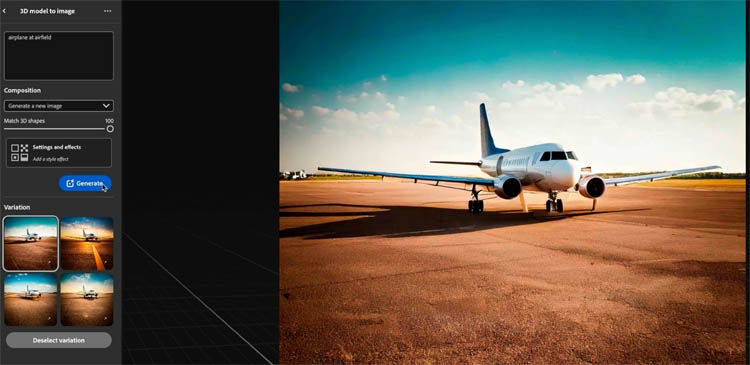
And an image is generated to match the 3D model. Yes, its still got a ways to go, because it wanted to turn this into a jetted its far from perfect, but I like the direction it’s heading.
There are different ways we can generate too. If we choose Generate a new Look for my Model, it will make a texture for the model
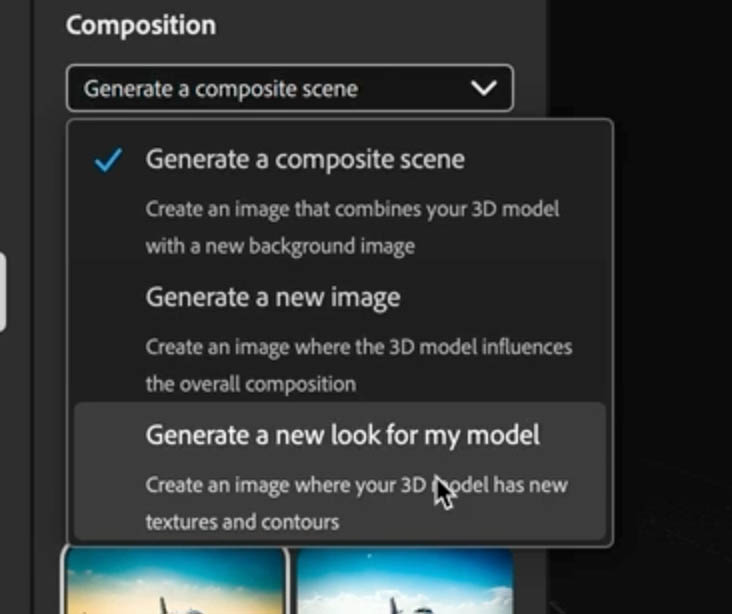
You can see it here. It’s still trying to make a jet engine, but it’s impressive that it was able to texture this well. If you have ever made UV textures for 3D models, you know how hard it is.
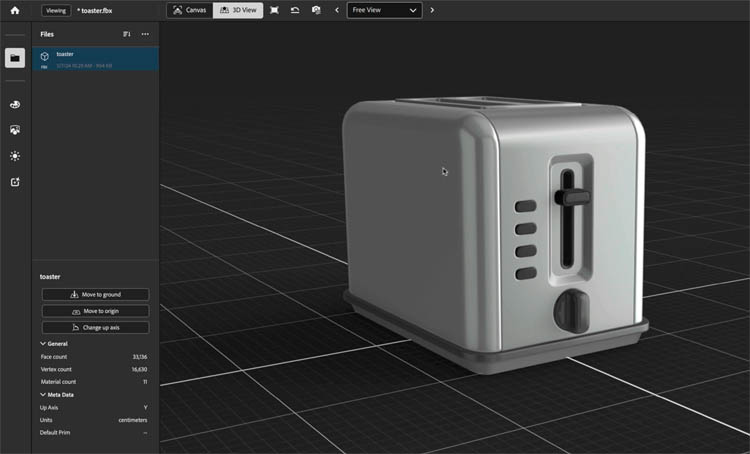
Let’s use a more simple model provided by Adobe.
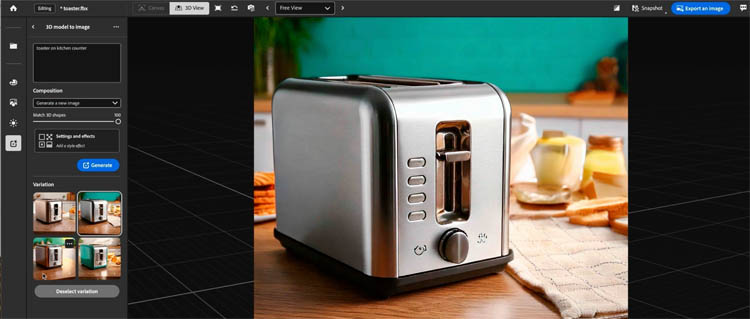
Lets use this toaster.
We can generate an isolated subject with texture. This can be useful for compositing. I’ll show you how to bring this back into Photoshop in the next tutorials in this series.
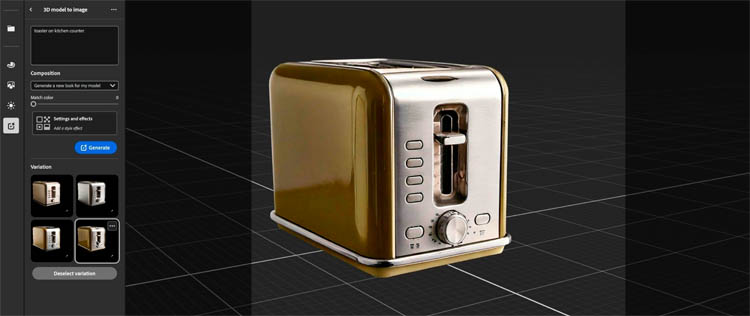
We can add a prompt and generate a realistic image of breakfast in the kitchen from this 3D model.
I hope you found this intro to Substance Viewer interesting and useful.
Let me know, if you want to see more tut on this. (Im planning on doing one on Substance Viewer and Photoshop integration.)
Thanks
Colin
Recommended for this tutorial
Complete Guide to ai in Photoshop 2026
Generative Fill, Firefly, Harmonize and every AI tool in Photoshop, step by step.
$79.00 · one-time purchase · instant download

Free for you
The Photoshop Vault
Get my free Layer Blending Modes ebook along with dozens of exclusive Photoshop goodies: actions, brushes, presets and cheat sheets.
You're on the list, so your free goodies are waiting for you in the Vault.
Get Free Photoshop Goodies Open the Vault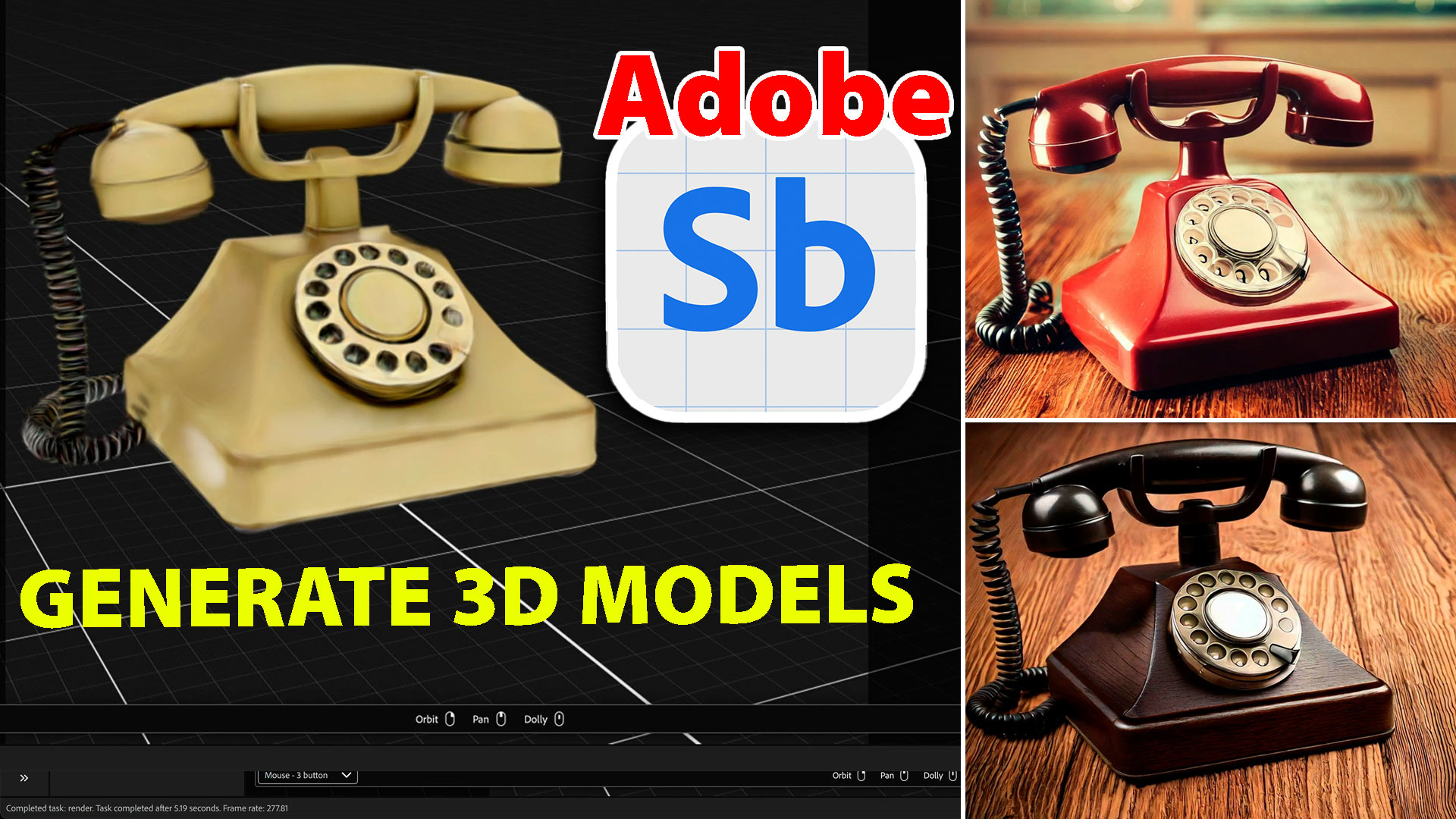
Big ambitious NEW features in Photoshop 2025 July 29 update
How to use the NEW features in Photoshop 2025 July 29 update, free written tutorial and short video tutorial by Colin Read tutorial
Generative Fill vs Remove tool ai in Photoshop, when to use each tool
New ai Remove tool vs Generative Fill in Photoshop, which should you use? Read tutorial
Testing ai Remove power lines in Photoshop, how good is it?
Testing the auto remove power lines in Photoshop. Testing with difficult images Read tutorial
Will artists be replaced by AI Art? Mid Journey and Chat GPT. What I think
How to use Midjourney and will ai replace artists? Read tutorial
How to Stop Nano Banana Stretching Selections in Photoshop
Stop Nano Banana stretching selections in Photoshop with this Smart Object trick that also produces sharper, higher-quality AI results. Read tutorial












Hi Collin, I’ve just followed your tutorial on Substance 3D viewer and the requests I’m making aren’t generating any images.
I do have Photoshop Beta up to date.
Can you help me?
Thanks a lot